
Overview
This guide walks you through how to find your Location ID and create an API token in Hapana. These are often needed when working with a marketing company so they can connect to your account and send leads or data into your system.
We’ll also show you how to safely set permissions so you only give access to what’s needed.
🎥 Watch the walkthrough:
Or preview it below:
Important disclaimer: Location IDs and API Token IDs must be handled carefully. If these credentials are compromised, they could allow unauthorized access to the client’s GROW subaccount.
Prerequisites
-
You have access to your Hapana account
-
You can access Settings
-
You know what your marketing provider needs (e.g. contacts, tags)
Find Your Location ID
-
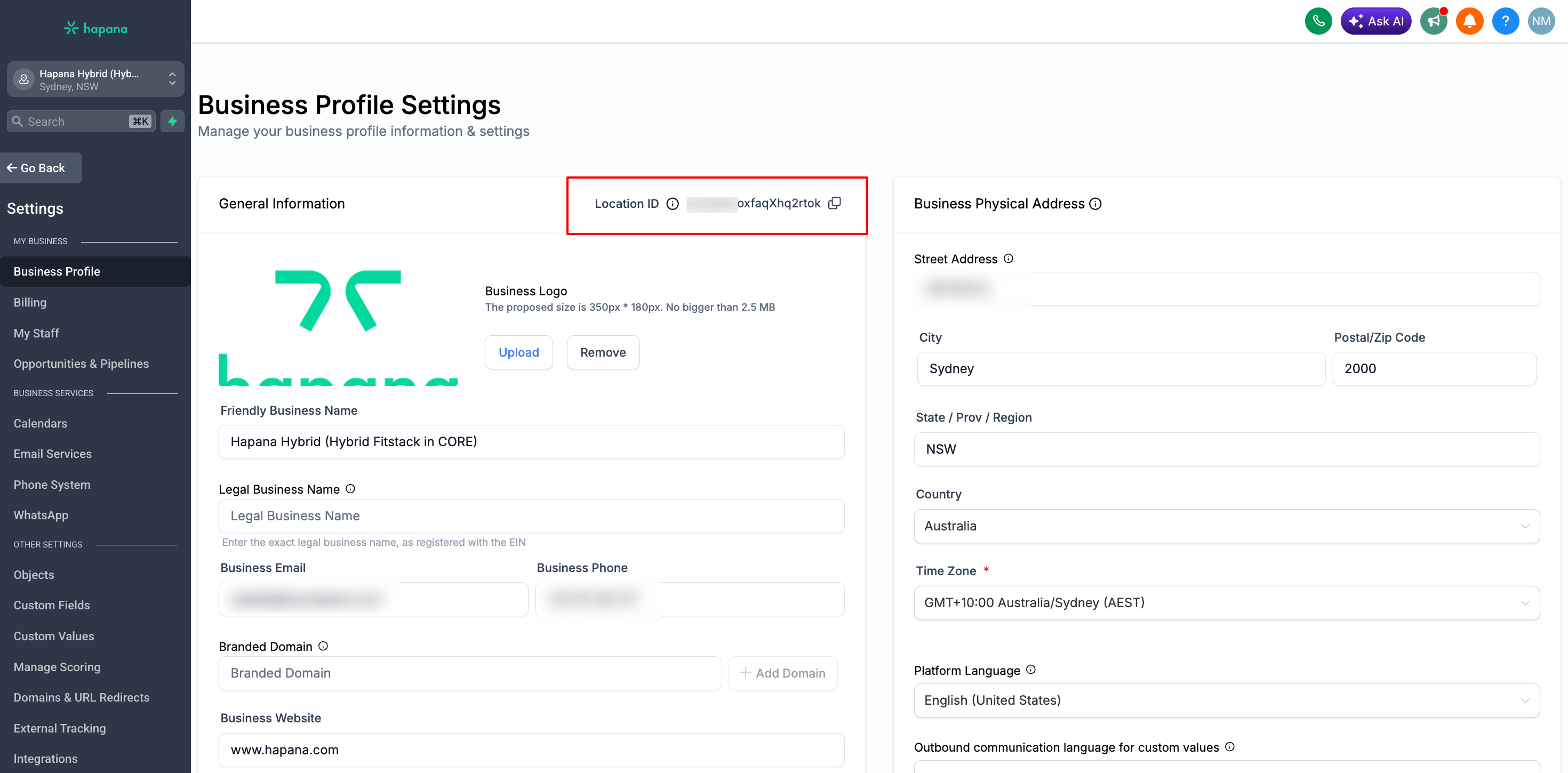
Go to Settings
-
Make sure you're on the Business Profile tab
-
Locate your Location ID inside the General Information box
-
Click the Copy button next to it
-
Share this ID with your marketing provider
Tip: Each sub-account has its own Location ID. Double-check you're in the correct account before copying.
Create a New API Token
-
In Settings, navigate to Private Integrations
-
Click Create Integration
-
Enter a name in the Name field (e.g. Marketing API Token)
-
(Optional) Add a description in the Description field
-
Click Next
Select Access Permissions (Scopes)
-
Choose the permissions (also called scopes) for the integration
-
Avoid selecting All unless absolutely necessary
-
For most marketing use cases, select:
-
View and Edit Contacts
-
View and Edit Tags (if they need to apply tags)
-
-
Click Create
Tip: Only grant the permissions your provider needs. This keeps your account secure.
Copy and Share Your API Token
-
After clicking Create, your API token will appear
-
Click Copy to save the token immediately
-
Store it securely or send it to your marketing provider
Tip: You won’t be able to see this token again later. If you lose it, you’ll need to create a new one.
⚠️ Important: Treat your API token like a password. Anyone with this token and your Location ID can access your account.
Expected Outcome
You’ve successfully:
-
Located and shared your Location ID
-
Created a secure API token
-
Set appropriate permissions for your marketing integration
Your marketing provider can now safely connect to your Hapana account.
FAQ
Q: Do I need to select “All” permissions?
A: No. It’s safer to only select the permissions your provider needs, like contacts and tags.
Q: What happens if I forget to copy the API token?
A: You won’t be able to view it again. You’ll need to delete or rotate the token and create a new one.
Q: Can I have multiple API tokens?
A: Yes. You can create multiple integrations for different providers or use cases.
Need help? Reach out to our support team via support@hapana.com