---
title: Configure Hapana MAC Doors in Core
description: How to configure Hapana MAC (Member Access Control) doors
---
[Skip to content](https://support.hapana.com/configure-hapana-mac-doors-in-core-v1#main-content)
English
Show submenu for translations
[](https://info.hapana.com/en?hsLang=en)
Open main navigation
Close main navigation
- English
Show submenu for translations
- [Submit Ticket](https://21gxv.share.hsforms.com/2-8HozJXMSTW8kaFHC32eaw)
[Submit Ticket](https://21gxv.share.hsforms.com/2-8HozJXMSTW8kaFHC32eaw)
Hapana Help | Find answers here
- There are no suggestions because the search field is empty.
1. [Hapana Knowledge Base](https://support.hapana.com/?hsLang=en)
2. [Member Management](https://support.hapana.com/member-management?hsLang=en)
3. [Hapana Member Access Control (MAC) Doors](https://support.hapana.com/member-management?hsLang=en#hapana-member-access-control-mac-doors)
# Configure Hapana MAC Doors in Core
### **Configure Hapana MAC Doors in Core**
#### Overview
This guide walks you through how to configure **Hapana MAC (Member Access Control) doors** in Core V1.
Setting up MAC doors allows members to securely access your facility using Hapana’s access control hardware. The process involves:
- Creating an access group
- Provisioning the physical door device
- Linking the device to a door inside Core
- Generate a QR Code for Door Access Control
---
#### **Prequerquisites**
Before starting, make sure you have:
- Physical access to the **Hapana MAC door hardware**
- Administrator access to **Core**
- Your Hapana API credentials configured (completed by your admin or Hapana team)
- The device powered on and connected to the internet
Tip: Provision codes expire quickly (usually within 5–10 minutes), so complete the steps promptly once generated.
---
### **Step 1: Open the Hapana Access Management Interface**
1. Log in to **Core**.
2. Click your **User Profile** in the top right corner.
3. Select **Account Settings**.
4. Click the **Integrations** tab.
5. Scroll down to **Hapana Access**.
6. Click **Manage**.
This opens the Hapana Access Management modal where you will configure groups and access points.

---
### **Step 2: Create an Access Group**
Access groups define which members can access which doors. Typically, you’ll create one group per site or per door.
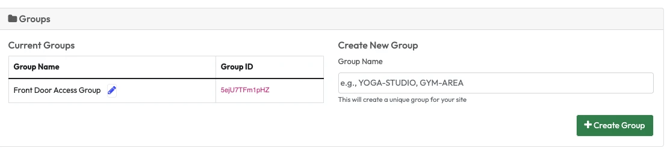
1. In the Hapana Access modal, locate the **Groups** section.
2. In the **Create New Group** field, enter a descriptive group name (e.g. SITE1-MAIN-ENTRANCE or FRONT-DOOR-ACCESS).
3. Click **Create Group**.
4. Click **Manage** again to refresh the view.
5. Note the newly created **Group ID** - you will need this later.
#### **Best Practices for Naming Groups**
- Use descriptive names.
- Use hyphens instead of spaces.
- Include your site identifier if managing multiple locations.
Example: GYM-FLOOR-ACCESS
---
### **Step 3: Provision the Physical Access Point**
Each physical MAC device must be provisioned before use. This links the hardware to your account.
#### **On the Physical Device:**
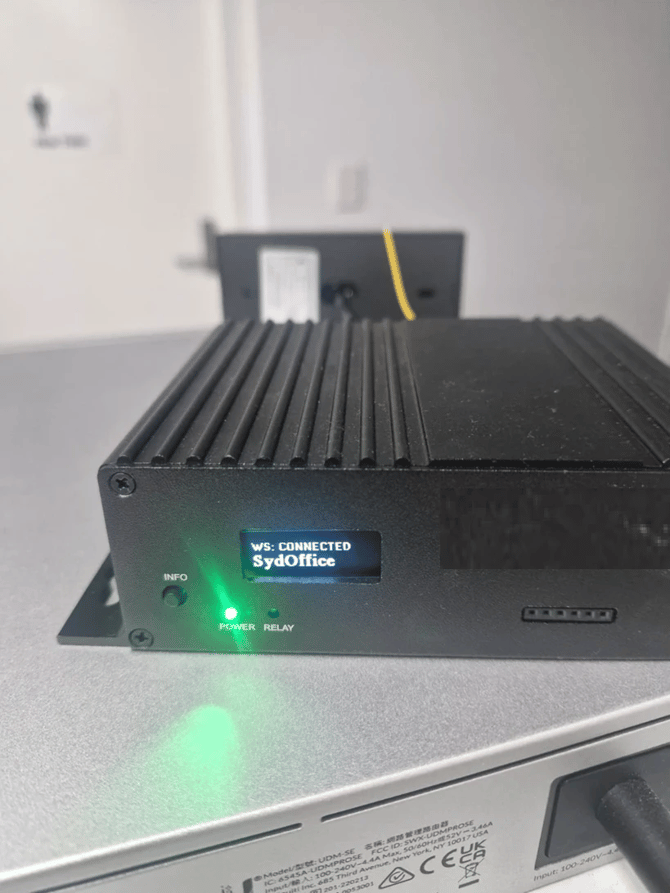
1. Locate the Hapana MAC access control unit.
2. Press the information icon (if applicable).
3. Find the **Provision Code** displayed on the device.
- This is usually 6–8 characters.
- It may begin with a dash.
- The code is temporary.
Important: Do **not** include the dash when entering the code into Core.
---
#### **In Hapana Core:**
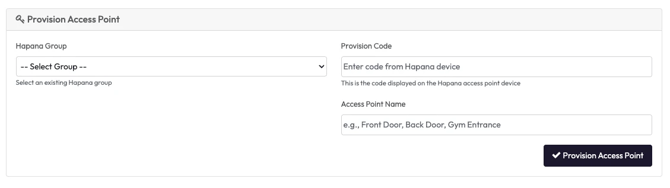
1. In the Hapana Access modal, go to the **Provision Access Point** section.
2. Select your newly created group from the **Hapana Group** dropdown.
3. Enter the **Provision Code** (without the dash).
4. Enter a name for the access point (e.g. “Front Door Device”).
5. Click **Provision Access Point**.
If successful, the modal will close and display:
- **Access Point ID**
Make sure you record both:
- Group ID
- Access Point ID
You’ll need these when linking the device to a door.
---
### **Step 4: Configure Your Door for Access Control**
Now that your Hapana MAC device has been provisioned, you need to add and configure the door inside Core.
This step links your physical hardware to the Hapana system so members can access the door.
---
#### **Add the Door in Core**
1. Go to **Account Settings**.
2. Select **Integrations**.
3. Scroll down to **Access Controls**.
4. Click **Add Door**.
This will open the door configuration modal.
---
#### **Complete the Door Configuration Fields**
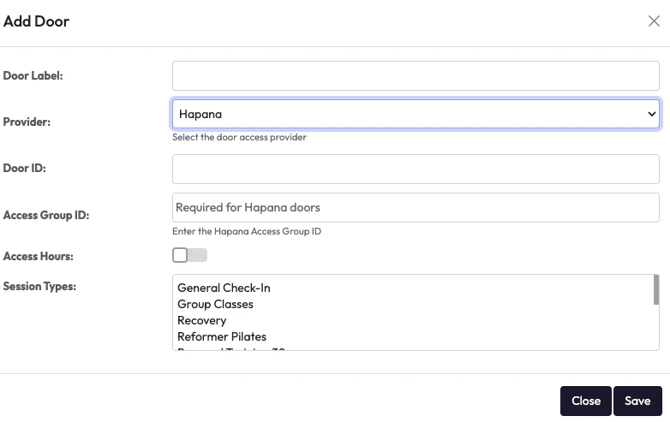
Fill in the required fields as follows:
#### **Basic Information**
1. In **Provider**, select **Hapana**.
2. In **Door Name**, enter a clear label (e.g. *Front Door*, *Main Entrance*, *Studio A*).
3. In **Access Group ID**, enter the **Group ID** created earlier (Step 2).
#### **Technical Configuration**
1. In **Door ID**, enter the **Access Point ID** you received when provisioning the device (Step 3).
2. (Optional) Enter **WiFi Name** and **WiFi Password** for internal reference.
Important: The **Door ID must exactly match** the Access Point ID from provisioning.
1. Select the relevant **Session Types** for this door.
- Example: For a main entrance, select **General Check-In**.
2. Click **Save**.
---
#### **After the Door is Added**
Once saved, the door will appear in your Access Controls list.
From here, you can:
- Click **Update** to edit credentials or session types.
- Click **Delete** to remove the door.
- Click **Open Door** to remotely unlock the door for testing or staff entry.
**Tip: Use the Open Door button to confirm the device is correctly connected before going live.**
---
#### **Important Notes**
- The **Provider** cannot be changed after the door is created.
- Each door must use the correct **Group ID** and **Access Point ID**.
- The **Access Group ID** links this door to the correct member access list.
If incorrect credentials are entered, use **Update** to fix them rather than deleting and recreating the door.
---
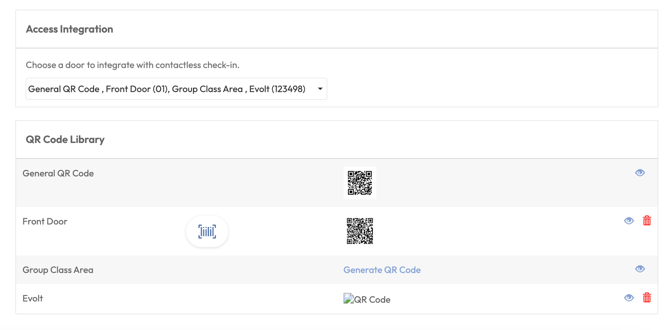
### **Step 5: Generate a QR Code for Door Access Control**
You can generate a unique QR code for each MAC door to enable contactless access. This QR code can be displayed at the entrance for members to scan.
---
#### **Generate the QR Code**
1. Click your **User Profile** in the top right corner.
2. Select **Edit Profile**.
3. Click on **Contactless Check-In**.
4. Within Access Integration, open the door **dropdown menu**.
5. Select the newly created door.
6. Click **Generate QR Code**.
7. Confirm when prompted.
A unique QR code will now be created specifically for that door.
---
#### **Download the QR Code**
1. Click the **View** icon next to the generated QR code.
2. Click **Download**.
3. Save the QR code image file.
This is the QR code that should be displayed at the door for members to scan.
---
#### **Important Notes**
- Each QR code is unique to the selected door.
- If you create multiple doors, you must generate a QR code for each one.
- If a door is deleted and recreated, a new QR code should be generated.
Tip: Print the QR code clearly and place it near the door scanner at eye level for best usability.
---
Once generated and displayed, members can use contactless check-in to unlock the door based on their valid access permissions.
This completes the MAC door configuration process. Once saved, eligible members will be able to access the door based on their membership and session type permissions.
- [Member Management](https://support.hapana.com/member-management?hsLang=en#main-content)
- [Account Settings](https://support.hapana.com/member-management?hsLang=en#account-settings)
- [Client Accounts](https://support.hapana.com/member-management?hsLang=en#client-accounts)
- [Edit Profile](https://support.hapana.com/member-management?hsLang=en#edit-profile)
- [Retail Configurations](https://support.hapana.com/member-management?hsLang=en#retail-configurations)
- [Other](https://support.hapana.com/member-management?hsLang=en#other)
- [Schedule](https://support.hapana.com/member-management?hsLang=en#schedule)
- [Client Page](https://support.hapana.com/member-management?hsLang=en#client-page)
- [General](https://support.hapana.com/member-management?hsLang=en#general)
- [Reporting](https://support.hapana.com/member-management?hsLang=en#reporting)
- [Retail Dashboard](https://support.hapana.com/member-management?hsLang=en#retail-dashboard)
- [Team Settings](https://support.hapana.com/member-management?hsLang=en#team-settings)
- [Hapana Member Access Control (MAC) Doors](https://support.hapana.com/member-management?hsLang=en#hapana-member-access-control-mac-doors)
- [Cash Drawer](https://support.hapana.com/member-management?hsLang=en#cash-drawer)
- [Marketing Solutions](https://support.hapana.com/marketing-solutions?hsLang=en#main-content)
- [App](https://support.hapana.com/marketing-solutions?hsLang=en#app)
- [Contacts](https://support.hapana.com/marketing-solutions?hsLang=en#contacts)
- [Marketing](https://support.hapana.com/marketing-solutions?hsLang=en#marketing)
- [Conversations](https://support.hapana.com/marketing-solutions?hsLang=en#conversations)
- [Settings](https://support.hapana.com/marketing-solutions?hsLang=en#settings)
- [Automations](https://support.hapana.com/marketing-solutions?hsLang=en#automations)
- [Branded Solutions](https://support.hapana.com/branded-solutions?hsLang=en#main-content)
- [Branded App](https://support.hapana.com/branded-solutions?hsLang=en#branded-app)
- [Branded Kiosk](https://support.hapana.com/branded-solutions?hsLang=en#branded-kiosk)
- [Hapana Hub](https://support.hapana.com/hapana-hub?hsLang=en)
- [Website Embed Widgets](https://support.hapana.com/website-embed-widgets?hsLang=en)
- [About us](https://hapana.com/about-us/)
- [Careers](https://hapana.com/careers/)
- [Contact us](https://hapana.com/contact-us/)
- [Privacy policy](https://hapana.com/privacy-policy/)
- [Terms & conditions](https://hapana.com/terms-and-conditions/)
[](http://hapana.com?hsLang=en)
Copyright © 2025, Hapana
```json
{
"@context" : "https://schema.org",
"@type" : "VideoObject",
"caption" : {
"@type" : "MediaObject",
"contentUrl" : "https://support.hapana.com/media-transcripts/216042709667/en.vtt",
"inLanguage" : "en",
"name" : "en Captions"
},
"contentUrl" : "https://3427843.fs1.hubspotusercontent-na1.net/hubfs/3427843/video_assets/216042709667/inherited/web_optimized.mp4",
"dateModified" : "2026-06-29T05:59:23.474Z",
"duration" : "PT1M51S",
"height" : 1080,
"name" : "Connecting Core to the Hapana Access Contol Unit",
"thumbnailUrl" : "https://3427843.fs1.hubspotusercontent-na1.net/hubfs/3427843/Connecting%20Core%20to%20the%20Hapana%20Access%20Contol%20Unit.mp4/medium.jpg",
"uploadDate" : "2026-06-29T05:59:05.131Z",
"width" : 1920
}
```
```json
{
"@context" : "https://schema.org",
"@type" : "VideoObject",
"caption" : {
"@type" : "MediaObject",
"contentUrl" : "https://support.hapana.com/media-transcripts/216042735196/en.vtt",
"inLanguage" : "en",
"name" : "en Captions"
},
"contentUrl" : "https://3427843.fs1.hubspotusercontent-na1.net/hubfs/3427843/video_assets/216042735196/inherited/web_optimized.mp4",
"dateModified" : "2026-06-29T06:00:07.579Z",
"duration" : "PT1M",
"height" : 1080,
"name" : "Connecting Your Door for Access Control 🚪",
"thumbnailUrl" : "https://3427843.fs1.hubspotusercontent-na1.net/hubfs/3427843/Connecting%20Your%20Door%20for%20Access%20Control%20%F0%9F%9A%AA.mp4/medium.jpg",
"uploadDate" : "2026-06-29T05:59:53.532Z",
"width" : 1920
}
```
```json
{
"@context" : "https://schema.org",
"@type" : "VideoObject",
"caption" : {
"@type" : "MediaObject",
"contentUrl" : "https://support.hapana.com/media-transcripts/216042713426/en.vtt",
"inLanguage" : "en",
"name" : "en Captions"
},
"contentUrl" : "https://3427843.fs1.hubspotusercontent-na1.net/hubfs/3427843/video_assets/216042713426/inherited/web_optimized.mp4",
"dateModified" : "2026-06-29T06:00:53.416Z",
"duration" : "PT45.928S",
"height" : 1080,
"name" : "How to Generate a QR Code for Door Access Control 🚪",
"thumbnailUrl" : "https://3427843.fs1.hubspotusercontent-na1.net/hubfs/3427843/How%20to%20Generate%20a%20QR%20Code%20for%20Door%20Access%20Control%20%F0%9F%9A%AA.mp4/medium.jpg",
"uploadDate" : "2026-06-29T06:00:41.477Z",
"width" : 1920
}
```