
---
title: Creating Your Own Deeplinks in Hapana
description: How to create your own Hapana deeplinks
---

[Skip to content](https://support.hapana.com/creating-your-own-deeplinks-v1#main-content)

English

Show submenu for translations

[![email-logo.png](https://support.hapana.com/hs-fs/hubfs/hapana_2022/email_2022/footer%20logo.png?width=300&height=78&name=footer%20logo.png)](https://info.hapana.com/en?hsLang=en)

Open main navigation

Close main navigation

- English
  
  Show submenu for translations
- [Submit Ticket](https://21gxv.share.hsforms.com/2-8HozJXMSTW8kaFHC32eaw)

[Submit Ticket](https://21gxv.share.hsforms.com/2-8HozJXMSTW8kaFHC32eaw)

 Hapana Help | Find answers here

- There are no suggestions because the search field is empty.

1. [Hapana Knowledge Base](https://support.hapana.com/?hsLang=en)
2. [Branded Solutions](https://support.hapana.com/branded-solutions?hsLang=en)
3. [Branded App](https://support.hapana.com/branded-solutions?hsLang=en#branded-app)

# Creating Your Own Deeplinks in Hapana

#### **Overview**

A deep link is a special link that takes someone straight to a specific spot in your Hapana app, like a class booking page or a membership sign-up. You can pop these links into emails, social posts, QR codes or your website, so people land exactly where you want them.

This article shows you how to request access to the Deep Link Generator and build your first link.

#### **Prerequisites**

Before you start, make sure you have:

- A Hapana account for your business
- A work email address you can access (this is where your login link will be sent)

---

### **Steps**

#### **1. Request access to the Deep Link Generator**

The Deep Link Generator isn't switched on by default, so you'll need to ask our team for access.

1. Contact the Hapana Support team via [support@hapana.com](mailto:support@hapana.com) or your CSR/CSM via [success@hapana.com](mailto:success@hapana.com) and let them know you'd like access to the **Deep Link Generator**.
2. Include the email address you'd like to use to log in.


#### **2. Open the email and click your magic link**

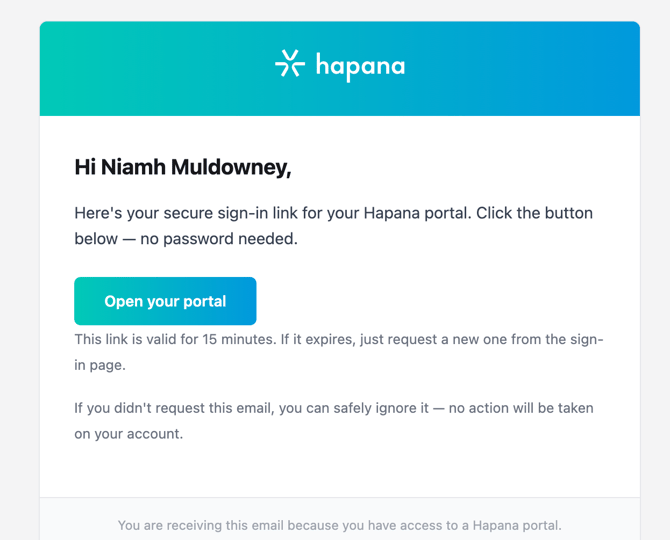
Once your access is set up, you'll receive an email from Hapana.

1. Open the email and click the **magic link** inside.
2. This opens the portal at **portal.hapana.io** and signs you in. There's no password to remember.

> Tip: If you can't find the email, check your spam or junk folder.
#### ![](https://support.hapana.com/hs-fs/hubfs/image-png-Oct-14-2026-10-51-17-5939-PM.png?width=670&height=541&name=image-png-Oct-14-2026-10-51-17-5939-PM.png)

#### **3. Start a new deep link**

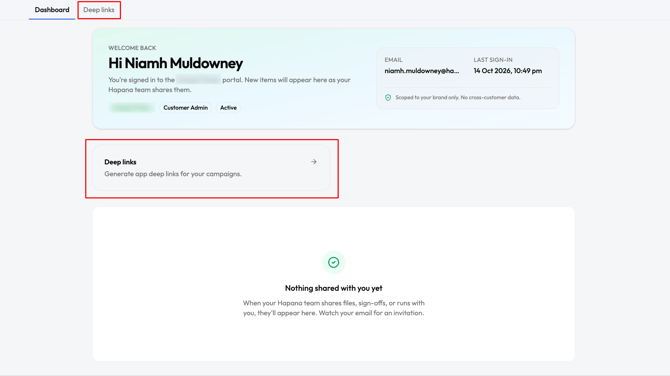
Once you're in the portal, head to the Deep Link Generator and start creating a new link.
![](https://support.hapana.com/hs-fs/hubfs/image-png-Oct-14-2026-11-13-08-4157-PM.png?width=670&height=376&name=image-png-Oct-14-2026-11-13-08-4157-PM.png)

#### **4. Name your link and add a description**

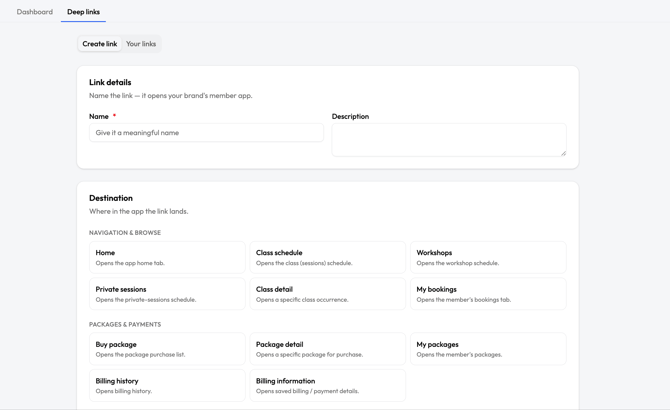
1. In the **Name** field, enter a name for your link, like "Summer Trial Offer".
2. In the **Description** field, add a short note about what the link is for.

> Tip: Pick a meaningful name you'll recognise later. If you create lots of links, clear names make them much easier to find.
![](https://support.hapana.com/hs-fs/hubfs/image-png-Oct-14-2026-11-14-37-6472-PM.png?width=670&height=411&name=image-png-Oct-14-2026-11-14-37-6472-PM.png)

#### **5. Choose where the link lands**

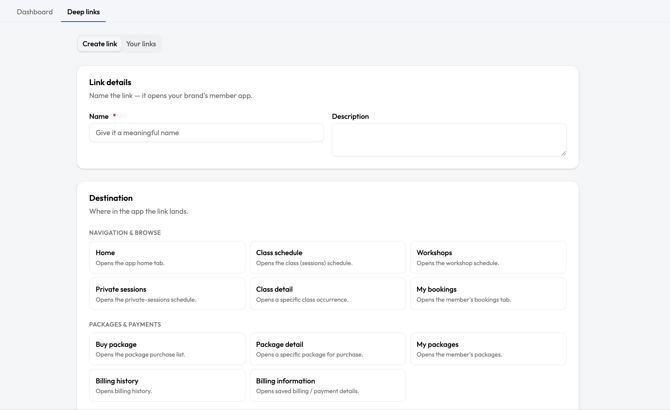
The **Destination** section controls where in the app people end up when they tap your link.

1. In the **Destination** section, choose the type of deep link you want to create.
2. Select the option that matches the page you want people to see first.
![](https://support.hapana.com/hs-fs/hubfs/image-png-Oct-14-2026-11-19-38-9963-PM.png?width=670&height=411&name=image-png-Oct-14-2026-11-19-38-9963-PM.png)

#### **6. Generate and use your link**

1. Review your details, then click "Create deep link" button to generate your deep link.
2. Copy the link and use it wherever you like: emails, social media, your website, a QR code or contenful.

> Tip: Test your link on your own phone before you share it, so you know it lands where you expect.


---

#### **Expected Outcome**

You'll have a working deep link, with its own name and description that takes people straight to the part of your Hapana app you chose. You can create as many links as you need for different campaigns, locations or pages.

Reach out to our support team via [support@hapana.com](mailto:support@hapana.com)

- [Member Management](https://support.hapana.com/member-management?hsLang=en#main-content)

    - [Account Settings](https://support.hapana.com/member-management?hsLang=en#account-settings)
    - [Client Accounts](https://support.hapana.com/member-management?hsLang=en#client-accounts)
    - [Edit Profile](https://support.hapana.com/member-management?hsLang=en#edit-profile)
    - [Retail Configurations](https://support.hapana.com/member-management?hsLang=en#retail-configurations)
    - [Other](https://support.hapana.com/member-management?hsLang=en#other)
    - [Schedule](https://support.hapana.com/member-management?hsLang=en#schedule)
    - [Client Page](https://support.hapana.com/member-management?hsLang=en#client-page)
    - [General](https://support.hapana.com/member-management?hsLang=en#general)
    - [Reporting](https://support.hapana.com/member-management?hsLang=en#reporting)
    - [Retail Dashboard](https://support.hapana.com/member-management?hsLang=en#retail-dashboard)
    - [Team Settings](https://support.hapana.com/member-management?hsLang=en#team-settings)
    - [Hapana Member Access Control (MAC) Doors](https://support.hapana.com/member-management?hsLang=en#hapana-member-access-control-mac-doors)
    - [Cash Drawer](https://support.hapana.com/member-management?hsLang=en#cash-drawer)
- [Marketing Solutions](https://support.hapana.com/marketing-solutions?hsLang=en#main-content)

    - [App](https://support.hapana.com/marketing-solutions?hsLang=en#app)
    - [Contacts](https://support.hapana.com/marketing-solutions?hsLang=en#contacts)
    - [Marketing](https://support.hapana.com/marketing-solutions?hsLang=en#marketing)
    - [Conversations](https://support.hapana.com/marketing-solutions?hsLang=en#conversations)
    - [Settings](https://support.hapana.com/marketing-solutions?hsLang=en#settings)
    - [Automations](https://support.hapana.com/marketing-solutions?hsLang=en#automations)
- [Branded Solutions](https://support.hapana.com/branded-solutions?hsLang=en#main-content)

    - [Branded App](https://support.hapana.com/branded-solutions?hsLang=en#branded-app)
    - [Branded Kiosk](https://support.hapana.com/branded-solutions?hsLang=en#branded-kiosk)
- [Hapana Hub](https://support.hapana.com/hapana-hub?hsLang=en)
- [Website Embed Widgets](https://support.hapana.com/website-embed-widgets?hsLang=en)

- [About us](https://hapana.com/about-us/)
- [Careers](https://hapana.com/careers/)
- [Contact us](https://hapana.com/contact-us/)
- [Privacy policy](https://hapana.com/privacy-policy/)
- [Terms & conditions](https://hapana.com/terms-and-conditions/)

[![email-logo.png](https://support.hapana.com/hs-fs/hubfs/hapana_2022/email_2022/footer%20logo.png?width=300&height=78&name=footer%20logo.png "email-logo.png")](http://hapana.com?hsLang=en)

Copyright © 2025, Hapana