
Overview
This article walks you through how to set up and manage a Family Account in your app. A Family Account lets you link multiple members under one profile so you can view sessions, bookings, and package details in one place. It’s perfect for parents managing kids’ classes or anyone coordinating memberships for family members.
With Family Accounts, you can:
- Centralize Billing - parent handles all payments, children can’t change billing info.
- Manage Children Sessions - Book and manage sessions for children, or let older kids self-book.
- Track Usage - Track attendance, progress, and credit usage across the family.
- Family Overview - See all schedules in one shared view.
Prerequisites
-
Contact our Hapana Support team by raising a ticket to express interest in the Family Accounts feature.
-
You’ll need the latest version of the app installed.
-
You must be logged in to your personal account.
-
Make sure each family member already has an active account at the location.
How Parents can Use Family Accounts via App
Once you purchase a Family Account Membership, you can add family members to the account including another parent and several children and share package with family members. Parents will have the ability to:
-
control parent & children permissions
-
book sessions for family members
-
view booked sessions and monitor attendance
- view billing cycle (master parent only)
Step 1: How to Purchase a Family Membership via App
-
Log in to the app
-
Navigate to 'More'
-
Select Buy new packages
-
Select family membership from the list
-
Purchase a new Family Membership
Step 2: How to Add Family Members to Family Account
-
Go to Your Family Account > View Account on Home screen.
-
Select '+Add' or Manage family > select '+ Add family member'
-
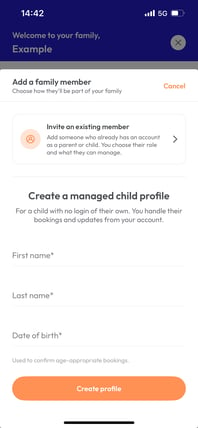
Choose either: Invite an existing member (this is someone who already has an account) or Create a managed child profile (this is ideal for younger children who don't have their own email address or don't need access to the app).
Invite an existing member
-
Search by email, phone number or barcode to link existing account
-
Select relevant user
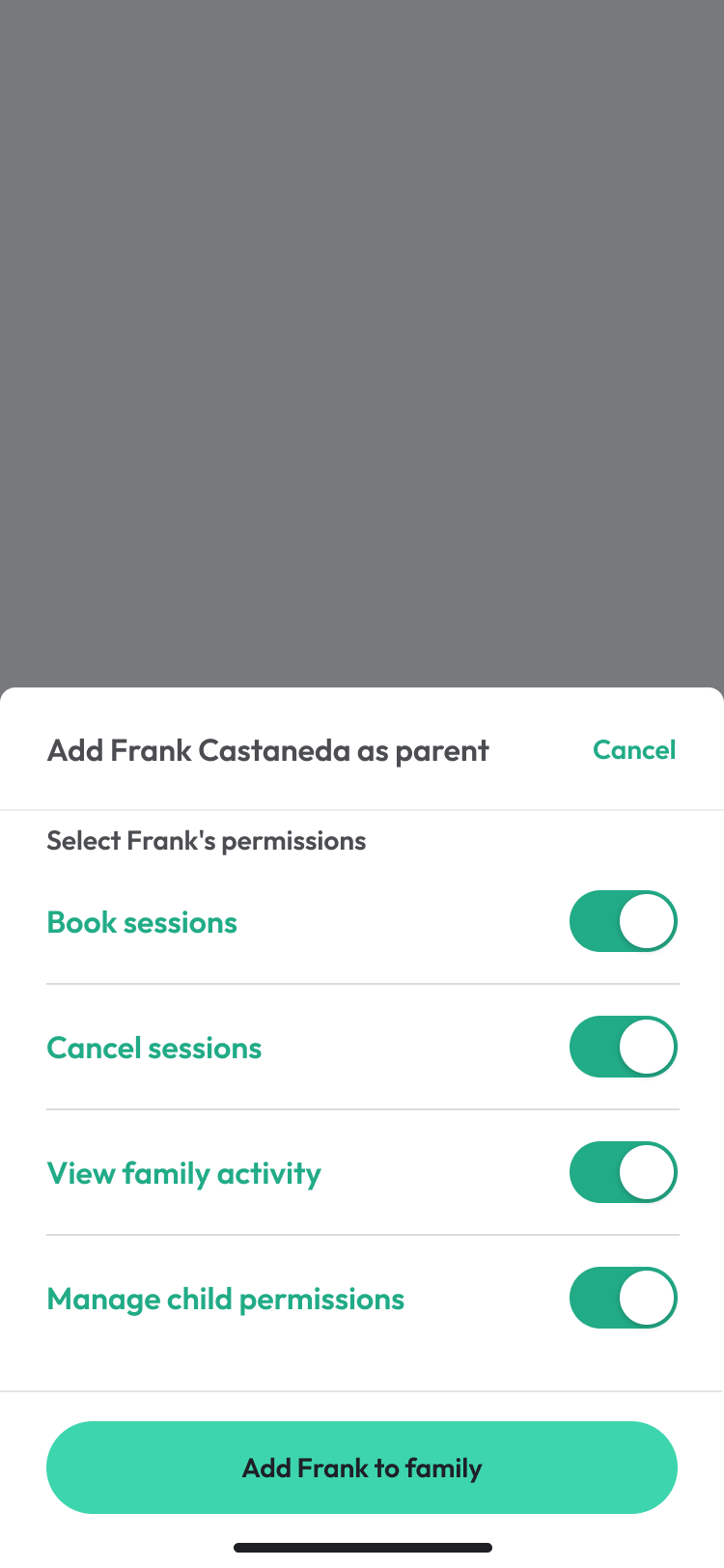
- Choose whether to 'Add as child' or 'Add as parent'

7. Set permissions between:
-
Book/Cancel sessions
-
View family activity
-
Manage child permissions (parent only permission)
8. Confirm and send invite
Create a managed child profile
-
To create a managed child profile, enter basic details including Name and Date of Birth
- Click Create Profile
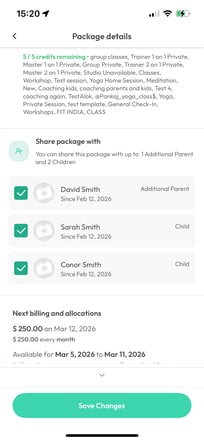
Step 3: How to Share Membership Package with Family Members
-
Go to Home > Select Manage Family
-
Tap Packages in the bottom navigation bar
- Select relevant membership or package
- Go to Share package with and select the family members you wish to share the package with
- Tap Save Changes
Step 4: How to Book and View Sessions for Family
-
Go to Your Family Account > View Account on Home screen
-
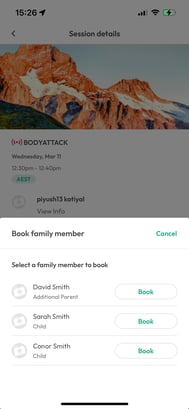
Tap Book for your family
-
Find relevant session in calendar and select Book
-
Select Book for family members
-
Select Book beside the relevant family member
-
Select the package/membership credits to use
-
Select Book
-
To view all booked sessions, go to Track to view upcoming bookings
-
Select member at the top to filter through
- Tap a session for additional details such as date, time, and attendance
Step 5: Check Packages and Visit History
-
Go to Your Family Account > View Account on Home screen
-
Scroll down to Family overview
-
View Stats Total Check Ins, Sessions booked, attended and cancelled
Step 6: How to Edit Family Member Details
-
Go to Your Family Account > View Account on Home screen
-
Within Home > Select Manage Family
-
Tap Edit icon beside relevant family member’s profile
-
Select Edit to update details like permissions
-
Tap Save Changes.
Tip: Use permissions to manage what family members can book or view.
How Children can Use Family Accounts via App
Step 1: How to Accept Invite to Join Family
-
Click the invite deep link to download Branded (Hapana) app. This will open Branded (Hapana) app or directs them to download in the App Store if they don’t have it.
- Login to app
- Select Join family to accept the invite to be part of the family account
Once the child accepts the invite to join the family, they will be able to:
-
access the app
-
view the family members
-
view sessions they are booked into
-
book and cancel sessions for themselves (permission dependent)
-
view the family activity overview (permission dependent)
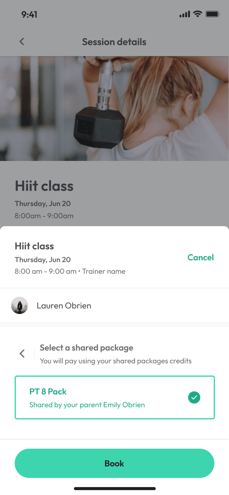
Step 2: How to Book a Session
- Open the app on Home > Select Book session or Open Explore
- Scroll through session schedule and select relevant session
- Review Session details and tap Book
- Select the shared package credits you will pay with and tap Book
Step 3: How to View Booked sessions
- Open the app on Home > Select See full schedule or Open Track tab
- Go to Home > View family
- Select Overview
Expected Outcome
By following these steps, you’ll be able to set up and manage a Family Account in the app. You’ll know how to:
-
Add parents and children
-
Assign permissions
-
Share memberships and packages
-
Book sessions for family members
Reach out to our support team via support@hapana.com if you need more help.