
Document Overview
Version: 3.0
Last Updated: May 2026
Audience: Site Security Installers, Project Managers, Technical Teams
Purpose: Complete deployment and installation guide for Hapana MAC access control solution
Table of Contents
Document Overview
Table of Contents
- Solution Overview
- Pre-Installation Planning
- Hardware Requirements
- Installation Steps
- Provisioning & Configuration
- Testing & Validation
- Safety & Best Practices
- Troubleshooting
- Installer FAQs
Appendix A: Hardware Specifications
Appendix B: Wiring Diagrams
Appendix C: Recommended FOB Standards
Appendix D: Contact Information
1. Solution Overview
1.1 System Capabilities
Hapana offers a QR Code Access system with digital credentials that allow instant access to members. The solution provides:
- Primary Access Method: Mobile QR Code via Hapana app (95%+ adoption)
- Secondary Access Method: RFID FOB support (optional, for ~5% of members)
- 24/7 Contactless Entry: Secure, unstaffed operation capability
- Offline Capability: 6-hour offline database for continuity during internet outages
- Alarm Integration: Works with existing security/alarm panels
1.2 How It Works
Members initiate access by:
- QR Code Scan - Using the Hapana mobile app to scan the QR code at the entrance
- FOB Tap - Tapping their FOB on the reader (if FOB support is installed)
The system then:
- Validates membership status in real-time
- Sends unlock command to door actuator
- Logs all access attempts for reporting and security
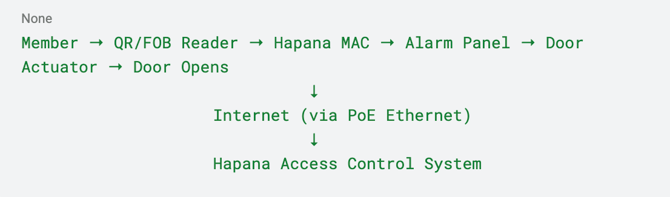
1.3 System Architecture
2. Pre-Installation Planning
2.1 Site Survey Requirements
Before installation, gather the following information:
Site Information
- Number of doors requiring access control
- Location of each door (front entrance, side door, internal rooms, etc.)
- Existing alarm panel location and model
- Network infrastructure availability
- Power over Ethernet (PoE) capability
Door Configuration
- Type of door (single, double, automatic sliding, etc.)
- Current locking mechanism (magnetic lock, electric strike, etc.)
- Door open/close sensor availability
- Proximity/movement sensor requirements (if applicable)
Network Requirements
- Ethernet network access at each door location
- PoE switch or injector availability
- Network security/firewall considerations
Operating Model
- Staffed vs unstaffed hours
- 24/7 access requirements
- FOB requirement assessment
- Premium/restricted area access needs
2.2 Decision: QR-Only vs QR + FOB
|
QR Code Only Solution |
QR Code + FOB Solution |
|
Adoption: 95%+ of member base |
Adoption: 100% solution |
|
Costs: QR Code print only |
Costs: Additional FOB reader hardware, member FOBs, desk reader |
|
Hardware: Hapana MAC per door + QR code |
Hardware: Hapana MAC + Door FOB reader + Desk FOB reader |
|
Simplicity: Minimal hardware |
Complexity: Multiple hardware standards to manage |
|
Recommended for: New installations, tech-savvy member base |
Recommended for: Existing FOB infrastructure, legacy requirements |
Recommendation: Start with QR-only and add FOB support only where specifically required.
2.3 Equipment Checklist
Create a checklist for each location:
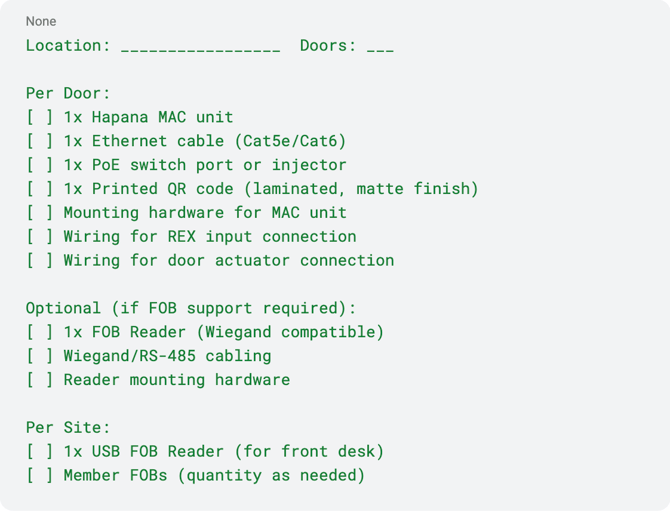
Location: _________________ Doors: ___
Per Door:
[ ] 1x Hapana MAC unit
[ ] 1x Ethernet cable (Cat5e/Cat6)
[ ] 1x PoE switch port or injector
[ ] 1x Printed QR code (laminated, matte finish)
[ ] Mounting hardware for MAC unit
[ ] Wiring for REX input connection
[ ] Wiring for door actuator connection
Optional (if FOB support required):
[ ] 1x FOB Reader (Wiegand compatible)
[ ] Wiegand/RS-485 cabling
[ ] Reader mounting hardware
Per Site:
[ ] 1x USB FOB Reader (for front desk)
[ ] Member FOBs (quantity as needed)
3. Hardware Requirements
3.1 Core Components
Hapana MAC (Member Access Controller)
- Quantity: 1 per door
- Power: PoE (Power over Ethernet)
- Connectivity: Ethernet RJ-45
- Mounting: Alarm panel or secure location
- Interface: Front panel with info button and display
- Direct Drive: Supports door locks at <1amp
Network Connectivity
- Connection Type: PoE via switch or injector
- Cable: Standard Ethernet (Cat5e or Cat6)
- Network Requirements: Internet access for real-time validation
- Offline Capability: 6-hour local database sync
QR Code Display
- Format: Unique QR code per door/access point
- Placement: Visible location convenient to members
- Treatment:
- Embossed on door, OR
- Printed and laminated (matte finish to reduce glare), OR
- Mounted behind plexiglass
- Important: Low glare treatment to optimize camera reads
3.2 Optional FOB Components
Door-Mounted FOB Reader
- Protocol: Wiegand (standard), RS-485 (recommended), or RS-232 (TTL UART)
- Recommended Model: Integriti SIFER Multi-Format Card Reader
- Standard: MIFARE specification (13.56MHz)
- Wiring Distance:
- Wiegand: Up to 150m (suitable for short distances)
- RS-485: Up to 900m (recommended for longer distances and better security)
Front Desk FOB Reader
- Type: USB keyboard emulator
- Purpose: Input FOB ID directly into Hapana system
- Connection: Plugs into front desk computer via USB
- Function: Reads FOB ID as keyboard input (no enter key required)
- Note: Optional if FOBs have ID printed on them, but recommended to avoid manual typing errors
Member FOBs
- Standard: MIFARE format
- Quantity: Based on member requirements (~5% of member base typically)
- Provisioning: FOB ID recorded in member profile via desk reader or manual entry
4. Installation Steps
4.1 Physical Installation
Step 1: Mount Hapana MAC Unit
Location Requirements:
- Install in alarm panel or secure, protected location
- Critical: Front panel must be accessible for:
- Viewing MAC status screens
- Pressing front button for diagnostics
- Recording provision code
Mounting Process:
- Select secure mounting location within alarm panel enclosure
- Ensure adequate ventilation
- Mount MAC using provided hardware
- Verify front panel accessibility
Step 2: Wire MAC to Alarm Panel
REX Input Connection:
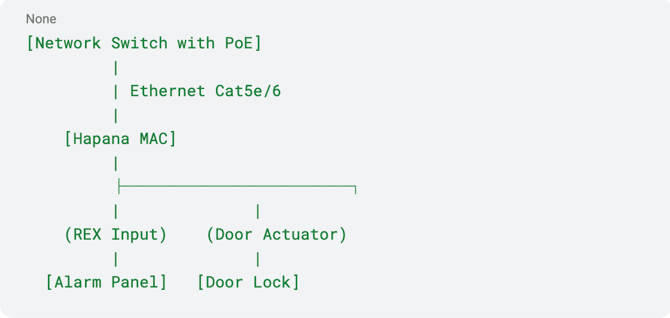
- Connect MAC to alarm panel REX (Request to Exit) input
- Purpose: Allows MAC to signal the alarm panel to unlock the door
- Configuration: Alarm panel controls door open status during staffed hours
Door Actuator Connection:
- Wire MAC directly to door actuator (lock mechanism)
- Supported: Magnetic locks, electric strikes, or similar mechanisms
- Direct Drive: MAC supports direct control of door locks at <1amp
- Signal: MAC sends “Door Unlock” signal (not “Door Open”)
Important Distinction:
- Door Unlock = Opens the MagLock (or similar locking mechanism)
- Door Open = Controlled in conjunction with proximity/movement sensor
Step 3: Connect Network and Power
Ethernet Connection:
- Run Ethernet cable (Cat5e/Cat6) from network to MAC location
- Connect to MAC via RJ-45 port
- Power: PoE (Power over Ethernet) via switch or injector
- Verify: Network connectivity and power indicator
Network Requirements:
- Internet access for real-time membership validation
- Firewall rules if applicable (contact Hapana for specific ports/domains)
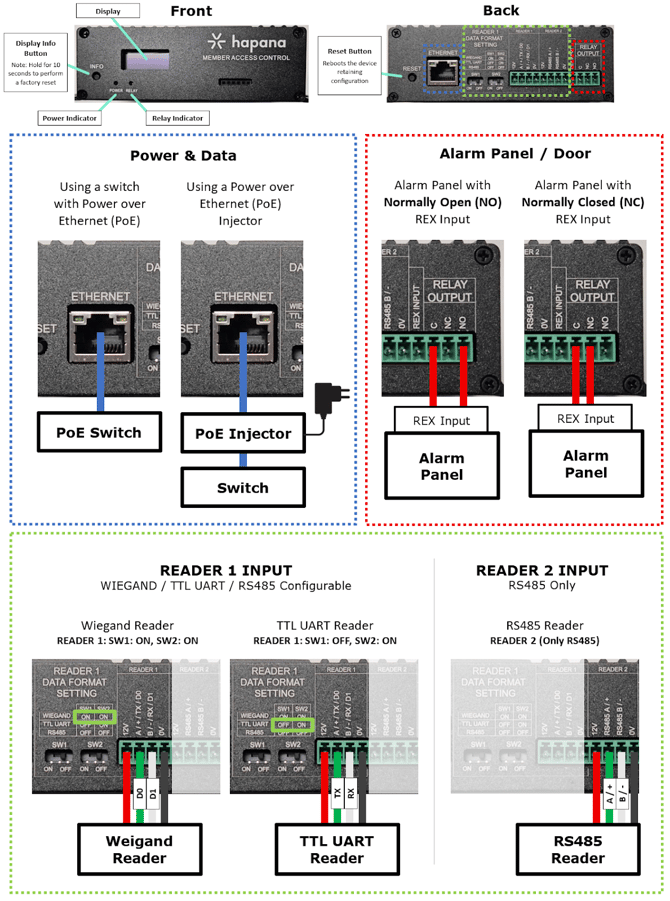
Hapana MAC Reference
Step 4: Install FOB Reader (If Required)
Door Reader Installation:
- Mount reader on door exterior at convenient height
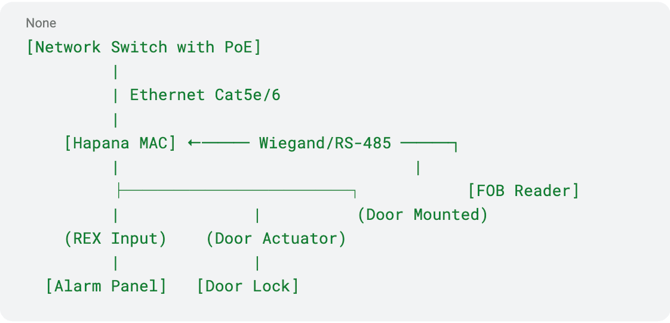
- Run Wiegand/RS-485 cable from reader to MAC
- Recommended Protocol: RS-485 for longer distances and better security
- Connect reader to MAC according to wiring diagram
- Configuration: Set DIP switches on MAC if using RS-232/Wiegand options
Desk Reader Installation:
- Plug USB FOB reader into front desk computer
- Verify keyboard emulation functionality
- Test by scanning a FOB and confirming ID appears as text
Step 5: Install QR Code Display
Placement Guidelines:
- Position at convenient height for smartphone scanning
- Ensure good lighting (but avoid direct glare)
- Protect from weather if outdoor installation
- Make clearly visible to approaching members
Installation Options:
- Embossed on door - Most permanent solution
- Laminated print - Use matte lamination to reduce glare
- Plexiglass mount - Professional appearance, easy replacement
4.2 Dual Door Configurations
For sites with proximity/movement sensors:
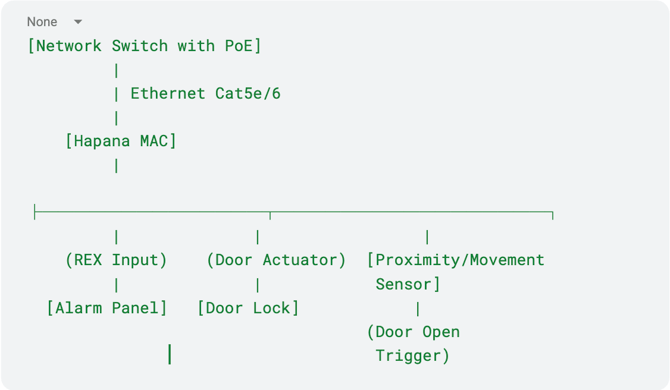
- Some locations have dual-door systems with proximity sensors
- Proximity sensor must detect person/movement to trigger door open
- Testing Note: Both door unlock AND proximity sensor activation must be verified
5. Provisioning & Configuration
5.1 Power On and Provision
Provisioning Process:
- Power On Device
- Connect PoE ethernet
- MAC will power up and begin initialization
- Display will cycle through startup screens
- Record Provision Code
- Press info button on front panel
- Display will show 6-character provision code
- Format Example: A-ER456J
- Record for Hapana: Enter only the 6 characters after “A-” = ER456J
- Submit to Hapana
- Provide the 6-character code to Hapana team
- Specify door location/name (e.g., “Front Door Access” or “FDA”)
- Example Mapping: MAC ID A-ER456J → Serial Number “ER456J” → Door “FDA”
Important Notes:
- Each MAC has a unique 6-character provision code
- This code maps the device to specific door and membership groups
- MAC must be powered and connected to network to display provision code
5.2 MAC Status Screens
Info Button Functions:
- Single Press: Cycles through diagnostic screens
- 10+ Second Hold: Factory reset (WARNING - only use when resetting device)
Available Diagnostic Screens:
- Provision code
- Connection status
- IP address
- Firmware version
- Last sync status
- Error messages (if any)
Diagnostic Information:
- Connection status (online/offline)
- IP address assignment
- Provisioning status (provisioned/not provisioned)
- Firmware version
5.3 Hapana Backend Configuration
Performed by Hapana Team:
- Map MAC device ID to specific door location
- Assign door to appropriate access group(s)
- Configure membership access rules
- Set time-based access restrictions (if applicable)
- Enable/disable FOB access for the door
- Configure staffed hours schedules (future feature)
Door Access Groups Examples:
- Standard membership → Front door access
- Premium membership → Front door + premium areas (sauna, recovery rooms)
- Youth membership → Time-restricted access (no access after 9-10pm)
- Passport membership → Cross-location access
6. Testing & Validation
6.1 Pre-Testing Checklist
Before testing access, verify:
[ ] MAC powered on and showing online status
[ ] MAC provisioned in Hapana system
[ ] Network connectivity confirmed
[ ] Door actuator wired correctly
[ ] Alarm panel integration configured (if applicable)
[ ] FOB reader connected (if applicable)
[ ] QR code installed and visible
6.2 Testing Procedure
Test 1: QR Code Access
Setup:
- Ensure test member account is active in Hapana system
- Test member has Hapana app installed on smartphone
- Test member’s QR code is active
Test Steps:
- Member opens Hapana app
- Member scans QR code at door
- Expected Result: - Door unlock command sent within <100ms - Door unlocks for configured duration (typically 3-5 seconds) - Access logged in Hapana system
- Verify door re-locks after timeout
Troubleshooting:
- If door doesn’t unlock, check MAC status screens
- Verify member account is active
- Check network connectivity
- Review Hapana access logs
Test 2: FOB Access (If Applicable)
Setup:
- Member FOB ID entered in Hapana system
- Member account active with FOB privileges
Test Steps:
- Member taps FOB on reader
- Expected Result: - Reader sends FOB ID to MAC - MAC validates against Hapana database - Door unlocks if validated - Access logged in system
- Test with inactive FOB to verify denial
Troubleshooting:
- Verify FOB reader wiring
- Check FOB ID is correctly entered in system
- Test FOB with desk reader to confirm ID
Test 3: Alarm Panel Interoperability
If alarm integration is configured:
Test Steps:
- Set alarm panel to staffed hours mode
- Verify door can be unlocked by alarm panel
- Test that alarm panel and MAC don’t conflict
- Verify REX input integration
Expected Behavior:
- During staffed hours: Alarm panel may hold door unlocked
- During unstaffed hours: MAC controls door access
- REX input properly signals alarm panel
Test 4: Offline Database Functionality
Test Steps:
- Disconnect MAC from internet (unplug ethernet or disable network)
- Wait 30 seconds for MAC to enter offline mode
- Test QR/FOB access
- Expected Result:
- MAC uses local 6-hour offline database
- Access granted to members in offline database
- Access denied to members NOT in offline database
- Reconnect internet
- Verify access logs sync to Hapana system
Important Notes:
- Offline database syncs every 6 hours
- New member additions may not be in offline database immediately
- Real-time updates (whitelist/blacklist) only work when online
6.3 Multi-Door Testing
For sites with multiple doors:
- Test each door independently
- Verify correct door opens for each access point
- Test premium area access restrictions
- Verify membership tier access rules
7. Safety & Best Practices
7.1 Safety Guidelines
⚠️ CRITICAL SAFETY RULES:
- Info Button Hold Time
- DO NOT hold info button for >10 seconds unless intentionally resetting device
- 10+ second hold = factory reset (erases all configuration)
- Single press to cycle through status screens
- Installation Timing
- Schedule installation/testing during off-peak hours
- Avoid disrupting member access during peak times
- Coordinate with gym staff for member communication
- Electrical Safety
- Follow all electrical safety protocols
- Ensure PoE equipment is properly rated
- Do not exceed MAC direct drive limit (<1amp)
- Secure Installation
- Install MAC in secure location (alarm panel preferred)
- Protect wiring from tampering
- Ensure front panel remains accessible for diagnostics
7.2 Best Practices
Reader Selection:
- Use only approved Wiegand FOB readers where required
- Integriti SIFER Multi-Format recommended for MIFARE compatibility
- RS-485 protocol recommended over Wiegand for better security and distance
Network Configuration:
- Use dedicated VLAN for access control (recommended)
- Ensure reliable PoE power supply
- Consider backup power for critical access points
Documentation:
- Record all MAC provision codes and door assignments
- Document network configuration (IP addresses, VLAN info)
- Maintain wiring diagrams for each installation
- Keep photos of installation for future reference
Maintenance:
- Test access control monthly
- Verify firmware updates are applied
- Check QR code condition and visibility
- Clean FOB readers regularly
8. Troubleshooting
8.1 Common Issues and Solutions
Issue: MAC shows “Unit not found” or unresponsive
Possible Causes:
- MAC not powered on
- Not connected to network
- Lost provisioning
Solutions:
- Verify PoE power supply
- Check ethernet cable connection
- Check MAC status lights/display
- Important: MAC must connect to network at least once per week or will lose provisioning as security protocol
- Power-Up Requirement: MAC powers up every 2 hours to check in with Hapana Access Control Master Instrumentation System
- If unit was powered up to get ID but then sits offline, it will be de-provisioned
Prevention:
- Ensure continuous network connectivity
- Do not power off MAC for extended periods
- If offline, reconnect within 7 days
Issue: QR code scan not working
Possible Causes:
- Poor lighting or glare
- QR code damaged
- Member app issue
- Network connectivity problem
Solutions:
- Verify QR code is clean and undamaged
- Check for glare (use matte lamination)
- Improve lighting at scan location
- Verify MAC has network connection
- Have member check Hapana app is up to date
- Test with different smartphone
Issue: FOB not granting access
Possible Causes:
- FOB ID not in system
- Member account inactive
- FOB reader malfunction
- Wiring issue
Solutions:
- Verify FOB ID is correctly entered in Hapana system
- Use desk reader to confirm FOB ID
- Check member account status
- Verify FOB reader wiring
- Test reader with known-good FOB
- Check if offline database needs sync
Issue: Door unlocks but doesn’t open
This is expected behavior in certain configurations:
- Door Unlock ≠ Door Open
- Some sites have proximity sensors that must detect person/movement
- Door unlock releases the lock mechanism
- Proximity sensor triggers the door to physically open
Solutions:
- Verify proximity/movement sensor is functioning
- Check sensor wiring
- Test sensor independently
- Confirm door mechanism is working
Issue: Alarm panel conflict
Possible Causes:
- Incorrect REX input wiring
- Alarm panel configuration issue
- Conflicting access control rules
Solutions:
- Verify REX input wiring is correct
- Check alarm panel configuration
- Ensure staffed hours settings don’t conflict
- Consult alarm panel documentation
- Contact Hapana support for integration guidance
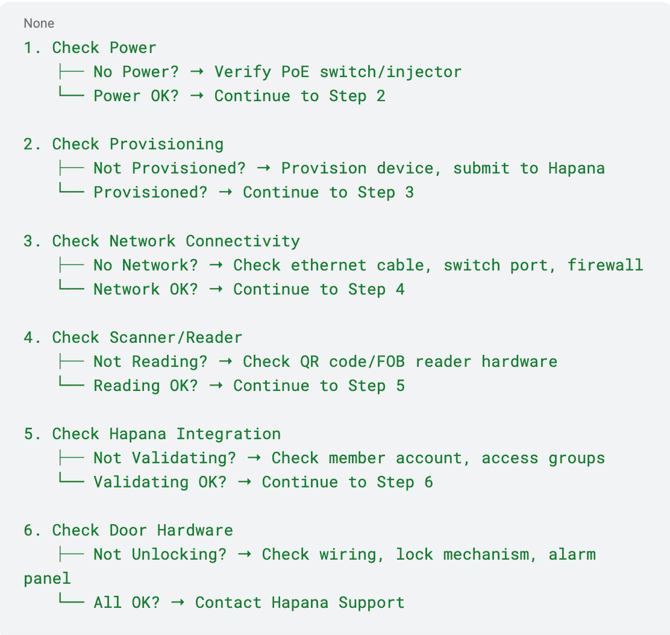
8.2 Diagnostic Flow
Systematic Troubleshooting:
9. Installer FAQs
Installation & Responsibility
Q: Who installs the MAC?
A: Existing site security installers are preferred for their knowledge of the site and alarm systems.
Q: Who programs the MAC?
A: Hapana programs the MAC. Installers provide the 6-character provision code, and Hapana maps it to the door name and configures access rules. Access is determined by membership settings.
Q: What wiring is required?
A:
- Ethernet to MAC for PoE and network
- MAC to alarm panel REX input
- MAC to door actuator (lock release)
- FOB reader to MAC via Wiegand/RS-485 (if FOB support needed)
Access Control Features
Q: Can doors be scheduled open during staffed hours?
A: Yes, via alarm panel configuration for staffed hours schedules. Hapana is also developing a time schedule feature (planned Q4 2025/Q1 2026) that allows doors to remain open during staffed hours, with members scanning inside the gym for check-in.
Q: How does time-based access work?
A: When MAC is online, time-based access is controlled by Hapana systems. During offline mode (local database), member entry is permitted regardless of time for up to 6 hours.
Q: Can youth or under-age members be restricted by time?
A: Yes. Access rules can restrict entry by age, time of day, or membership type (e.g., youth members cannot access after 9-10pm).
Offline & Connectivity
Q: What happens if internet is down?
A: Offline database supports 6 hours of access. The MAC maintains a local database that syncs every 6 hours and includes whitelist/blacklist delta updates via websocket when online.
Q: How often does the MAC check in?
A: MAC powers up every 2 hours to check in with Hapana Access Control Master Instrumentation System. It must connect at least once per week or it will lose provisioning as a security protocol.
FOB Support
Q: Which members need FOBs?
A: Small percentage (~5%). Most members use QR codes via app, which provides immediate access without FOB.
Q: Is there a proximity key fob reader at the front door?
A: Hapana’s primary focus is QR Code access with secondary support for FOB. If FOB support is needed, a proximity reader (such as Integriti SIFER or equivalent supporting Wiegand/RS-485) is installed.
Q: What about internal doors like sauna doors?
A: Internal access doors are controlled only by QR Code access with a Hapana MAC installed for each internal door.
Staffed Hours Feature (Upcoming)
Q: Can members check in inside during staffed hours?
A: This feature is planned for release Q4 2025/Q1 2026. When enabled:
- Doors remain open during staffed hours
- Members scan QR/FOB inside gym for general check-in
- Note: FOB-carrying members checking in inside will require an additional MAC at the Reception Area
Appendix A: Hardware Specifications
Hapana MAC Technical Specifications
Model: Hapana Member Access Controller (MAC)
Power: - Power over Ethernet (PoE) 802.3af - Power consumption: <15W
Connectivity: - 1x Ethernet RJ-45 port (10/100/1000Mbps) - PoE input
Interfaces: - RS-485 (recommended) - up to 900m - Wiegand - up to 150m - RS-232 (TTL UART) - configurable - Direct drive door lock support <1amp
Environmental: - Operating temperature: 0°C to 50°C - Storage temperature: -20°C to 70°C - Humidity: 10-90% non-condensing
Physical: - Dimensions: [Standard DIN rail mount] - Mounting: DIN rail or wall mount - Front panel: Info button and display
Firmware: - Automotive-grade chips for enhanced reliability - Embedded storage (no SD card failure points) - 15-second firmware update windows with automatic rollback - Updates scheduled during non-operational hours
Offline Capability: - 6-hour offline database - Real-time delta updates via websocket when online - Complete activity logging during offline periods
Appendix B: Wiring Diagrams
Basic Installation Wiring
Installation with FOB Reader
Dual Door with Proximity Sensor
Appendix C: Recommended FOB Standards
MIFARE (Recommended for Flex Fitness NZ)
Specifications: - Frequency: 13.56MHz - Standard: ISO/IEC 14443 - Formats: MIFARE Classic 1K S50, MIFARE Classic 4K S70, NTAG215 - Card Serial Number (CSN): Pre-configured unique identifier
Advantages: - Industry standard - Wide compatibility - Secure communication - Available from multiple suppliers
Desk Reader: - Type: USB keyboard emulator - Compatibility: Windows, Linux, Mac - Output: Automatic (no enter key required)
Alternative Standards (for reference)
HID Prox Card: - Frequency: 125KHz - Format: WG26 H10301 & WG37 H10304 - Cards: 1326 HID ProxCard II, 1386 HID ISOProx II
EM4100: - Frequency: 125KHz - Format: EM4100, EM4200, EM4102, TK4100 - Popular in offices and schools
Recommendation: Standardize on MIFARE for multi-site deployments to ensure passport-style membership compatibility across all locations.