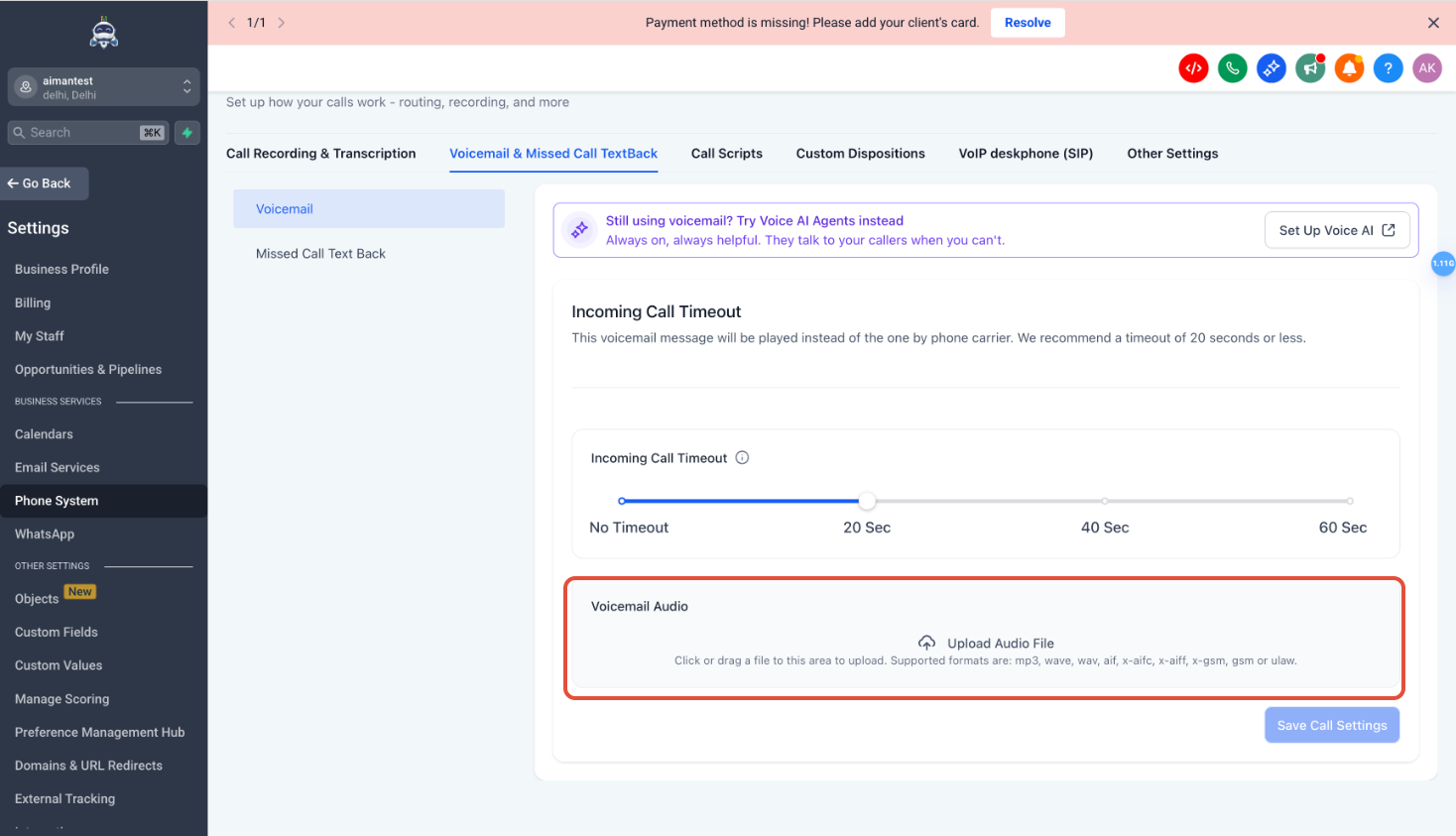
What is Missed Call Text Back?
Missed Call Text Back is a GROW feature that automatically sends a text message to a caller when their inbound call is missed. It helps your business acknowledge the missed call right away, set expectations, and encourage the caller to continue the conversation by text while your team is unavailable.
This feature is especially helpful for businesses that receive after-hours calls, handle a high volume of inbound calls, or want a faster first response without relying on a manual callback process.
Key Benefits of Missed Call Text Back
-
Faster Follow-Up: Send an automatic text to missed callers right away so they know their call was noticed.
-
Better Customer Experience: A quick response reassures callers and gives them another way to continue the conversation.
-
More Personalization: Use merge fields to include details like the contact name or business name in your message.
-
Simple Setup: Enable the feature, customize the message, send a test, and save your changes.
-
Improved Lead Response: Keep potential leads engaged when your team is unavailable to answer.
How to Configure the Missed Call Text Back Feature
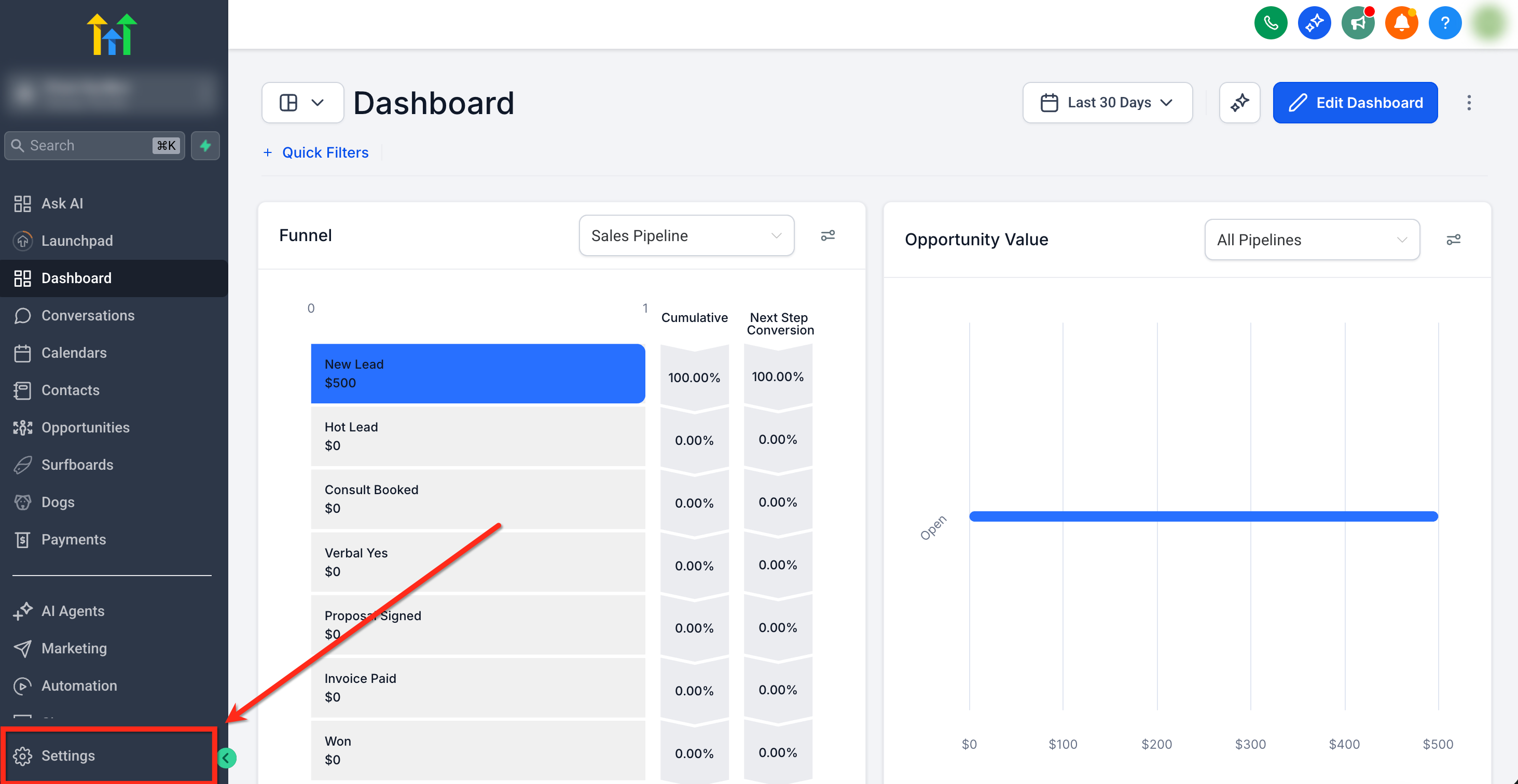
Step 1: Open the Settings
In your sub-account, click Settings in the bottom-left corner.
Step 2: Navigate to Missed Call Text Back
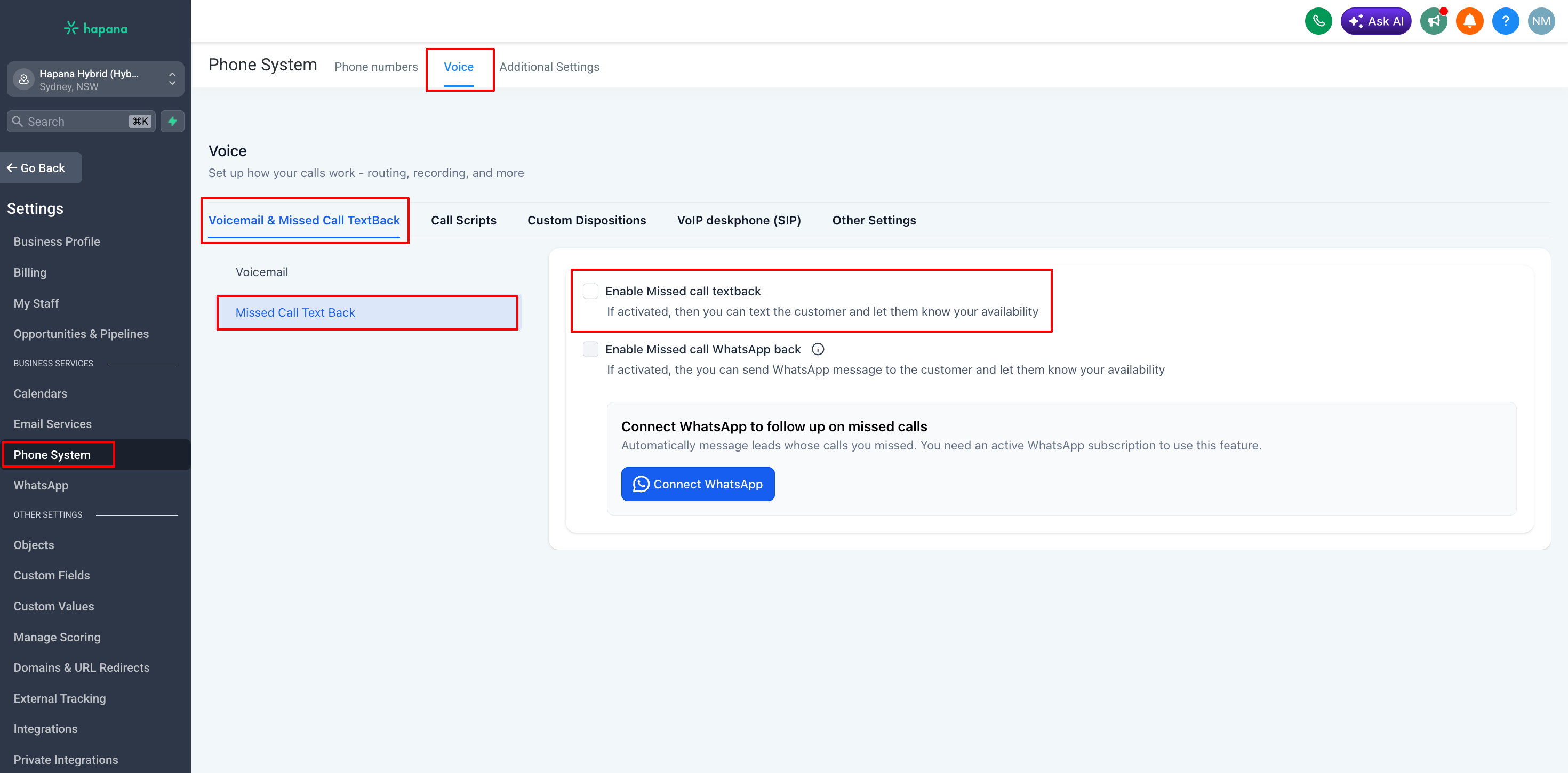
- In the left-side menu, click Phone System.
- In the top navigation, click Voice.
- Under the Voice, open Voicemail & Missed Call Text Back.
- In the side panel, click Missed Call Text Back.
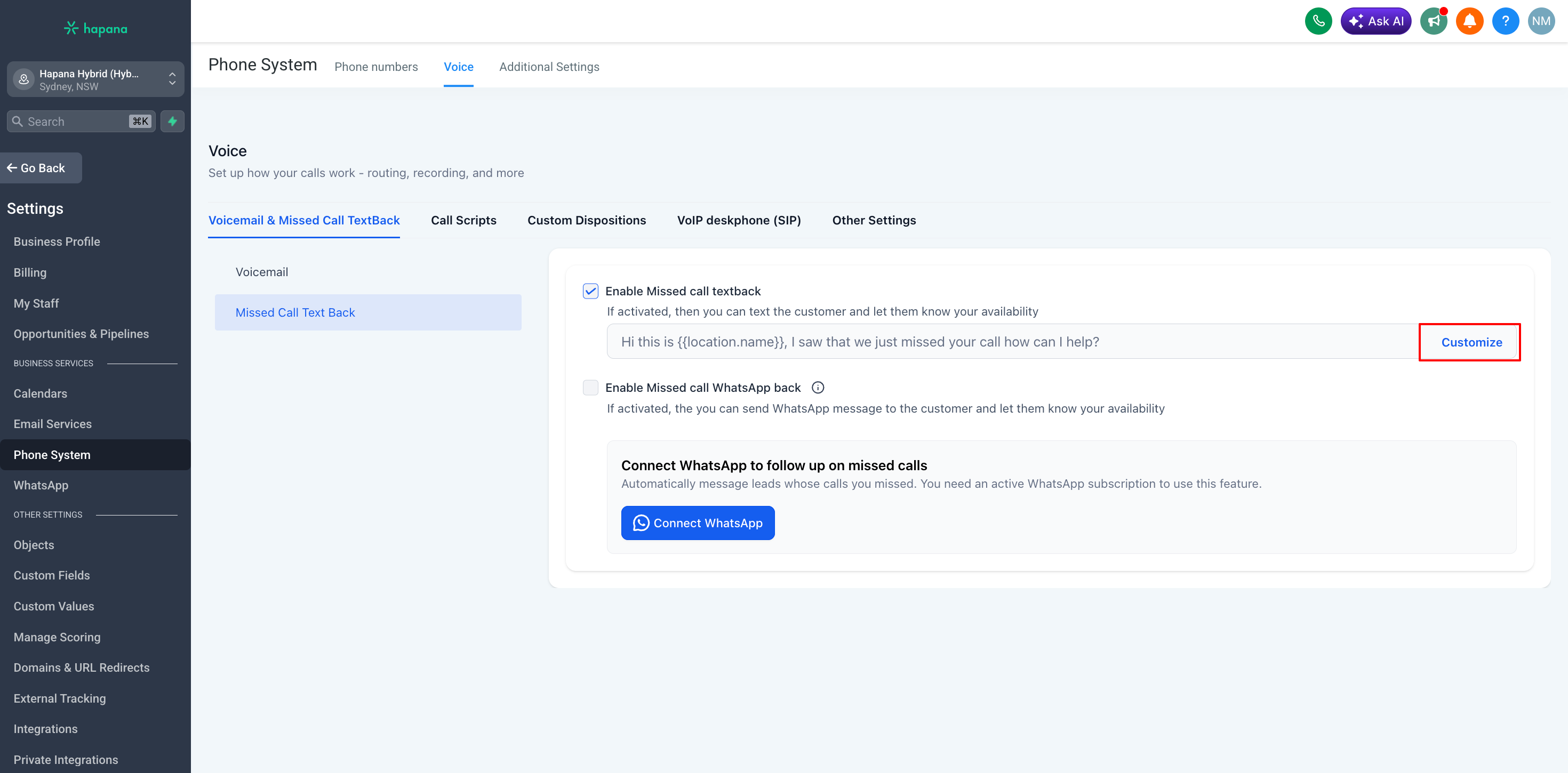
Step 3: Enable the Feature
Select the checkbox to Enable Missed Call Text Back to turn the feature on. Then click Customize to tailor the message that goes out when someone misses you.
Step 4: Customize the Message
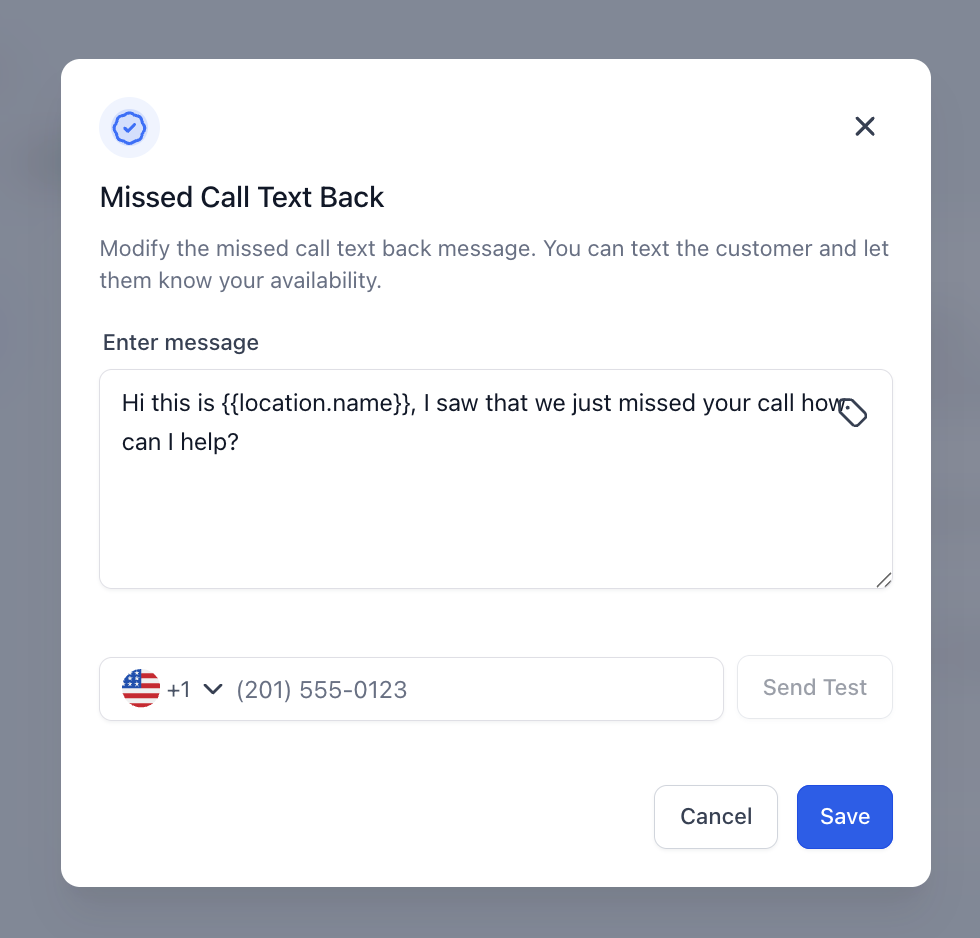
Once you’ve clicked the Customize button, this opens a pop-up where you can craft your automated response message. In the Enter message field, type the content you want sent when a call is missed.
You can also use the custom value tag icon to insert dynamic placeholders such as the contact’s name. Just remember that these only work if the system already recognizes the contact from a prior interaction.
Step 5: Send a Test Message
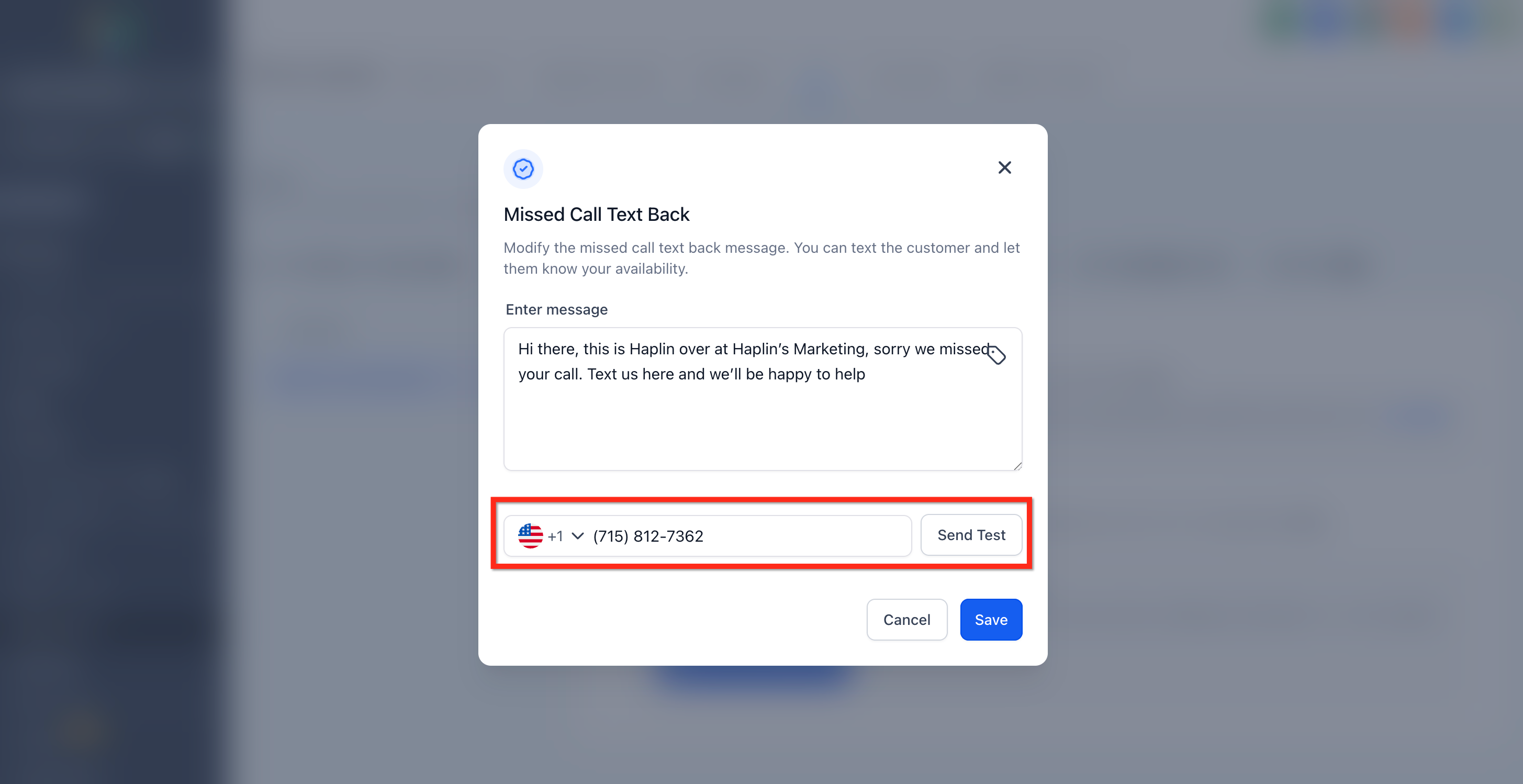
Below the message editor, you’ll find a field where you can send a test message. Select the number you’d like to use to preview how the message will appear when sent to customers.
After reviewing, click the Save button to finalize your settings and activate the updated missed call text back configuration.
Voicemail Settings
Voicemail settings help shape what happens when an inbound call is not answered. These options allow you to control how long the phone rings before the voicemail triggers and optionally replace the default voicemail greeting with a custom recording.
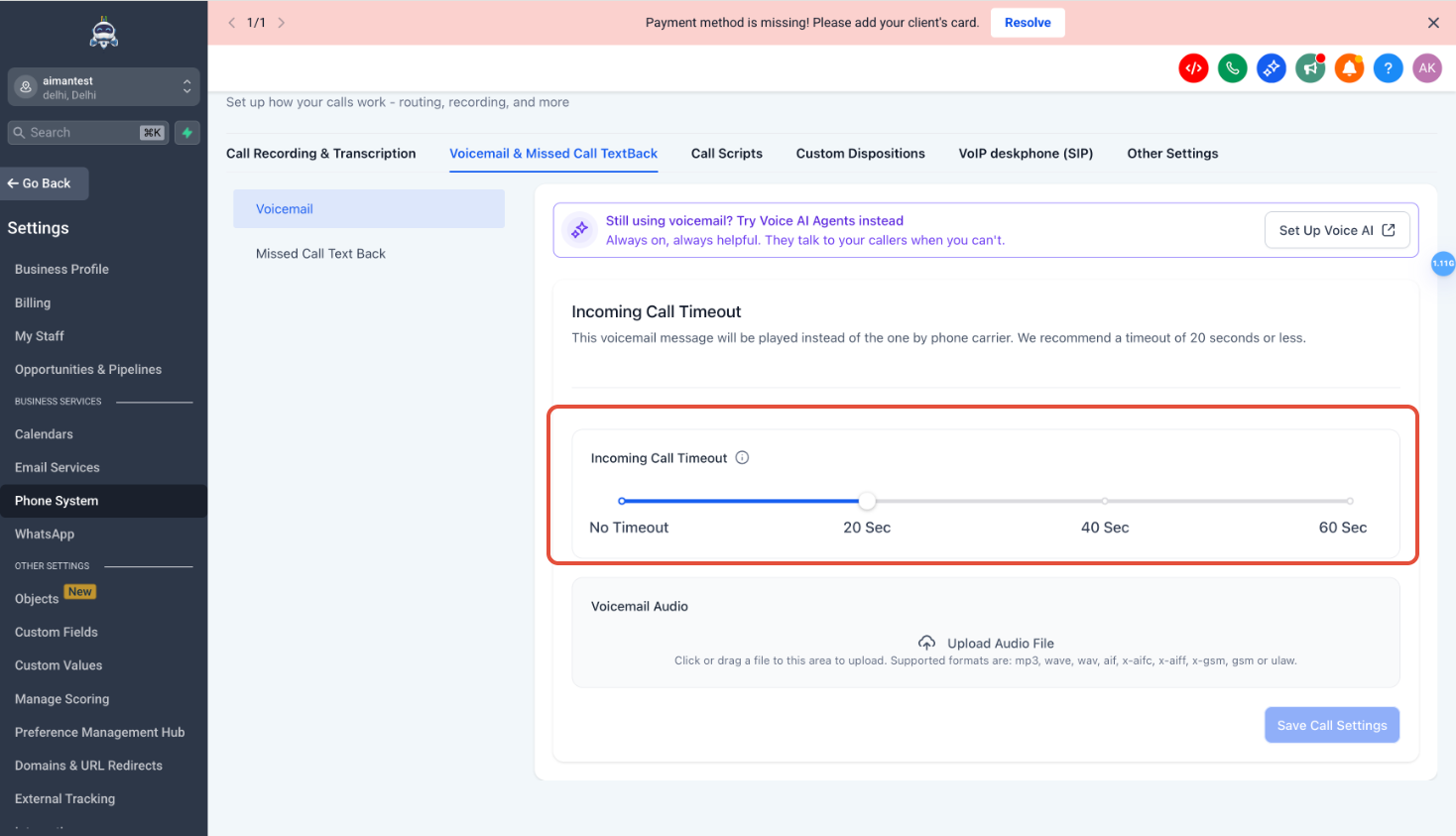
Adjust the Incoming Call Timeout
This option lets you set how long the phone should ring before the missed call text back triggers. Use the slider to choose a timeout duration (10 to 20 seconds is typically recommended).
Upload a Voicemail Audio File (Optional)
You can also add a custom voicemail message here if you want. Upload a pre-recorded file in mp3, wav, or similar formats. This will play instead of the carrier’s generic voicemail.