
Overview
This guide walks you through how members can access, log, edit, and track performance metrics using the Performance Tracking feature in the mobile app. This tool helps users see all-time bests across different exercises like squats or runs.
It’s designed to support multiple metric types, group them under relevant categories, and personalize the experience with unit preferences (Metric/Imperial). Users can submit results, view graphs, and share their results - all in one place.
Please note that this is available on both iOS and Android devices.
Prerequisites
-
Please contact your Hapana Customer Success Manager to enquire about adding this feature to your account.
-
Performance metrics must first be configured to your business requirements.
Configuring Performance Tracking
To use the Performance Tracking feature, it must first be configured as per your specific business requirements including:
- Metrics
- Categories
- Units
- Metric Variables
- Image
Please contact the Hapana team to express interest in Performance Tracking and our team will guide you through this process.
Access Performance Tracking and View Your Performance Metrics
-
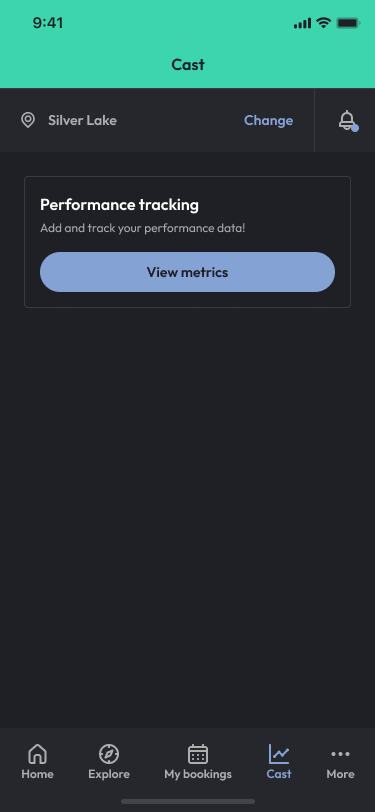
Click on your content banner and/or your digital tab in your navigation bar.
-
Click the Performance Tracking menu item and you’ll see a list of all active metrics.
-
Metrics are sorted by most recently submitted entries.
-
Use category filters (e.g. Strength, Endurance, Cardio) to refine the view of metrics.
-
Pull to refresh and to reveal the search bar.
-
Type a metric name to find it quickly using the search bar.
Use the Settings & Change Units Interface
Units can be updated within the app.
-
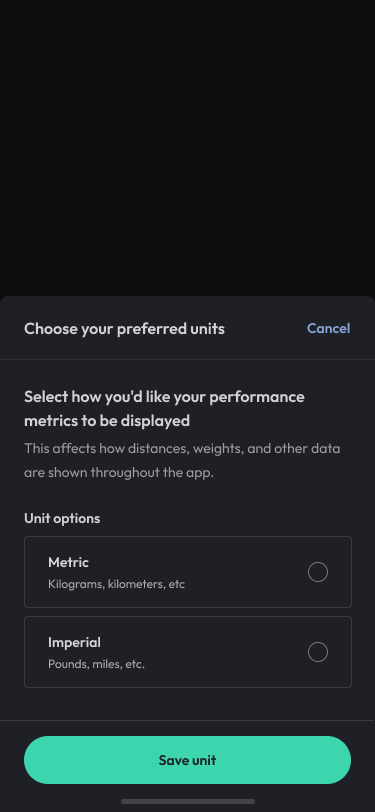
Tap the settings icon in the top-right of the screen.
-
You’ll be taken to the Change Units interface.
-
Select your metrics preference using Unit options: Metric or Imperial
-
Select 'Save unit'
-
Your metrics will now show values in either Metric or Imperial, based on preference.
Submit, Edit, and Delete a Metric
-
Click on your content banner and/or your digital tab in your navigation bar.
-
Click the Performance Tracking menu item and you’ll see a list of all active metrics.
-
Select a Metric:
-
Tap Submit Result
-
Enter the value
-
Only the latest log per day appears in the graph; all others go to the list.
-
The log list and graph auto-refresh.
-
-
Edit a result:
-
Tap the log, select Edit
-
Update the value; your screen refreshes on submission.
-
-
Delete a result:
-
Tap the log, select Delete
-
Confirm, and the metric is removed from the log list.
-
Share Your Performance
-
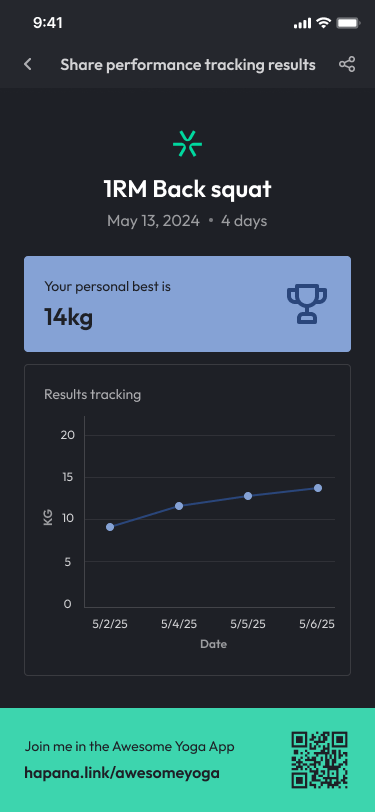
Tap the share icon on the performance screen.
-
You’ll be taken to the Share Performance screen.
-
Follow prompts to create a shareable version of your log.
Expected Outcome
You’ll be able to:
-
View and manage your performance logs by metric or metric variant.
-
See your PBs and recent progress in a clean, visual format.
-
Submit, edit, and delete logs with unit preferences automatically applied.
-
Easily share results and navigate performance data in one place.
FAQs
Q: How are personal bests calculated?
A: PBs follow the rules as set up during Performance Tracking configuration - some track the highest values (e.g., weight) while others the lowest (e.g., time).
Q: What happens if I log multiple results in one day?
A: Only the most recent one shows on the graph, but all appear in the log list below.
Need help? Reach out to our support team via support@hapana.com