
Overview
This article explains how Incoming Call Settings work in Grow by Hapana and how to configure your phone settings so calls from multiple sub-accounts are forwarded to you or a specific user. By following these steps, you can ensure calls are answered consistently even if you are not logged into every sub-account.
What is Edit Configuration (Incoming Call Settings)?
The Edit Configuration (Incoming Call Settings) interface consolidates every factor that can intercept or redirect an incoming call such as IVR, forwarding, users, or Voice AI into one clear, easy-to-read screen.
Each row shows:
-
Whether the option is enabled
-
Which user, number, or system is responsible
-
A direct Edit action or deep link to update the setting
By visualizing call-flow priority, this screen removes guesswork when a call does not ring where you expect.
Key Benefits of Incoming Call Settings
-
Full transparency – See exactly which rule answers first, second, and third
-
Inline editing – Toggle or update most settings without leaving the page
-
Clear priority – Understand the fixed order the system follows
-
Faster troubleshooting – Quickly spot misconfigured numbers or missing users
-
Fewer missed calls – Optimize routing so prospects reach a real person
-
Time savings – No more searching through multiple menus
Access Phone Number Edit Configuration
-
Navigate to Settings > Phone Numbers
-
Open the Phone Numbers tab
-
Locate the phone number you want to edit
-
Click the three-dot menu next to the number
-
Select Edit Configuration
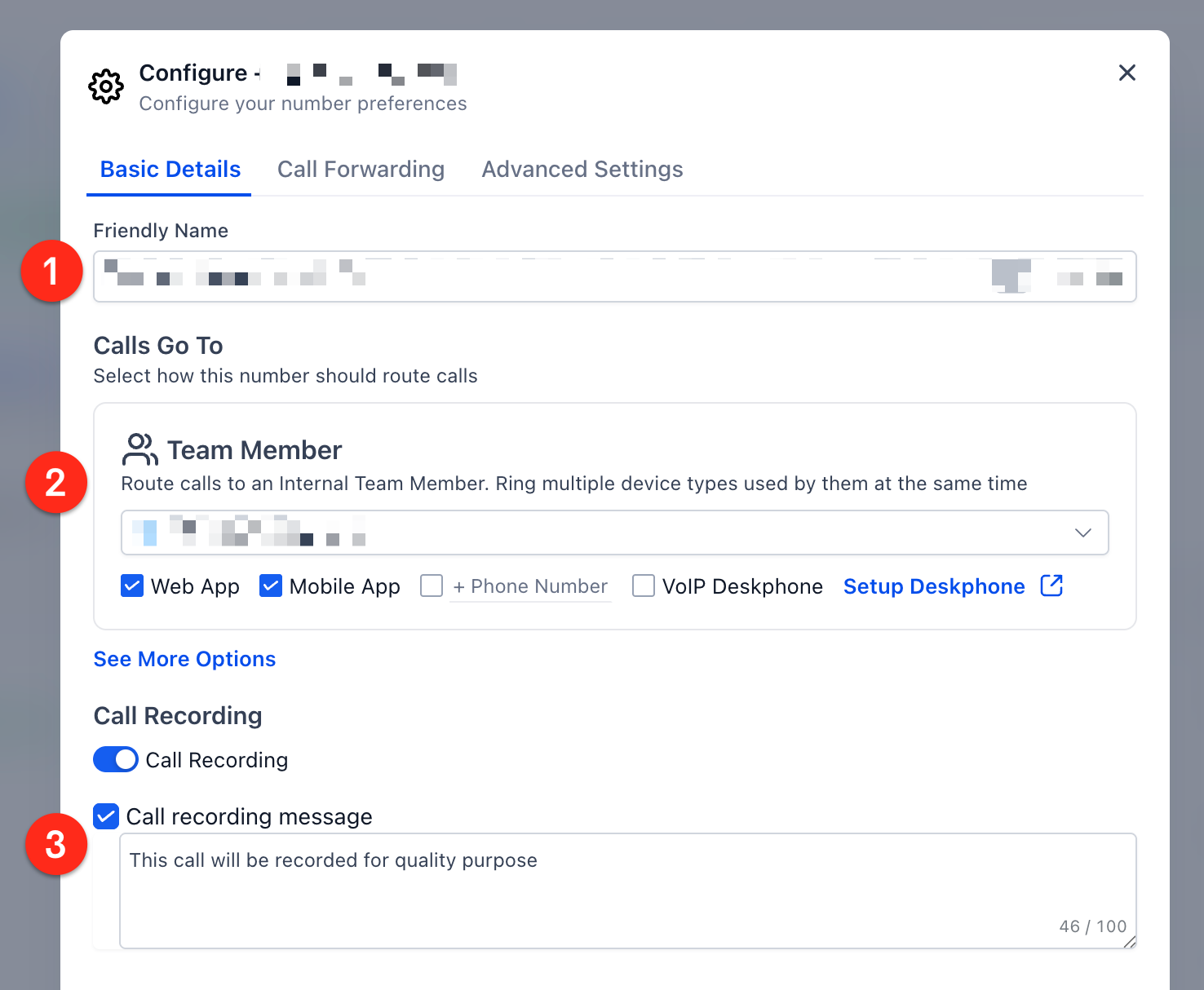
Basic Details
On the Basic Details tab:
- Friendly Name - Rename the phone number.
- Calls Go To
- Team Member - Use the dropdown to select the specific team member calls to this number will go to.
- Ring Options - Select one or more places to ring simultaneously.
- Web App - If they have the web app open, it will ring.
- Mobile App - If they are logged into the mobile app, it will ring.
- Phone Number - Click and type in a specific number to forward to.
- VoIP Deskphone - If setup, their physical desk phone will ring.
- Web App - If they have the web app open, it will ring.
- Team Member - Use the dropdown to select the specific team member calls to this number will go to.
- Call Recording
- Recording Toggle - Toggle call recording on or off for this number.
- Message Checkbox - Check on to play a message before starting the call.
- Message Box - Type the message you want played (ex: This call will be recorded for quality purposes).
- Recording Toggle - Toggle call recording on or off for this number.
Understanding Call-Flow Priority
Incoming calls are evaluated top to bottom in a fixed order:
-
Workflow, IVR, or automation attached to the number
-
User assigned directly to the phone number
-
User assigned to the contact record
-
Ring Incoming Call to Multiple Users (Ring-All)
-
Forwarding phone number
Only one option rings at a time. The system always attempts the highest available priority. If the first option is unavailable, it automatically checks the next.
Phone Settings & Forwarding Calls from Multiple Sub-Accounts
If you manage multiple sub-accounts, you must configure phone settings correctly so calls from any location reach you.
Step 1: Configure User Call Settings
-
Log into any one sub-account
-
Go to Settings
-
Click My Staff or My Profile (depending on your account)
-
If using My Staff, select the staff member who should receive calls
-
If using My Profile, open Call & Voicemail Settings
-
-
Enable Forward calls to:
-
Web App
-
Mobile App
-
My Phone Number
-
Tip: These user-level settings apply across all locations you have access to and only need to be set once.
Phone numbers are location-specific, so forwarding must be configured inside each sub-account.
Step 2: Configure Phone Number Routing (Required for Each Sub-Account)
-
Switch to the sub-account
-
Go to Settings > Phone System / Phone Numbers
-
Locate the phone number (usually one Twilio number per account)
-
Click the three-dot menu > Edit Configuration
-
Select the user(s) who should receive calls (up to 6 users)
-
Enable all three ring options:
-
Web App
-
Mobile App
-
Phone Number
-
Caller ID Recommendation (Optional)
By default, forwarded calls show the caller’s phone number on your caller ID. If you want to easily identify which sub-account a call is coming from:
-
Open Advanced Settings and Change the setting to show the CRM’s phone number instead
This is optional but highly recommended when managing multiple locations.
-
Click Save
-
Repeat these steps for each sub-account
Important: If you are logged into only one sub-account on the web app, calls from other sub-accounts will not ring in the web app. Using the mobile app and phone number forwarding ensures you still receive the call.