
Overview
This guide shows you how to connect your Google Calendar to GROW so you can manage bookings, avoid double bookings, and keep everything in sync automatically.
By connecting your calendar, you’ll be able to schedule appointments, see availability in real time, and keep your team aligned—all in one place.
Prerequisites
-
A valid Google account
-
Access to Calendars in your GROW subaccount
-
The calendar you want to connect is not restricted by conflicting sharing permissions
Tip: Calendar connections are set up per user, not company-wide. Each team member should connect their own Google Calendar.
Go to Calendar Settings
-
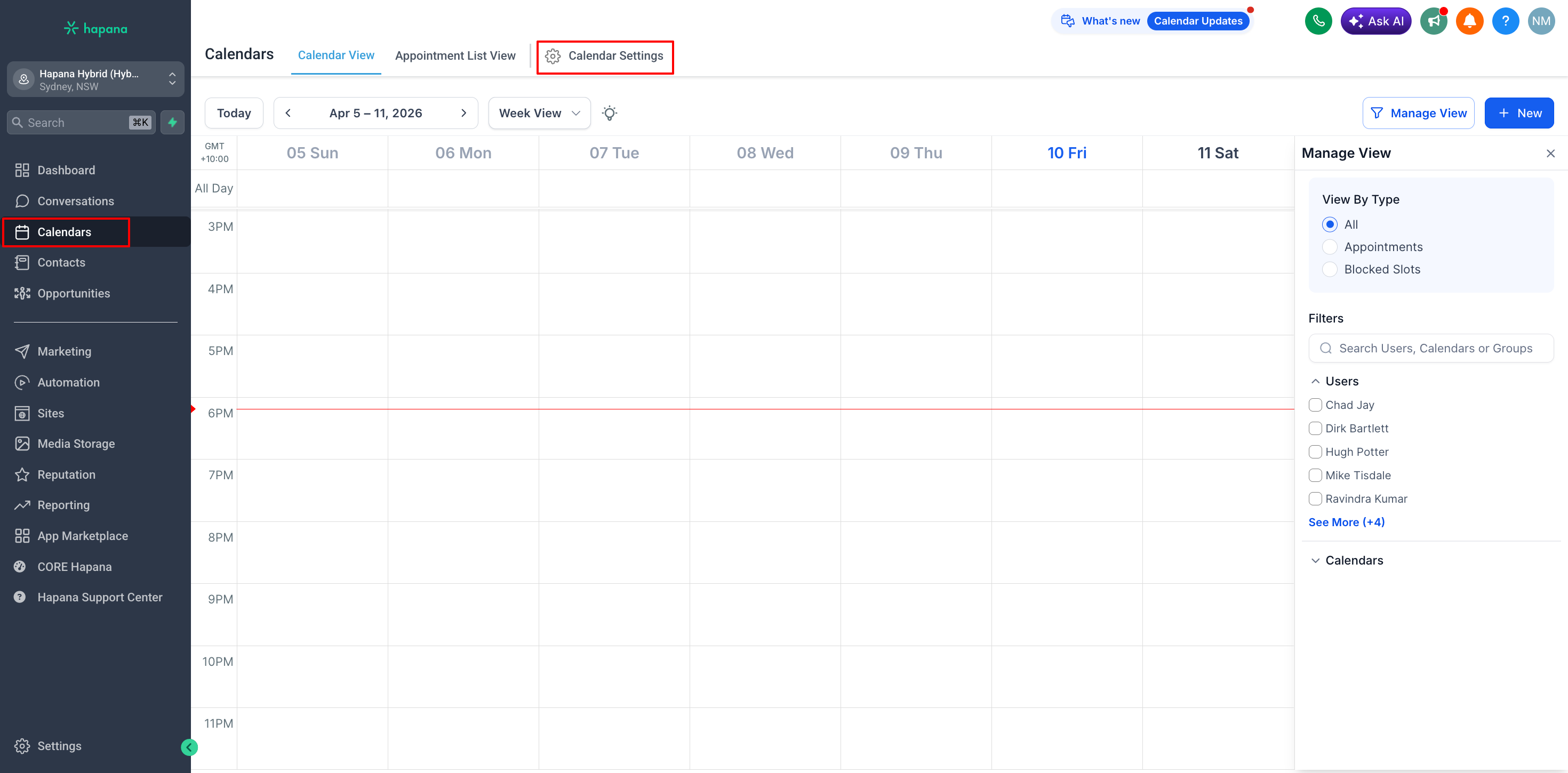
From your dashboard, use the left-hand menu to click Calendars
-
In the top right, click Calendar Settings
-
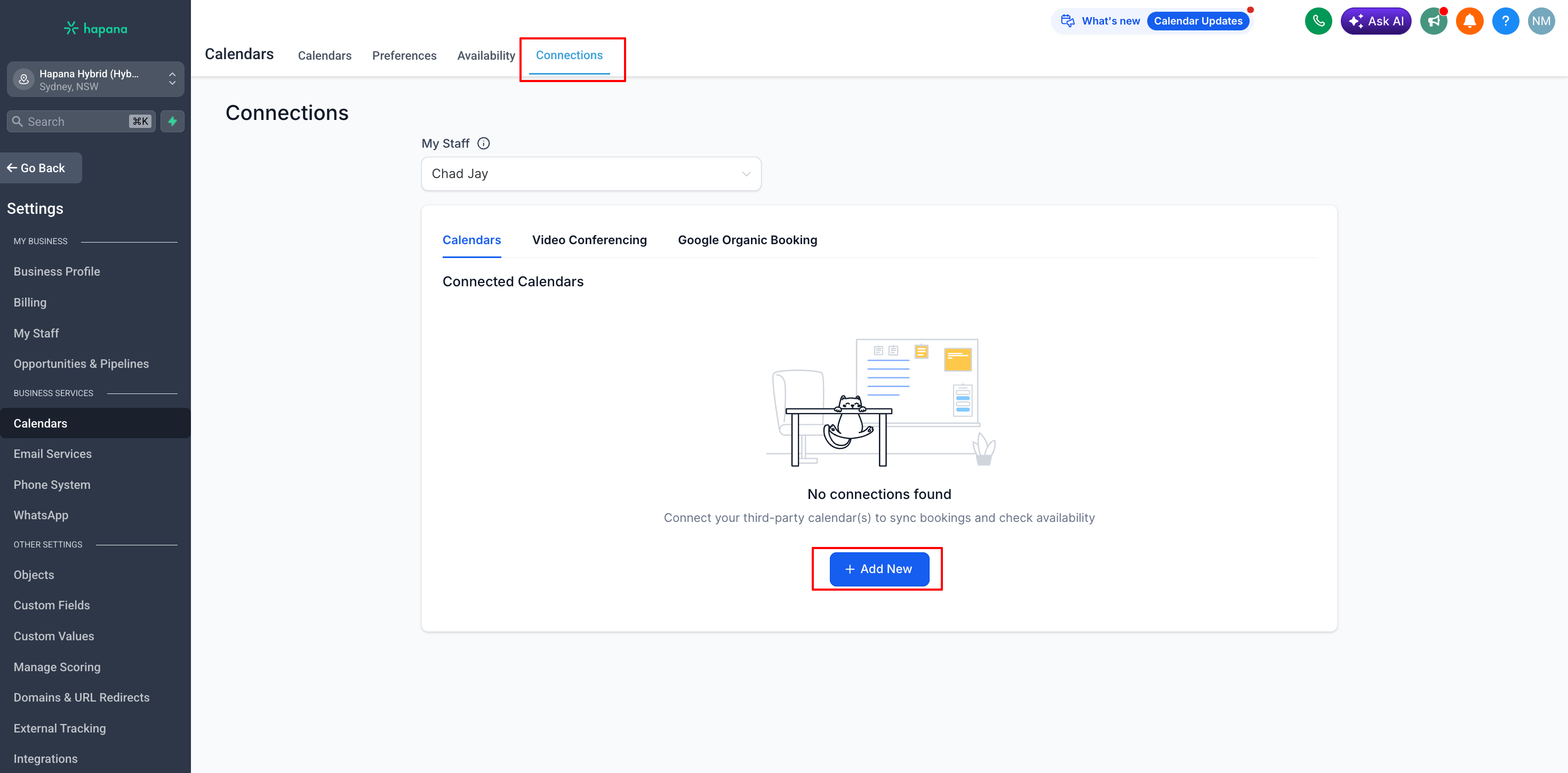
Click the Connections tab
-
Click + Add New
Connect Your Google Account
-
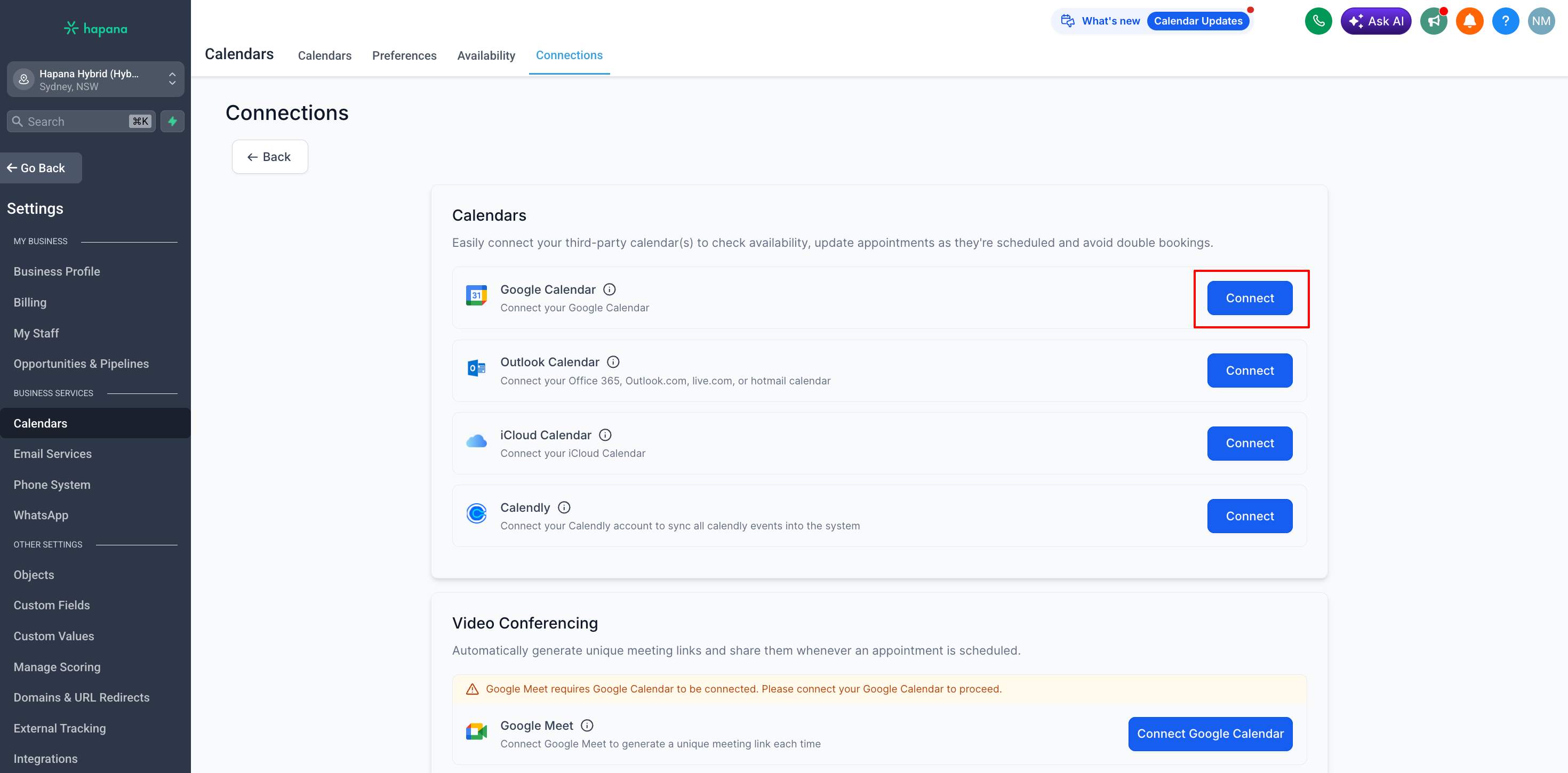
In the Connections tab, find Google Calendar
-
Click Connect
-
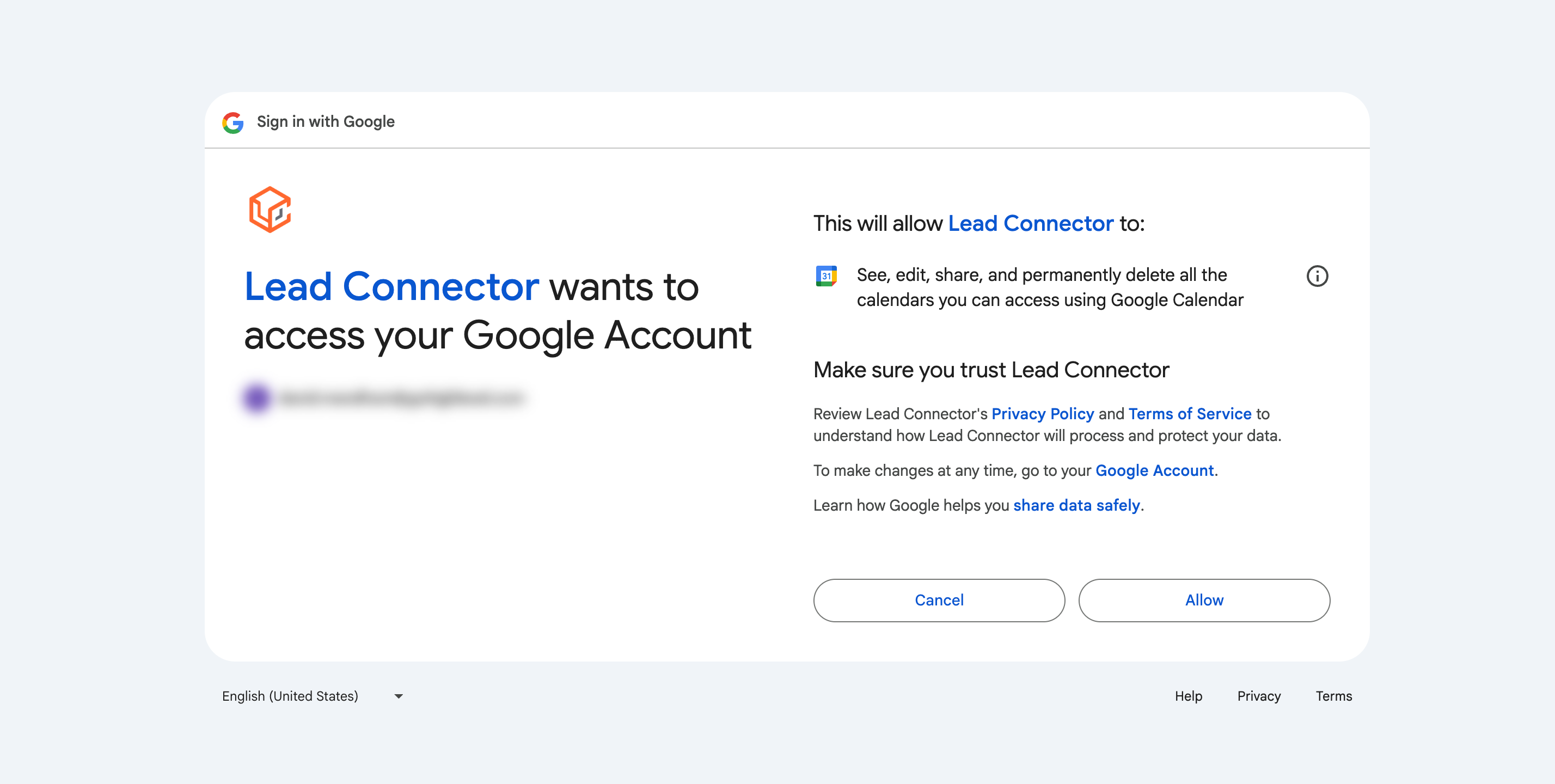
Choose your Google account
-
Click Allow to grant permissions
Grant Required Permissions
-
Make sure all requested permissions are accepted, including:
-
Calendar access (read and write)
-
Profile access
-
Email access
-
Tip: If you don’t allow full calendar access, your calendar may not sync correctly.
Tip: If you see a warning later about missing permissions, go to Settings → Integrations → Google and click Reconnect.
Expected Outcome
You’ve successfully connected your Google Calendar to GROW. Your appointments will now sync in real time, helping you:
-
Avoid double bookings
-
Manage availability
-
Keep your schedule up to date across platforms
FAQ
Q: Why isn’t my calendar syncing?
A: Check if all permissions were granted. Go to Settings → Integrations → Google and click Reconnect if needed.
Q: I don’t see my Google Calendar - what should I do?
A: Make sure you’re logged into the correct Google account. Try logging out of all Google accounts and reconnecting.
Q: What can cause my calendar sync to stop working?
A: Common reasons include expired access tokens, deleted calendars, or removed permissions.
Reach out to our support team via support@hapana.com