
Overview
This article walks you through how to update or correct the start and end dates of a client's membership within Core. This is useful when a membership's validity period needs to be adjusted due to billing errors, administrative changes, or membership freezes.
Prerequisites
- You must have access to the Hapana Core Platform
- Ensure the client has an active membership
- Confirm the correct date range before applying updates
Step 1: Log in to your Core account
Go to core.hapana.com/login and enter your login credentials.
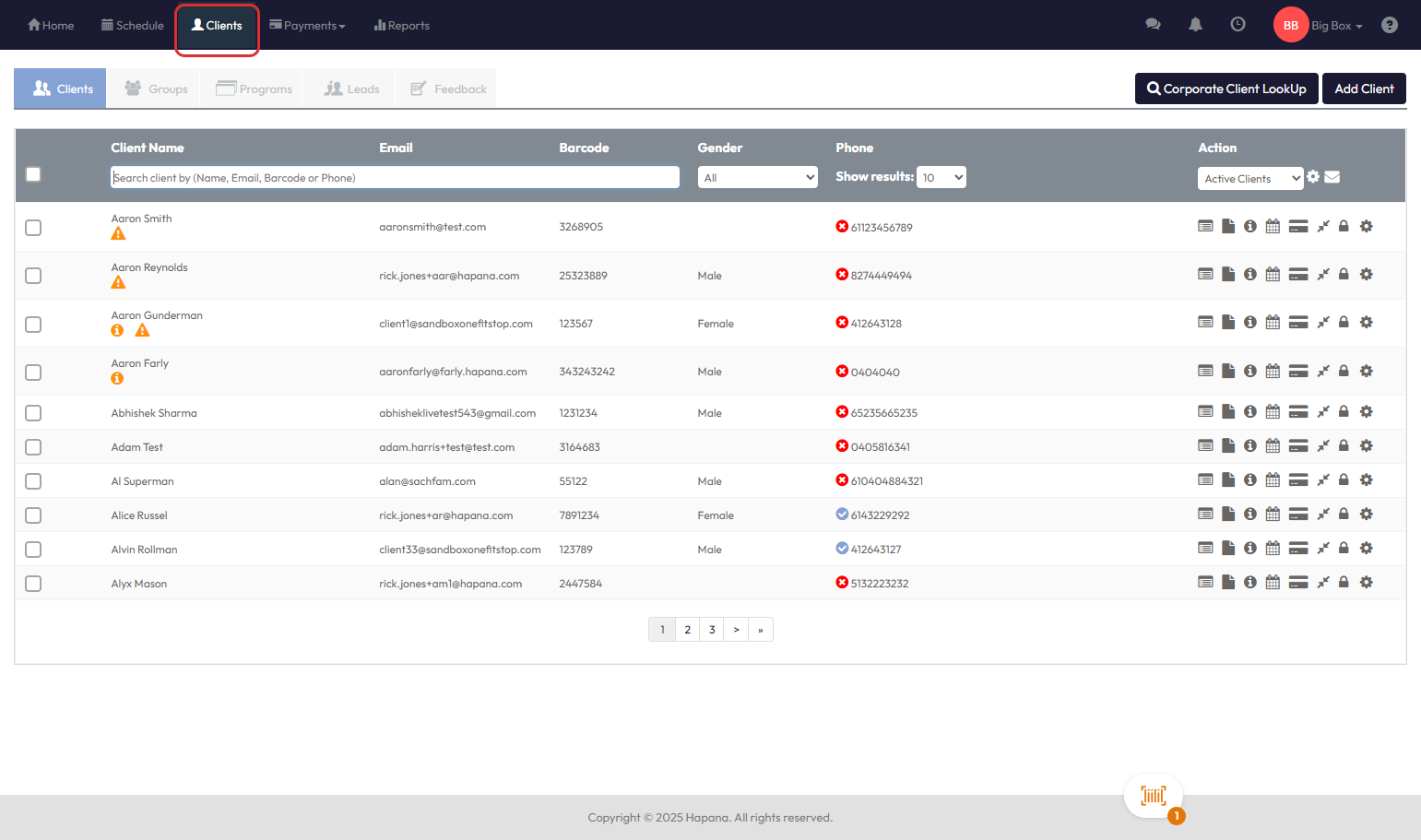
Step 2: Click Clients in the top menu bar
This opens your full client list.
Step 3: Search for the client by name, email, or phone number
Use the search field to quickly locate the desired client profile.
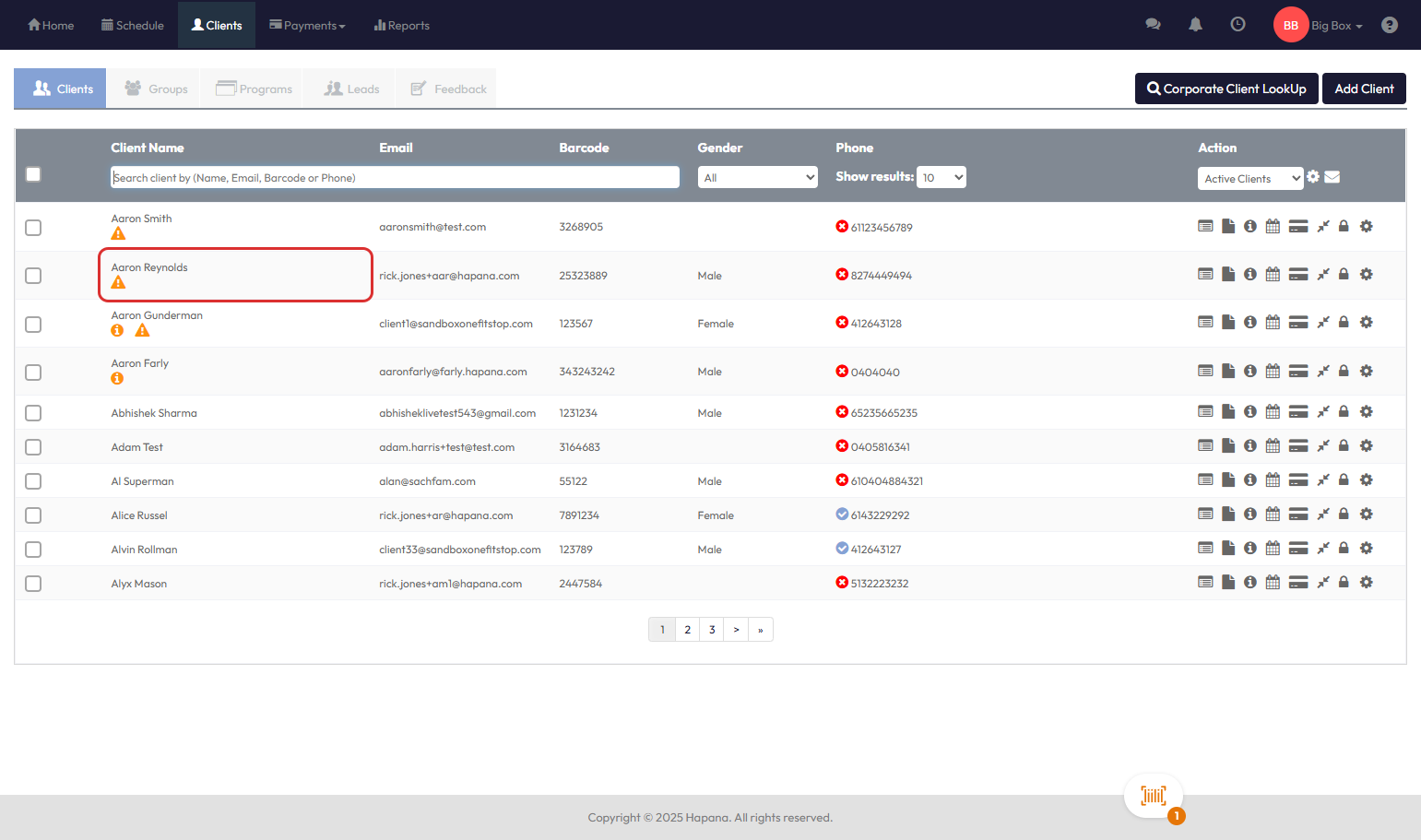
Step 4: Click the client's name to open their profile
This will open the Client Information view.
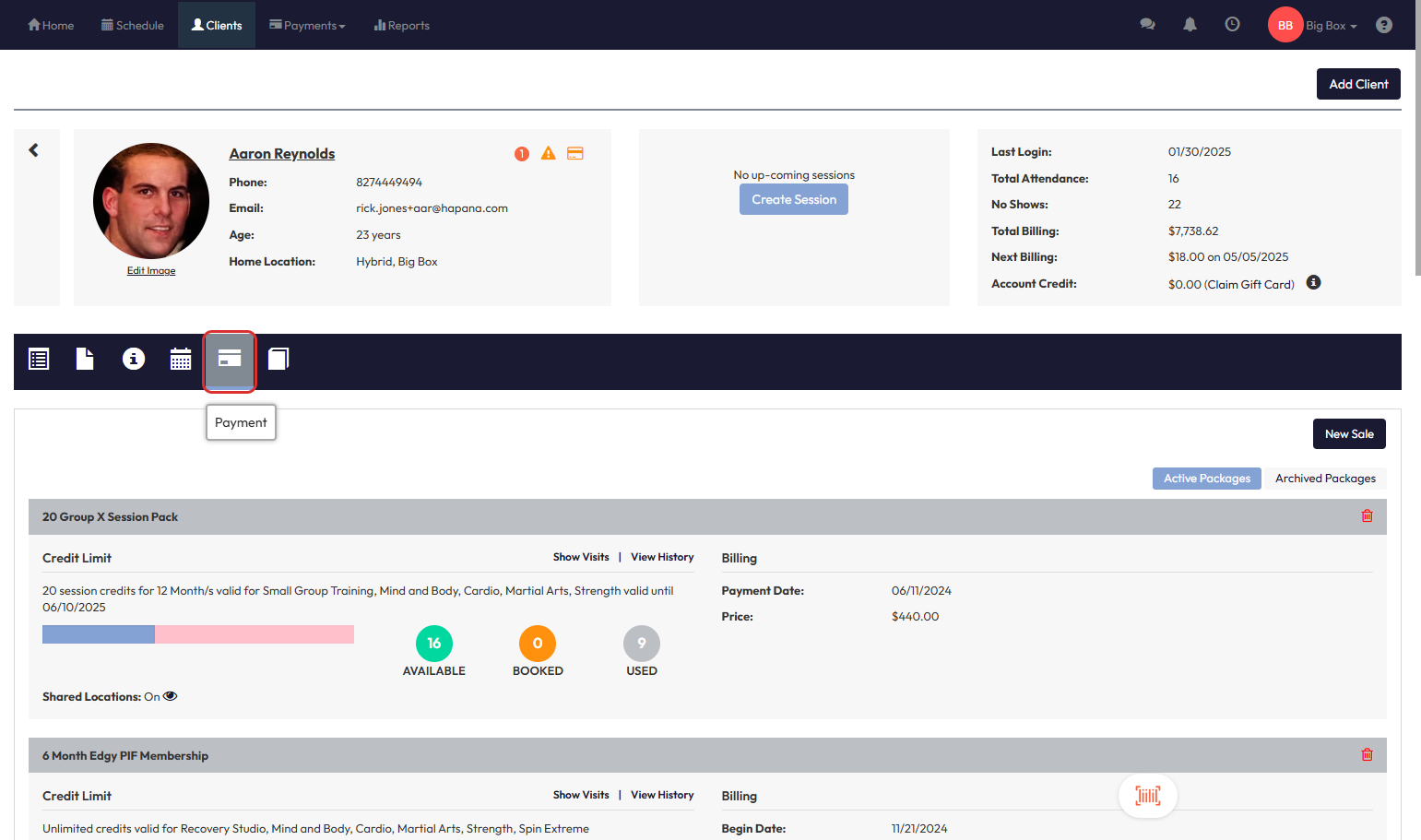
Step 5: Click the Payment tab
Look for the tab with the credit card icon at the top of the profile panel.
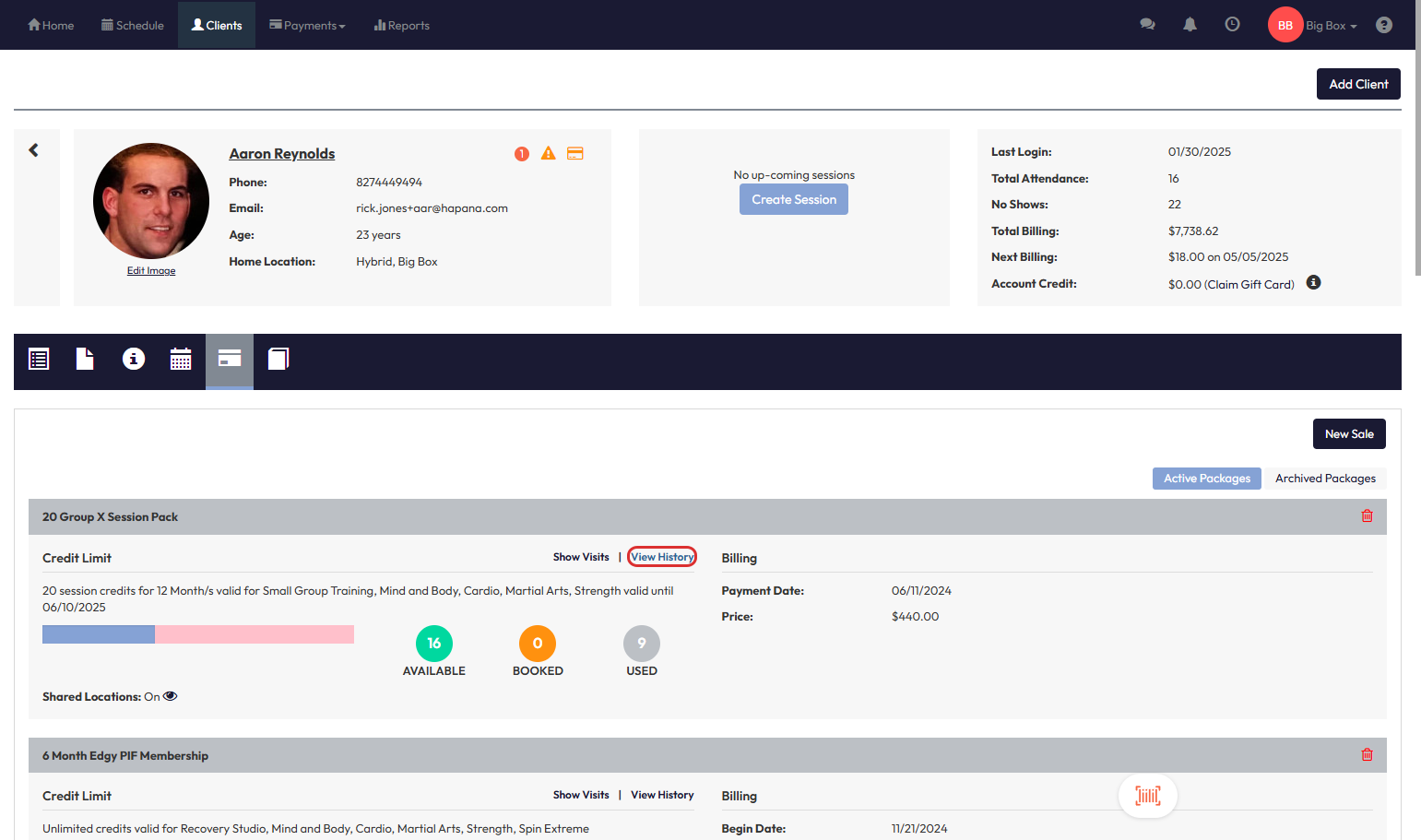
Step 6: Scroll to the desired membership and click View History
This opens a breakdown of session credit activity for the selected membership.
Step 7: Review the current membership validity period
You’ll see the Begin Date and End Date listed in two places:
- Under the membership’s general details
- Inside the Attendance Summary section
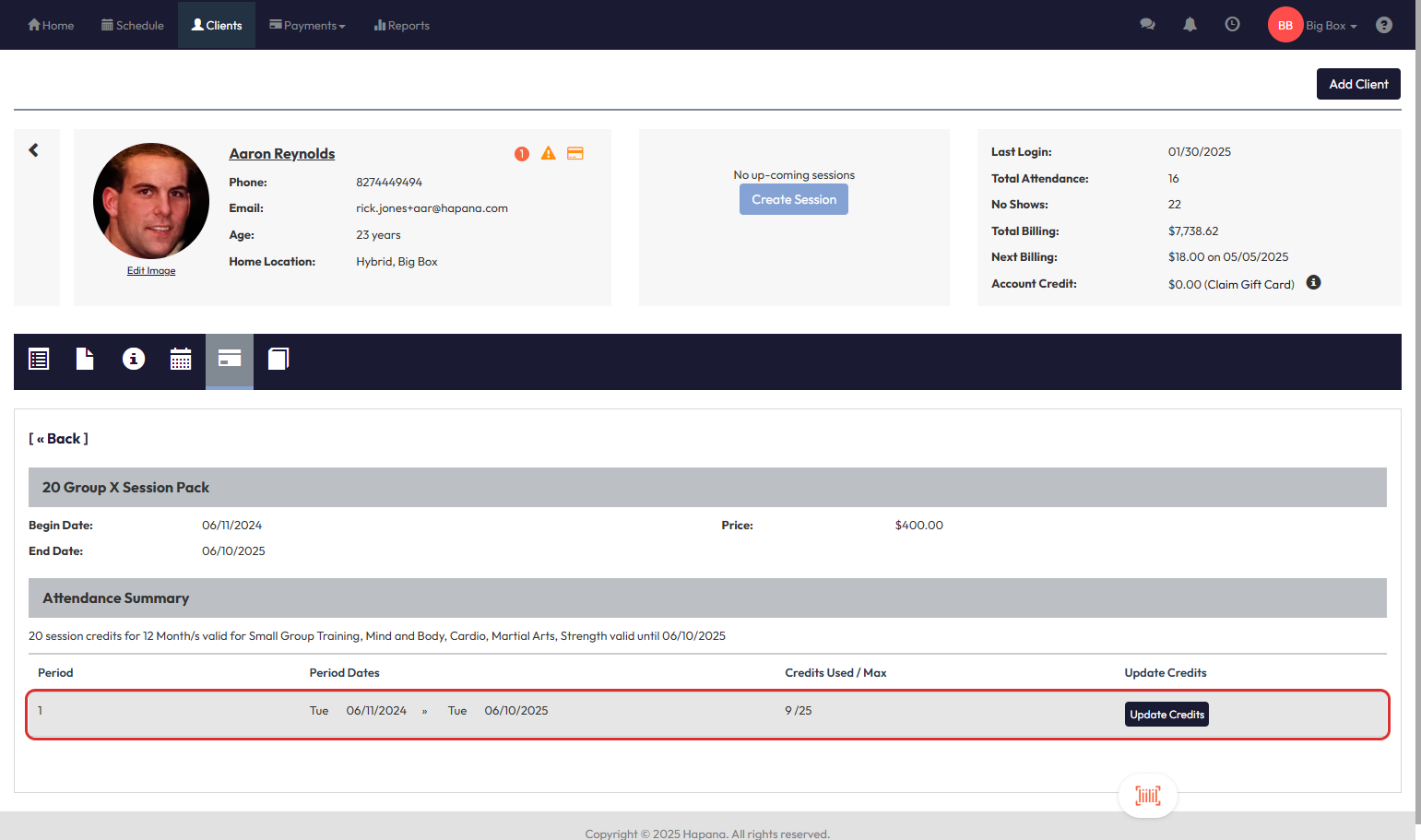
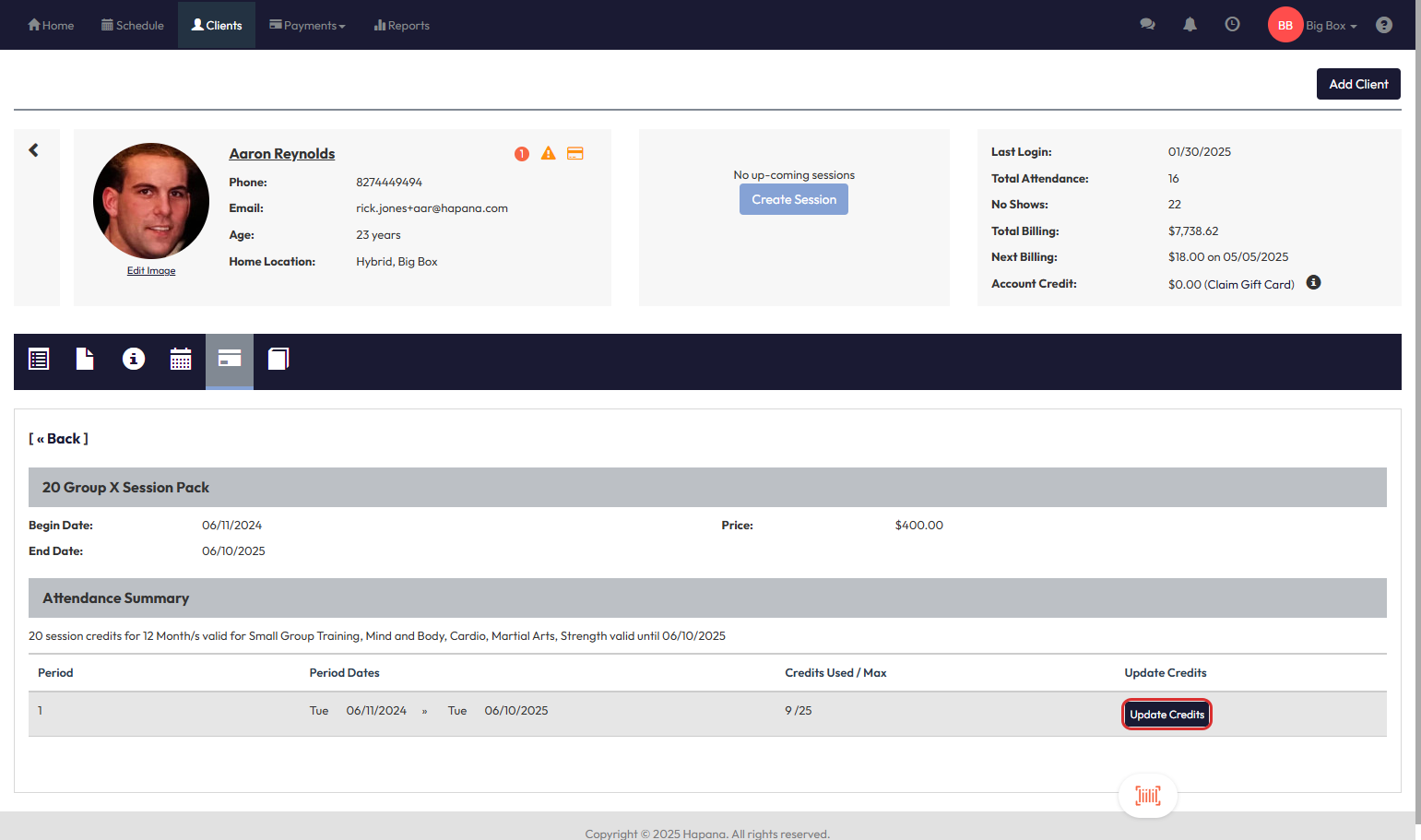
Step 8: Click Update Credits to adjust the dates
This opens a modal window for modifying credit information.
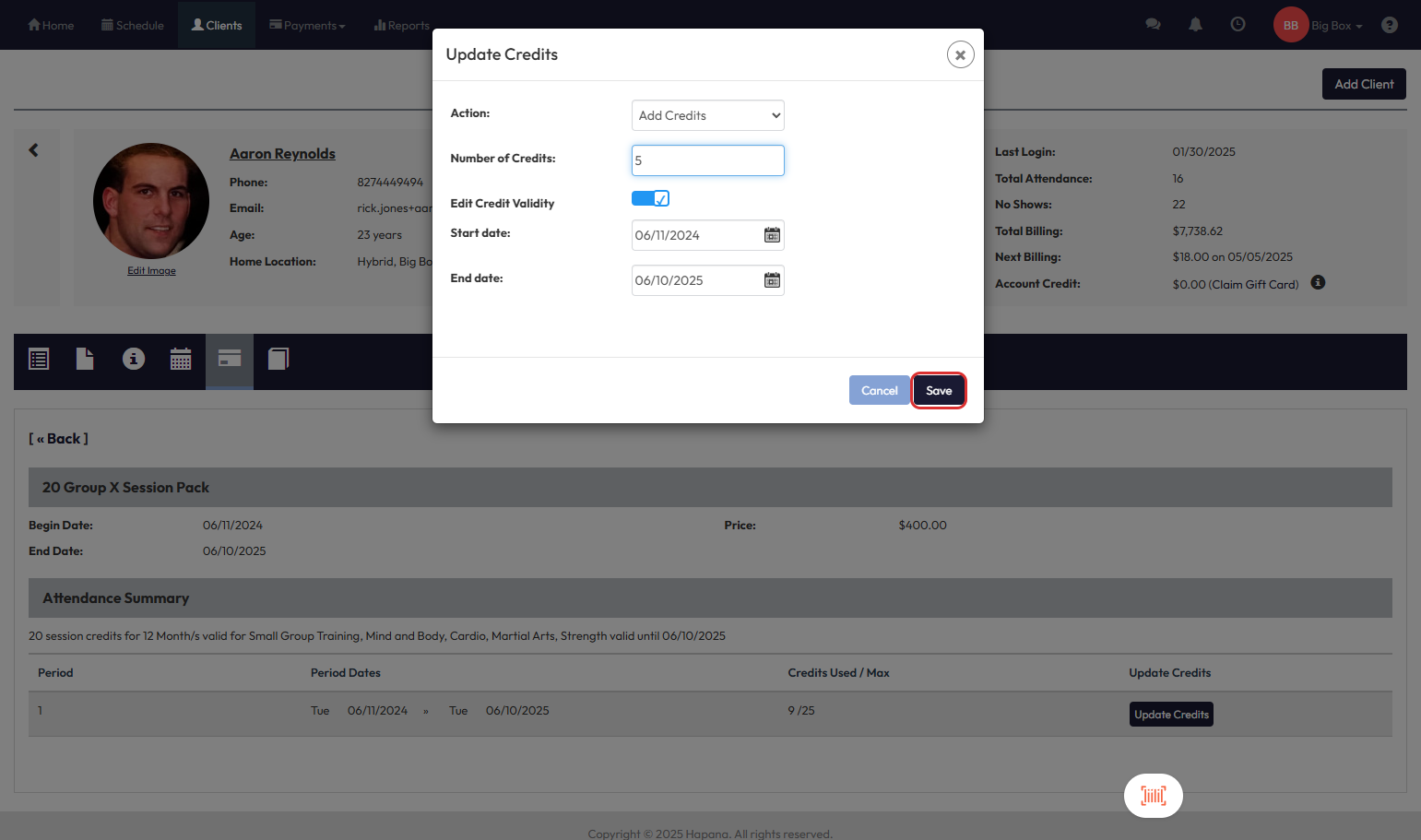
Step 9: Toggle on Edit Credit Validity
Slide the toggle to enable the start and end date fields.
Step 10: Click the calendar icon next to either the Start date or End date
Select the new date(s) from the calendar picker.
Tip: You can update just one of the dates or both, depending on your needs.
Step 11: Click Save to apply the changes
Your updates will be reflected immediately on the client’s membership.
Expected Outcome
The membership’s start and/or end date will be successfully updated. This change will reflect in the client’s membership history and influence their session usage eligibility.
FAQs
Q: Will changing the end date impact billing?
A: No, this process only affects session credit validity, not payment schedules.
Q: Can I extend a membership that’s already expired?
A: No, you can only extend an expired package (not membership).
Q: What happens if I enter overlapping date ranges?
A: It’s best to avoid overlap, as it may cause session tracking issues.
Need help? Reach out to our support team via support@hapana.com