
Overview
Before sending a campaign, it’s important to preview and test your email to make sure everything looks right. In GROW, you can check how your email will appear on desktop and mobile, and send a test version to your own inbox — giving you peace of mind before the real send.
Prerequisites
Before you start:
- You must have access to the Marketing section in GROW
- You need a saved email template you want to review or test
- You should have an inbox (like Gmail or Outlook) where you can receive the test email
Step 1: Open your email campaign
-
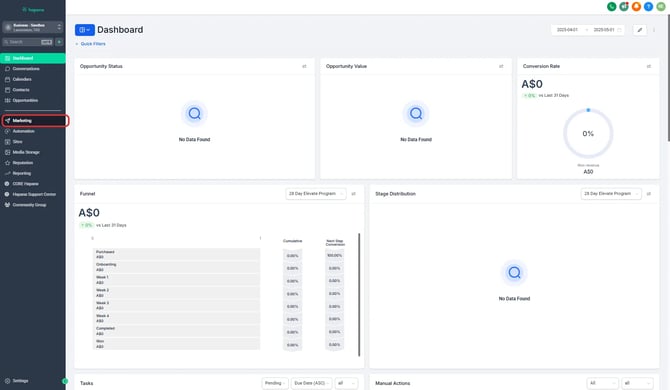
Go to the Marketing tab in the left-hand menu.
-
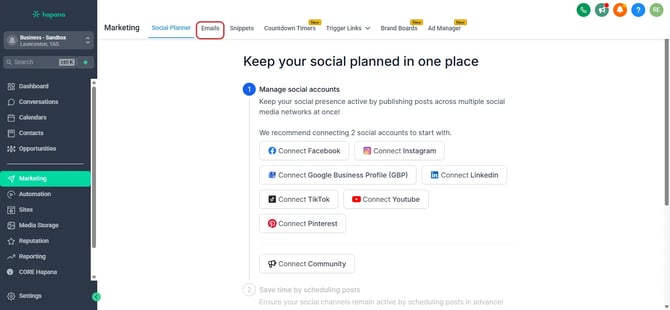
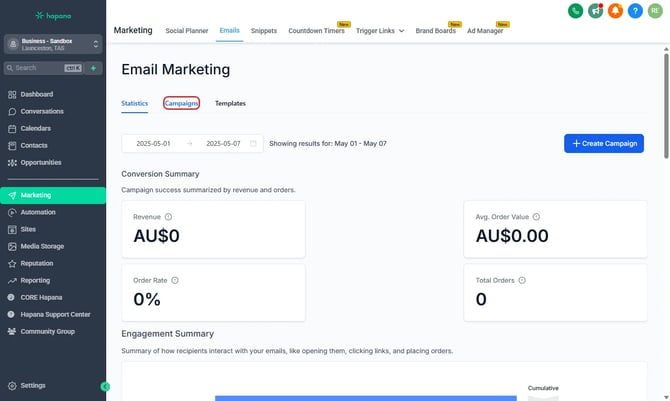
Select the Emails tab and navigate to campaigns.
-
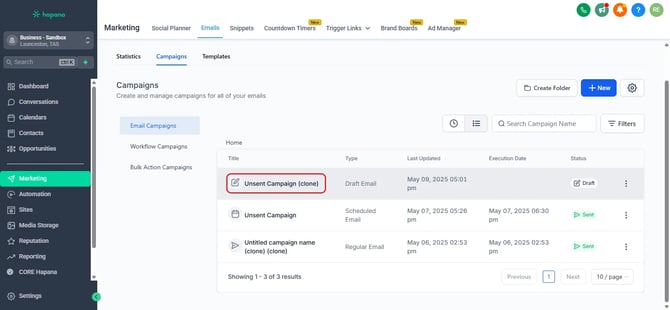
Open the campaign you’re working on.
Step 2: Preview your email
-
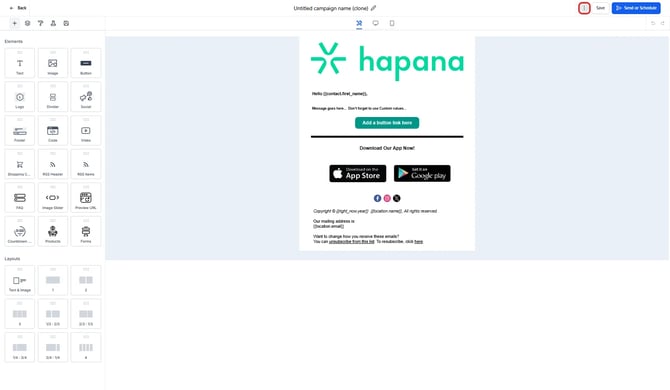
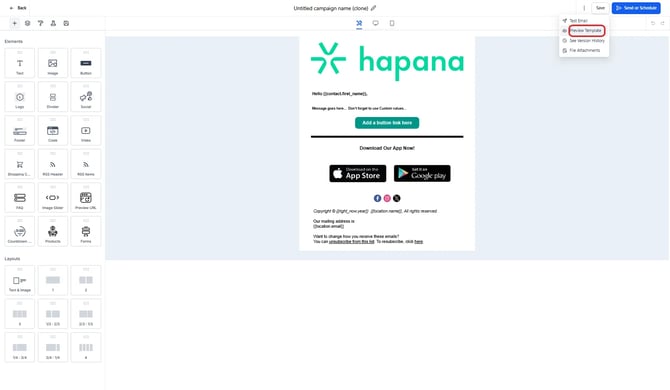
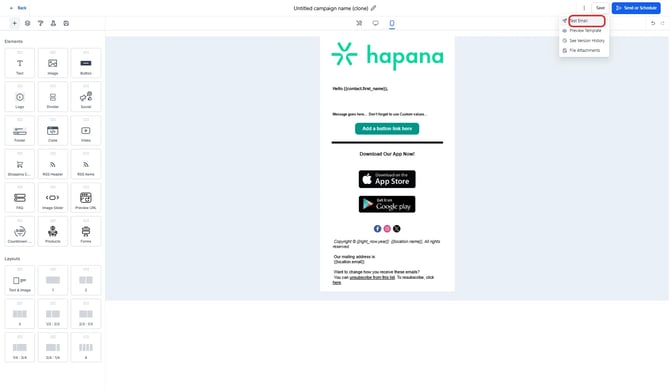
In the campaign editor, click on the three dots beside the save button in the top right, from this pop out menu select “Preview Template.
-
You’ll now be able to see how your email will look on both desktop and mobile views.
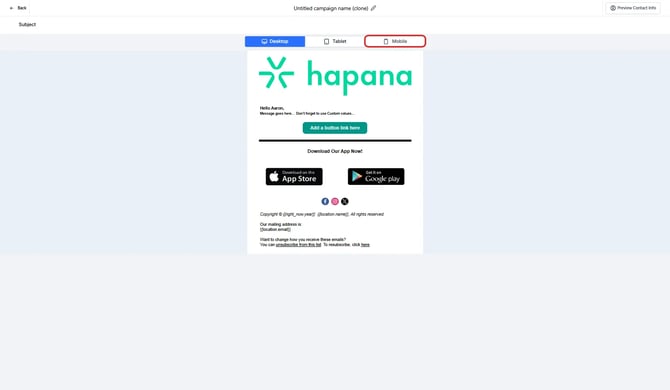
Tip: Use the toggle icons to switch between device previews. This helps make sure your message looks great everywhere.
Step 3: Send yourself a test email
-
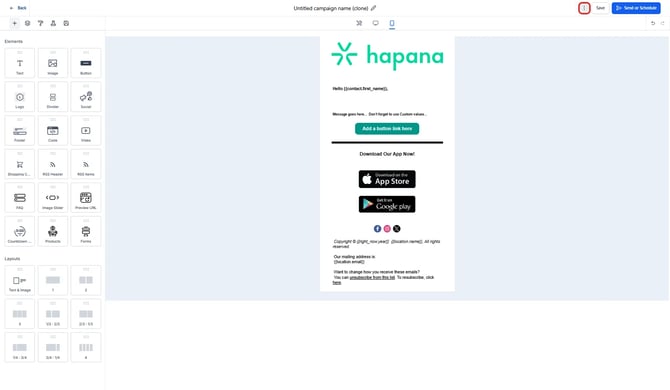
In the campaign editor, click on the three dots beside the save button in the top right, from this pop out menu select “Test Email”
-
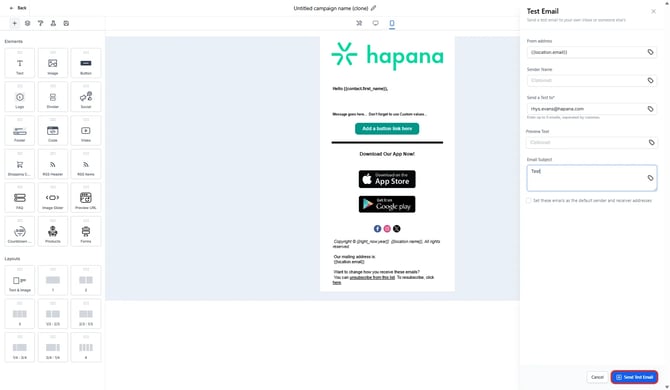
Enter the email address where you'd like to receive the test and click “Send Test Email”.
Tip: Always check the test on both desktop and mobile devices. Look out for broken links, incorrect formatting, or typos.
Expected outcome
You’ll receive a test version of your email campaign in your inbox and be able to review how it will appear to your contacts — helping you catch any last-minute issues before sending or scheduling the full campaign.
Troubleshooting / FAQs
Q: Why didn’t my test email arrive?
A: Double-check the email address you entered and make sure to check your spam or promotions folder.
Q: Can I test dynamic fields like first name in a test email?
A: No. Test emails won’t pull actual contact data into merge fields — those populate during the real send.
Q: Can I preview the email after scheduling it?
A: Yes. You can always return to the campaign and click Preview before it sends.
Q: Can I perform the same steps to test an Email Template?
A: Yes. The process is exactly the same.
Still need help?
Reach out to our support team via support@hapana.com