---
title: Import an HTML email template into a campaign
description: GROW Import HTML email template into a campaign
---
[Skip to content](https://support.hapana.com/kb/article/635#main-content)
English
Show submenu for translations
[](https://info.hapana.com/en?hsLang=en)
Open main navigation
Close main navigation
- English
Show submenu for translations
- [Submit Ticket](https://21gxv.share.hsforms.com/2-8HozJXMSTW8kaFHC32eaw)
[Submit Ticket](https://21gxv.share.hsforms.com/2-8HozJXMSTW8kaFHC32eaw)
Hapana Help | Find answers here
- There are no suggestions because the search field is empty.
1. [Hapana Knowledge Base](https://support.hapana.com/?hsLang=en)
2. [Marketing Solutions](https://support.hapana.com/marketing-solutions?hsLang=en)
3. [Marketing](https://support.hapana.com/marketing-solutions?hsLang=en#marketing)
# Import an HTML email template into a campaign
##### **Overview**
This guide shows you how to **import an HTML email template** into a campaign in GROW. This is helpful if you’ve had a designer create a custom email layout outside of GROW, and you want to use that code in your email campaign.
> Tip: Certain ESP’s (Email Service Providers) algorithms do not like full HTML emails which may affect your deliverability.
---
**Prerequisites**
Before you begin:
- You must have access to the **Marketing \> Emails \> Campaigns** section in GROW
- You need the full **HTML code** for your email
- The code should be clean, mobile-friendly, and include inline styling
> Tip: GROW does not support external CSS files or scripts. All styles should be embedded inline within the HTML.
---
### **Step 1: Create a new email campaign**
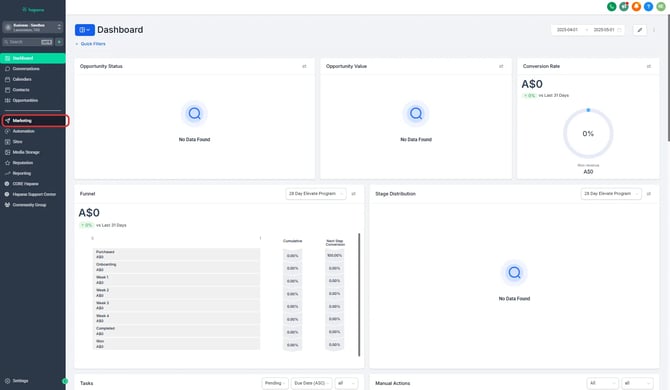
1. Go to the **Marketing** tab in the left-hand menu.
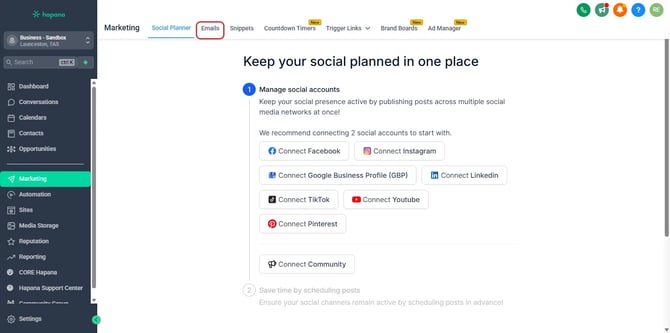
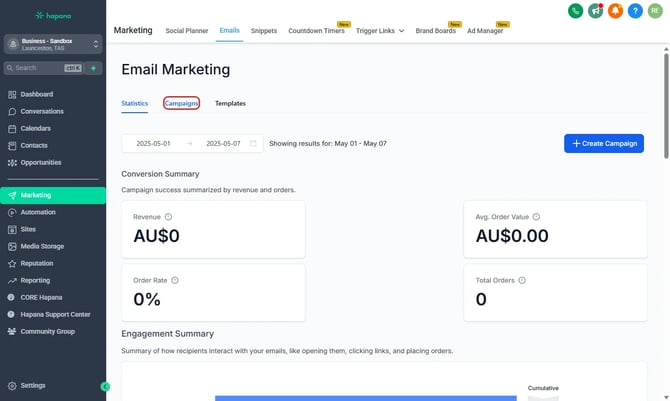
2. Select the Emails tab and navigate to Campaigns or Templates (the process is exactly the same for both).
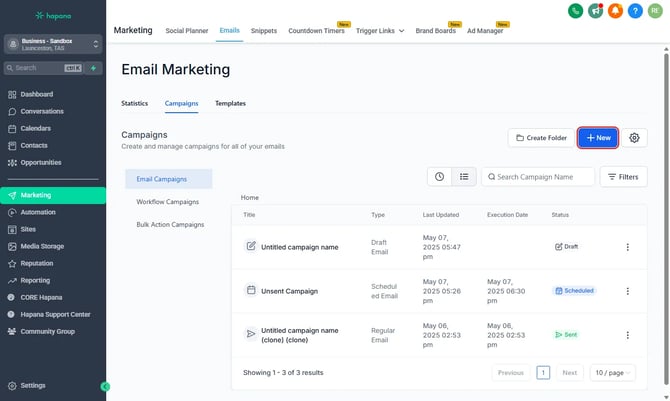
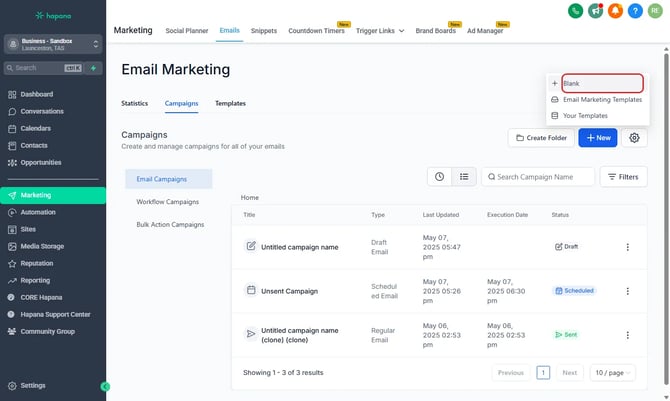
3. Click the “**+ New” button**
4. Select the “Blank” option
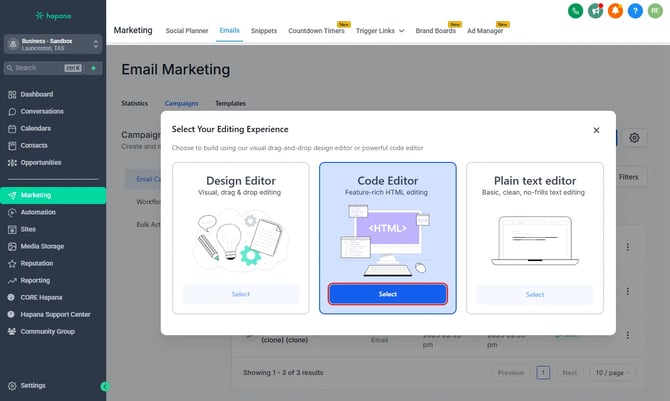
5. Select the “Code Editor” experience
---
### **Step 2: Paste your HTML code**
1. Paste your full HTML email code into the field on the left of the preview and it will be shown on the Right.
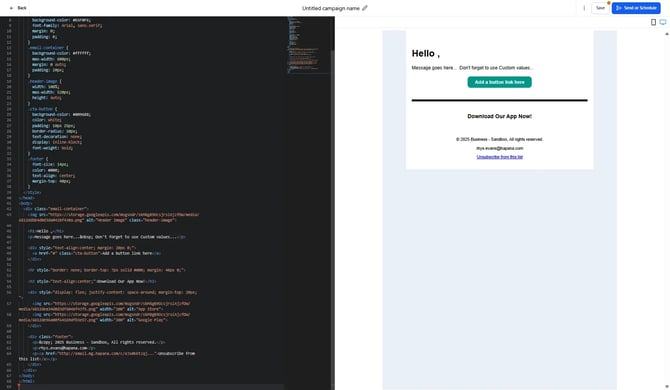
> Tip: If the formatting looks off after importing, double-check your code for broken tags or missing inline styles.
---
**Expected outcome**
Your custom HTML design will be imported into the email editor, allowing you to use it in your campaign. You can now proceed with sending or scheduling your campaign as usual.
---
**Troubleshooting / FAQs**
**Q: Can I edit the email visually after importing HTML?**
A: No. Imported HTML emails are not compatible with the drag-and-drop editor. You'll need to make changes directly in the code.
**Q: Why is my design not displaying correctly after import?**
A: Make sure all styling is done inline. External stylesheets and JavaScript are not supported.
**Q: Can I preview the HTML email before sending?**
A: Yes. Click the three dots and select **Preview** Template (eye symbol) in the top right of the editor to view your imported design.
---
**Still need help?**
Reach out to our support team via [support@hapana.com](mailto:support@hapana.com)
- [Member Management](https://support.hapana.com/member-management?hsLang=en#main-content)
- [Account Settings](https://support.hapana.com/member-management?hsLang=en#account-settings)
- [Client Accounts](https://support.hapana.com/member-management?hsLang=en#client-accounts)
- [Edit Profile](https://support.hapana.com/member-management?hsLang=en#edit-profile)
- [Retail Configurations](https://support.hapana.com/member-management?hsLang=en#retail-configurations)
- [Other](https://support.hapana.com/member-management?hsLang=en#other)
- [Schedule](https://support.hapana.com/member-management?hsLang=en#schedule)
- [Client Page](https://support.hapana.com/member-management?hsLang=en#client-page)
- [General](https://support.hapana.com/member-management?hsLang=en#general)
- [Reporting](https://support.hapana.com/member-management?hsLang=en#reporting)
- [Retail Dashboard](https://support.hapana.com/member-management?hsLang=en#retail-dashboard)
- [Team Settings](https://support.hapana.com/member-management?hsLang=en#team-settings)
- [Hapana Member Access Control (MAC) Doors](https://support.hapana.com/member-management?hsLang=en#hapana-member-access-control-mac-doors)
- [Cash Drawer](https://support.hapana.com/member-management?hsLang=en#cash-drawer)
- [Marketing Solutions](https://support.hapana.com/marketing-solutions?hsLang=en#main-content)
- [App](https://support.hapana.com/marketing-solutions?hsLang=en#app)
- [Contacts](https://support.hapana.com/marketing-solutions?hsLang=en#contacts)
- [Marketing](https://support.hapana.com/marketing-solutions?hsLang=en#marketing)
- [Conversations](https://support.hapana.com/marketing-solutions?hsLang=en#conversations)
- [Settings](https://support.hapana.com/marketing-solutions?hsLang=en#settings)
- [Automations](https://support.hapana.com/marketing-solutions?hsLang=en#automations)
- [Branded Solutions](https://support.hapana.com/branded-solutions?hsLang=en#main-content)
- [Branded App](https://support.hapana.com/branded-solutions?hsLang=en#branded-app)
- [Branded Kiosk](https://support.hapana.com/branded-solutions?hsLang=en#branded-kiosk)
- [Hapana Hub](https://support.hapana.com/hapana-hub?hsLang=en)
- [Website Embed Widgets](https://support.hapana.com/website-embed-widgets?hsLang=en)
- [About us](https://hapana.com/about-us/)
- [Careers](https://hapana.com/careers/)
- [Contact us](https://hapana.com/contact-us/)
- [Privacy policy](https://hapana.com/privacy-policy/)
- [Terms & conditions](https://hapana.com/terms-and-conditions/)
[](http://hapana.com?hsLang=en)
Copyright © 2025, Hapana