
Overview
This guide shows you how to collect feedback from members after class, using star ratings or written responses. It’s a simple way to improve your sessions, get trainer insights, and spot trends from the client’s point of view.
🎥 Watch the walkthrough:
Or preview it below:
Prerequisites
- Admin access to Edit Profile and Schedule Templates
- At least one active class scheduled in CORE
- Know which classes you want to collect feedback for
How to set up feedback fields
1. Open session feedback settings
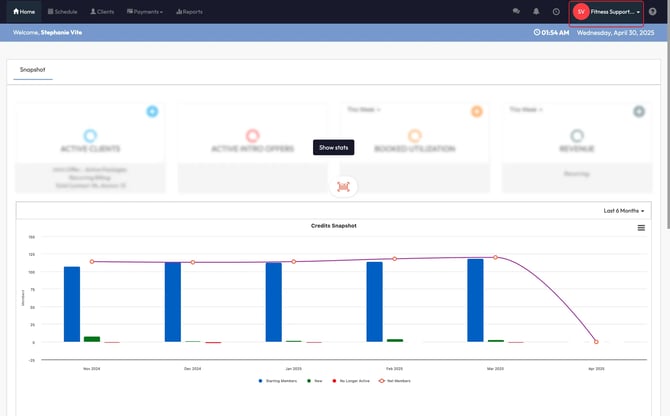
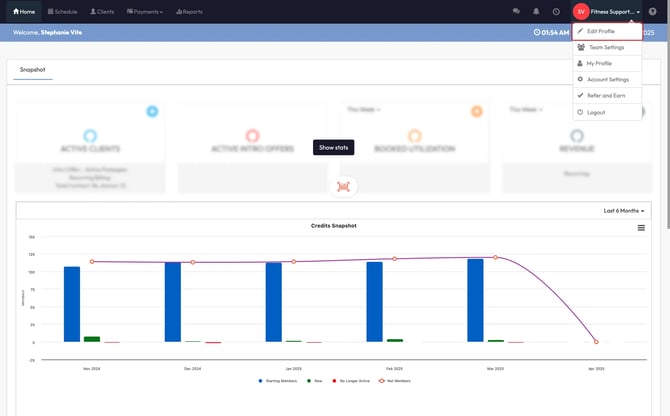
- Click your studio name in the top right
- Select Edit Profile from the dropdown
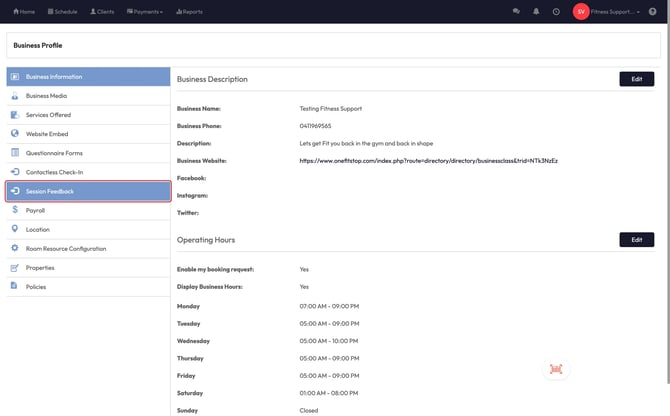
- On the left, click Session Feedback
This is where you’ll manage all your feedback forms.
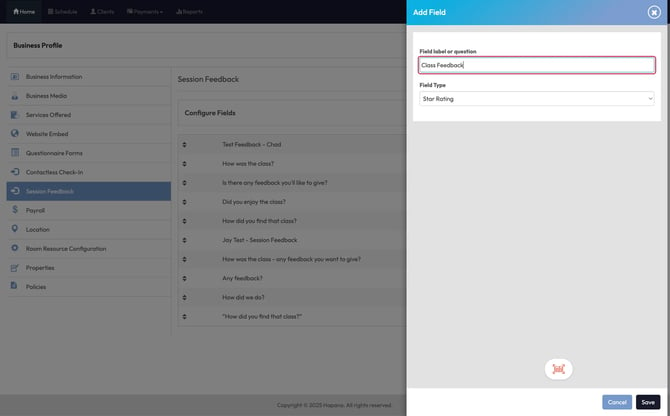
2. Add a new feedback field
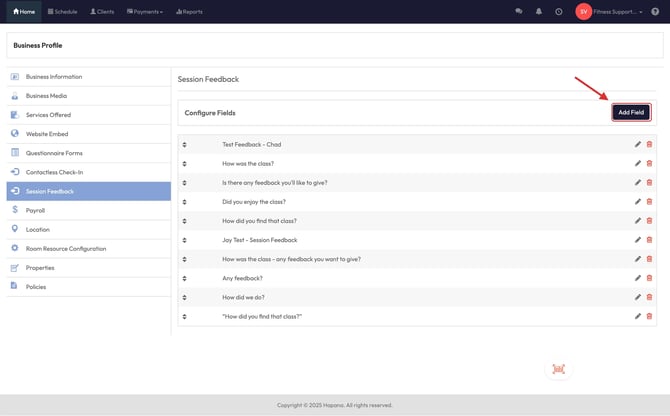
- Click Add Field in the top right
- For Field Name, type something like “Class Feedback”
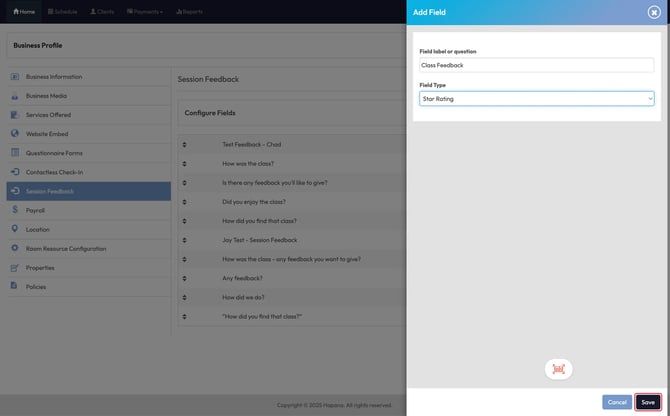
- Choose your Field Type:
- Star Rating = 1–5 star scale
- Multi-line Text Input = open text box for written comments
- Click Save
Tip: Use star ratings for quick client input. Use text if you want detailed comments.
How to enable feedback for specific classes
1. Open schedule templates
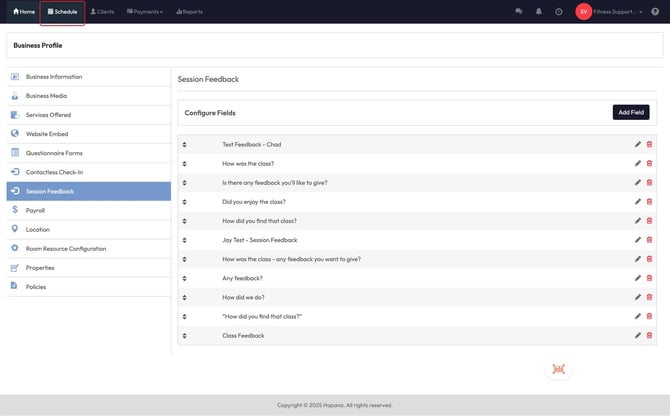
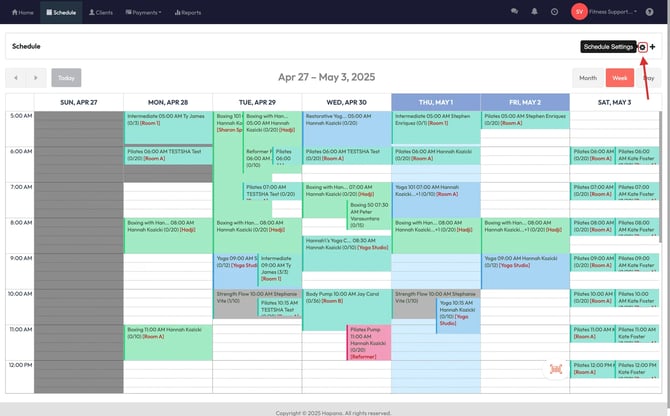
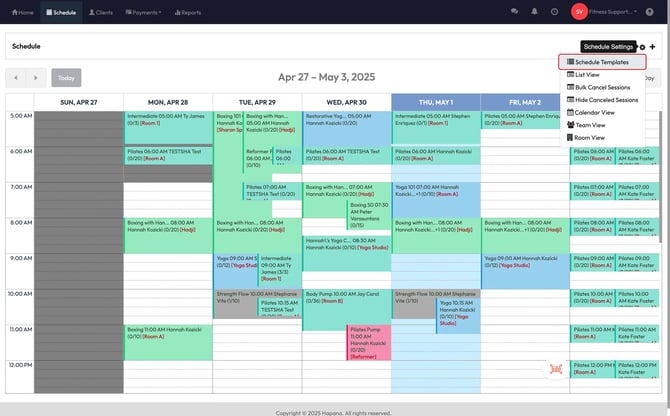
- Click Schedule in the top nav
- Click the gear icon on the right side
- Select Schedule Templates
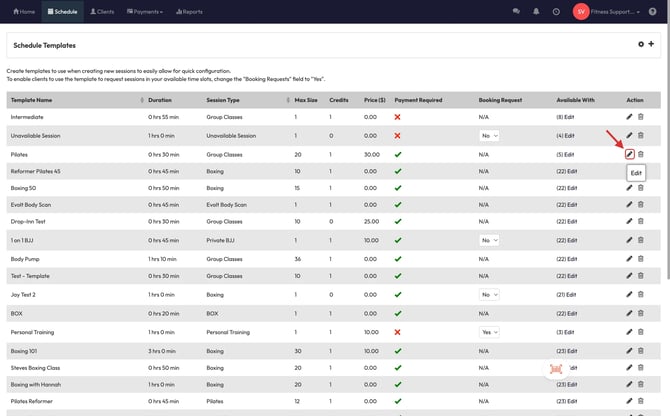
This shows a list of all class types offered at your studio.
2. Turn feedback on for a class
- Find the class (e.g., Cycle)
- Click the edit icon on the right
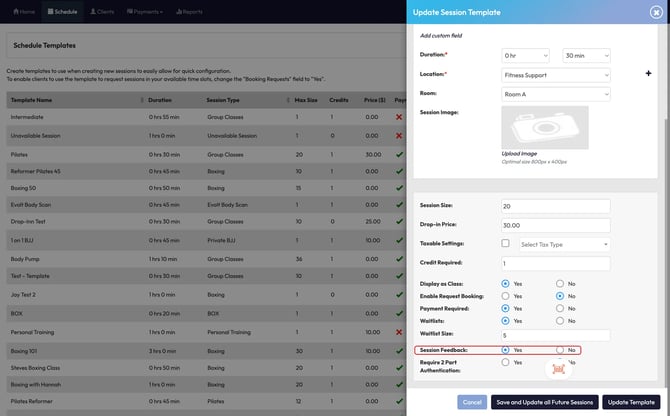
- Scroll to the bottom
- Find Session Feedback and toggle it to Yes
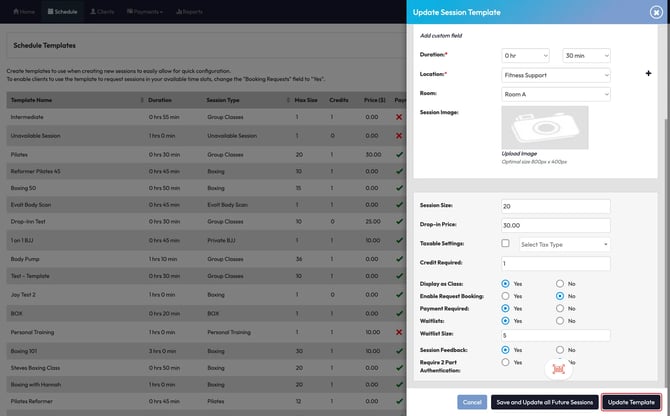
- Click Save, then choose to Update All Future Sessions
Now, anyone who attends that class moving forward will be prompted to leave feedback in the app.
Expected outcome
After attending selected classes, clients will see a feedback prompt. Their responses will appear in the session feedback reports for review.
FAQs
Can I enable feedback for just one class?
Yes — feedback is set per session template. You can toggle it on or off individually.
Where do I view client responses?
Go to Reports > Session Feedback Report to view responses by date, class, or instructor.
Can I collect both star ratings and written feedback?
Yes — create two separate fields and they’ll show together after class.
Can I remove review feedback?
This request needs to be forwarded to the Hapana Development Team. Please contact the Hapana team to assist with this process.
Still need help?
Reach out to our support team via support@hapana.com