
Overview
This guide covers how to track overdue member payments using Hapana's new Delinquency Reporting Suite. It helps you monitor unpaid invoices, manage accounts receivable, and take action faster with clear, structured reports.
Whether you're following up with individual members or reconciling your AR at the business level, these reports give you what you need with no more guesswork.
How to Download the Delinquency Report
- Select 'Reports' in the navigation bar.
- Select 'Clients & Attendance' in the Report Categories
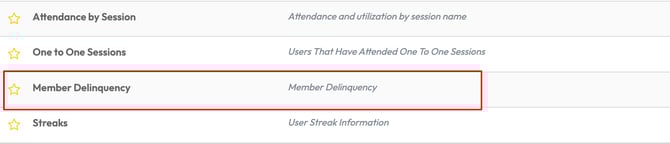
- Select 'Member Delinquency'
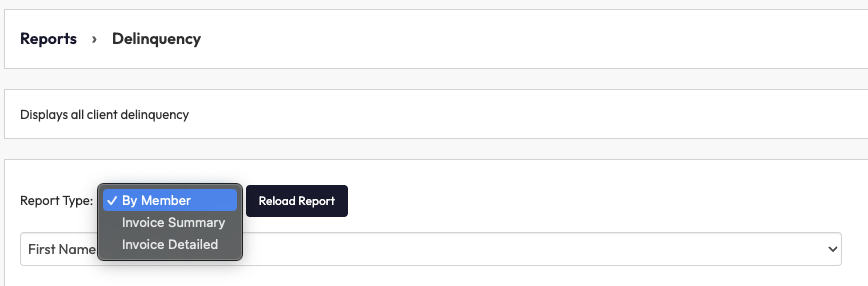
4. Choose your Report Type from the dropdown:
- By Member
- Invoice Summary
- Invoice Detailed
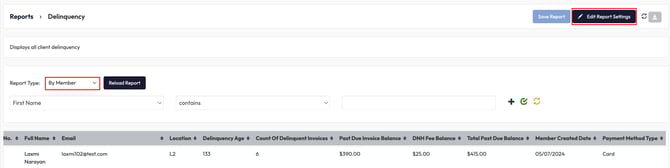
1. View Delinquency by Member
This report gives you a member-level overview. Each member appears only once, with a summary of what they owe.
To access this report:
-
Follow steps 1-3 above
-
Select Delinquency Report Type: By Member
-
Use filters to refine your view
Core columns include:
-
Member Full Name
-
Member Email
-
Location
-
Member Delinquency Age (age of their oldest unpaid invoice)
-
Count of Delinquent Invoices
-
Member Past Due Invoice Balance
-
Member DNH Fee Balance
-
Member Total Past Due Balance
-
Member Created Date
-
Payment Method Type
Tip: Use the 'Edit Report Settings' button to add additional columns.
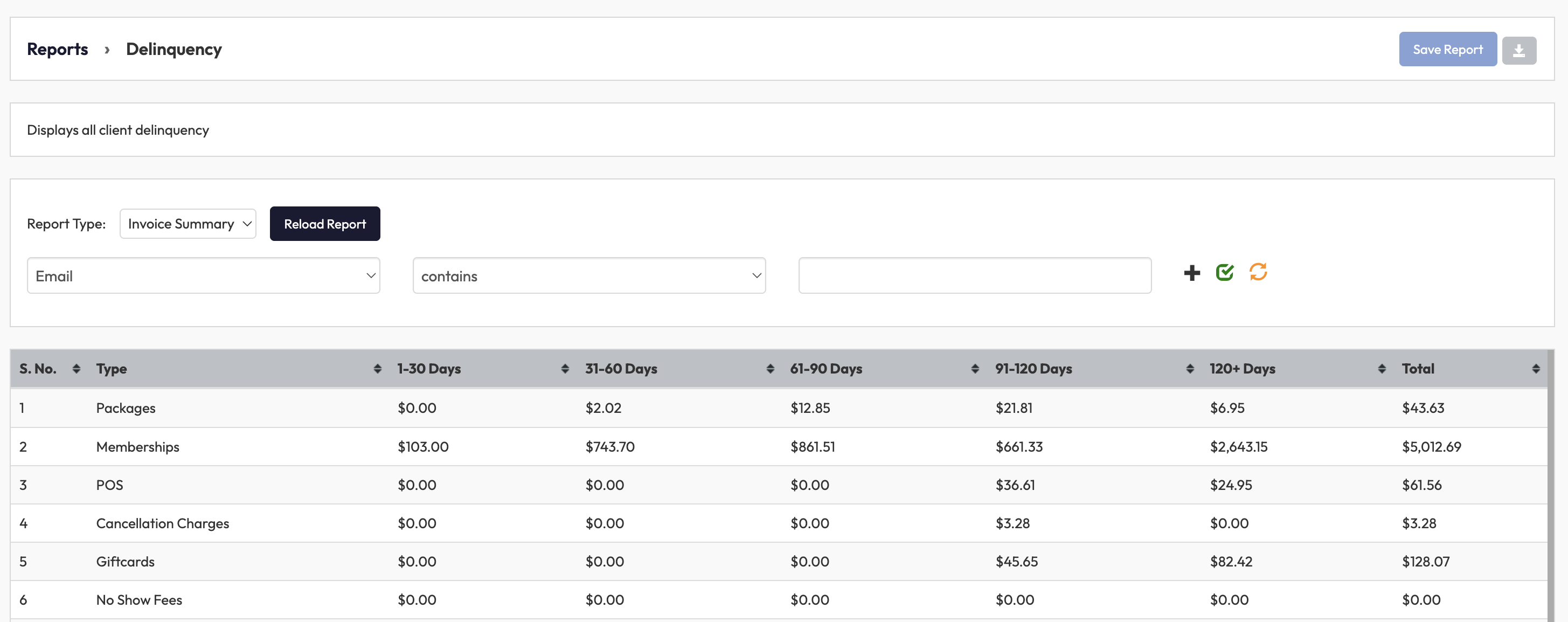
2. Use the Invoice Summary Report for AR Teams
This report shows a summary view by aging buckets and revenue type. It's built for accounting and finance teams who need to see totals at a glance.
To access this report:
-
Follow steps 1-3 above
-
Select Delinquency Report Type: Invoice Summary
-
Click Reload Report
The report displays columns for each aging bucket:
-
1–30 Days
-
31–60 Days
-
61–90 Days
-
91–120 Days
-
120+ Days
-
Total
Type Break down include:
-
Memberships
-
Packages
-
DNH Fees
-
Other
-
and more
Tip: Export this report monthly for your finance or AR team’s reconciliation.
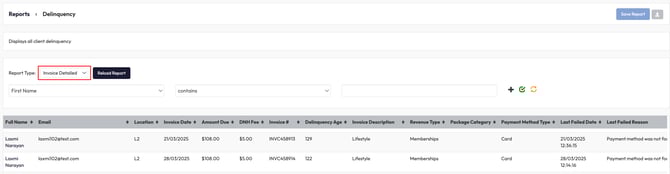
3. View Delinquency by Invoice Detail
This report lists every unpaid invoice individually. It's useful for diving into specific cases or investigating failed payments.
To access this report:
-
Follow steps 1-3 above
-
Select Delinquency Report Type: Invoice Detailed
-
Click Reload Report
Each row represents one invoice, even if a member has many.
Columns include:
-
Member Full Name
-
Member Email
-
Location
-
Invoice Date
-
Amount Due
-
DNH Fee
-
Invoice Number
-
Delinquency Age
-
Invoice Description
-
Revenue Type
-
Package Category
-
Payment Method Type
-
Last Failed Date
-
Last Failed Reason
Expected Outcome
After using these reports, you’ll be able to:
-
See who owes what, and how long it’s been overdue
-
Take action on specific members or invoices
-
Export summaries for accounting, collections, or management review
FAQ
Q: How is invoice age calculated?
A: It’s the number of days since the invoice due date.
Q: What counts as “delinquent”?
A: Any invoice with status UNPAID and a due date earlier than today.
Q: Can I see upcoming invoices too?
A: Yes, totals may include future invoices if configured, but delinquency buckets only reflect past-due invoices.
Need help? Reach out to our support team via support@hapana.com