


 74
74
Overview
The Pro-Rated Billing for Secondary Recurring Fees feature lets you charge members fairly when their membership begins mid-cycle. When enabled, the system automatically calculates a proportional (pro-rata) amount.
This ensures:
-
Accurate charges based on actual usage
-
Clearer billing and reporting for both staff and members
-
A better checkout experience at the point of sale
Prerequisites
Before you start:
-
You must have access to Core and the Retail > New Sale section.
-
The membership you’re selling must include a Secondary Recurring Fee.
Steps to Configure Pro-Rated Billing for Secondary Fees
Pro rated billing can be enabled for Secondary Fees during checkout.
1. Select the Membership
-
In Core, go to Retail > New Sale.
-
Choose the membership you want to sell.
2. Enable Fixed Billing
-
Scroll down to Secondary Recurring Fee section
-
A toggle appears next to the secondary fee during checkout - switch the toggle ON.
-
Switching on the toggle activates pro-rated billing for the secondary fee, allowing you to configure the Secondary First Payment Date.
3. Choose the Billing Pattern
Depending on your needs, configure the Secondary First Payment Date.
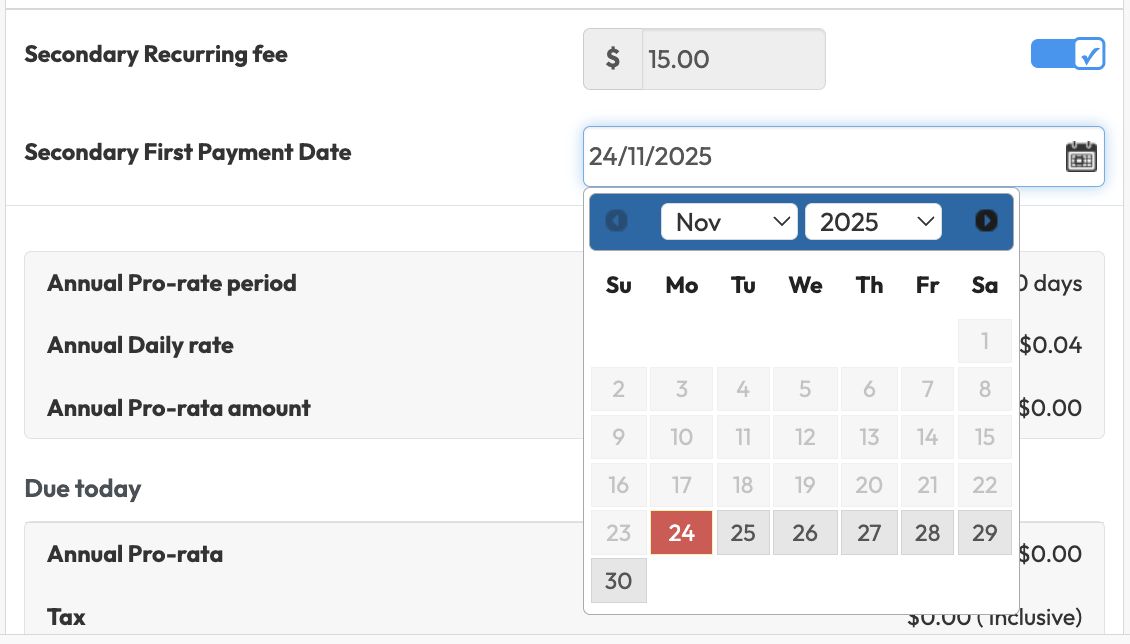
4. Review the Pro-Rata Charges
After selecting the billing pattern, the system automatically displays a summary of the pro-rated calculations:
| Field | Description |
|---|---|
| Annual Pro-rate Period | Number of days until the first full charge. This is dependent on the Set First Payment Date Days set in membership configuration. |
| Annual Daily Rate | Daily cost based on membership cycle length. |
| Annual Pro-rata Amount | Total charge for the current period before the next billing cycle. Calculated based on cycle length and daily rate. |
| Total Due Today | This is the total amount due today which includes pro-rata charge and tax. |
Understanding How Pro-Rating Works for Secondary Recurring Fees
When a membership has secondary recurring fees, Hapana uses your Primary Fixed Billing setting to decide where the pro-rated period starts. This ensures that all charges line up clearly with the member’s billing cycle. Please see our Pro-Rated Billing for Unlimited Credit Memberships article for more information on the Primary Fixed Billing setting.
Here’s the simple breakdown:
If the Primary Fixed Billing toggle is ON
-
Hapana starts counting the pro-rated days from the member’s credit activation date.
-
It then calculates the pro-rated amount up to the secondary fee’s first payment date.
Think of it like this:
The member is paying only for the days they can actually use the service from activation until their first secondary fee charge.
If the Primary Fixed Billing toggle is OFF
-
Hapana starts calculating pro-rated days from the membership’s primary first payment date.
-
It still ends the pro-rated period on the secondary fee’s first payment date.
In simple terms:
The pro-rating follows the main membership billing schedule, not the activation date.
How the Oncycle Date Affects Secondary Pro-Rated Charges
The Oncycle Date, set in the membership configuration, plays an important role in how secondary pro-rated periods and charges are calculated.
If the Oncycle Date is past or the current date:
-
The pro-rated period is calculated from today’s date through to the Secondary First Payment Date.
-
The secondary pro-rated charge is applied immediately and included in Total Due Today.
If the Oncycle Date is in the future:
-
The pro-rated period is calculated from the future Oncycle Date through to the Secondary First Payment Date.
-
The secondary pro-rated charge is not applied on the same day.
- Instead, the charge is scheduled to occur on the Oncycle date defined in the Set First Payment Date Days configuration.
5. Complete Checkout
-
Add to cart to process payment, once reviewed.
-
Select the payment method.
-
The Total Amount and Pro Rated Amount will be displayed clearly during Checkout.
-
Invoice will display Pro Rated dates in the description.
Expected Outcome
After completing these steps:
-
Pro-rated billing applies automatically to the Secondary Recurring Fee.
-
The invoice includes a distinct pro-rated line item.
-
The next full charge is scheduled based on the configured billing pattern.
FAQs
Q: Can pro-rated billing be used for all membership types?
A: Yes, it supports all standard billing cycles, including annual, semi-annual, quarterly, and weekly.
Q: Where can I see the pro-rated charges after checkout?
A: The charges appear in the invoice description and can also be viewed in the Net Revenue Detail 2 report.
Need more help?
Reach out to our support team via [email protected].

