


 85
85
Overview
This article explains how to bulk update all future credit renewal dates for a member’s limited-credit membership. Instead of updating each renewal period one by one, you can now push all future renewal dates forward by 1–30 days in a single action. This keeps billing and credit schedules aligned and saves time for your team.
This tool can be used for:
1. When a membership has been suspended and the billing schedule has shifted, but the credit renewal schedule has not.
2. When there is misaligned credit renewal schedules.
Prerequisites
Before you start, make sure:
-
The membership is a limited-credit membership (e.g. “4 credits per month”).
-
The membership is active, not expired or canceled.
-
Credits in the affected future periods have not been used.
Open the Member’s Profile
-
Go to Clients.
-
Search for the member and open their profile.
-
Go to the Payment tab.
-
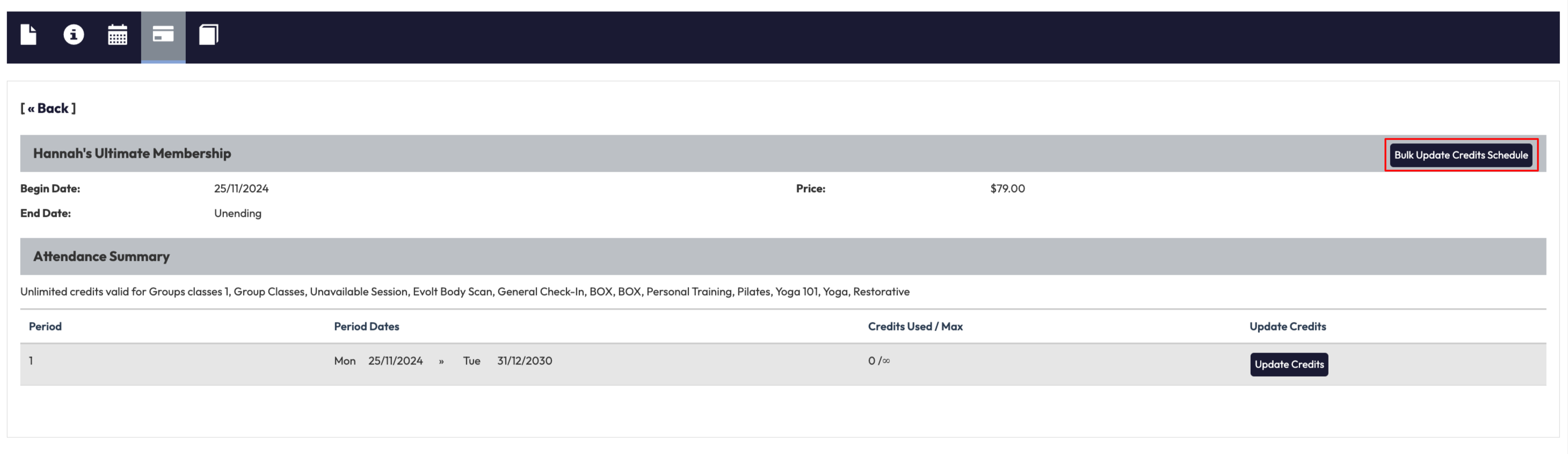
Scroll to the membership you want to update > Click View History
Bulk Update Credit Renewal Dates
Open the Bulk Update Tool
-
Locate the membership’s Attendance Summary section.
-
Review the list of periods to confirm which dates are currently misaligned.
-
In the top-right corner of the credit schedule, click Bulk Update Credit Schedule.
Choose How Many Days to Push the Schedule
-
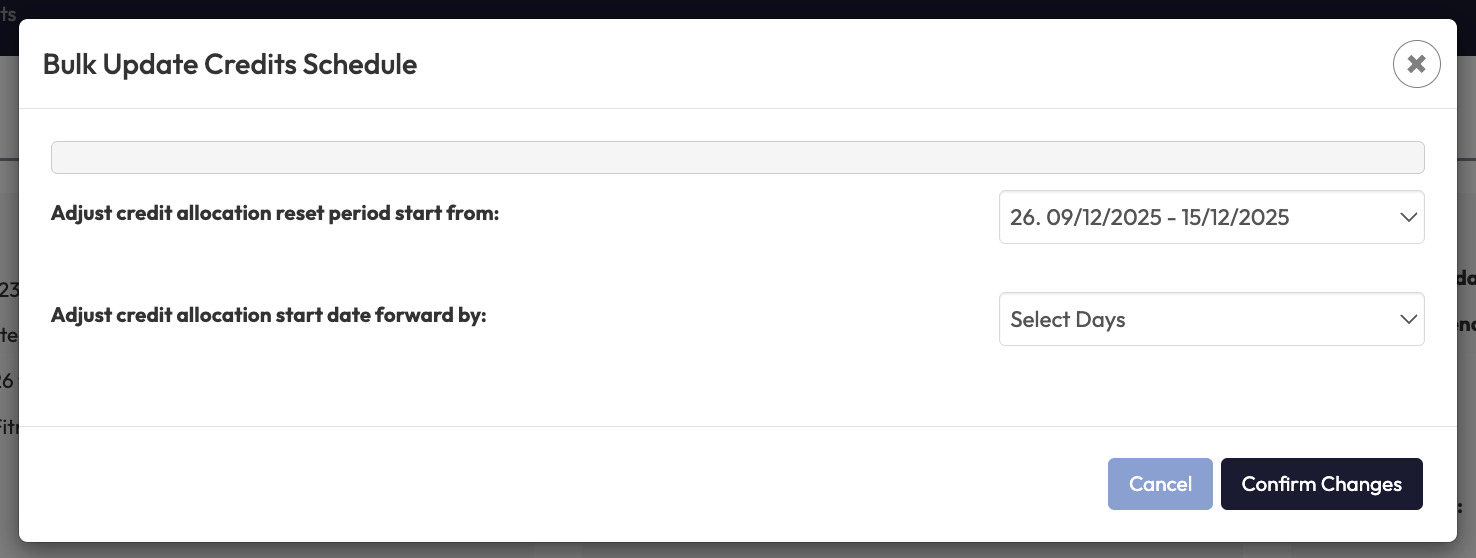
Use the dropdown to adjust credit allocation reset period from. This allows you to use the dropdown to select which period the update will start from.
-
Use the dropdown to adjust credit allocation start forward by. This allows you to select the number of days to push the future renewal dates (1–30 days).
-
Confirm that the number of days matches the member’s suspension or adjustment period.
Tip: For suspensions, match the number of days suspended (e.g., 14-day suspension = push by 14 days).
Confirm the Bulk Update
-
Review the Preview of Changes section before confirming.
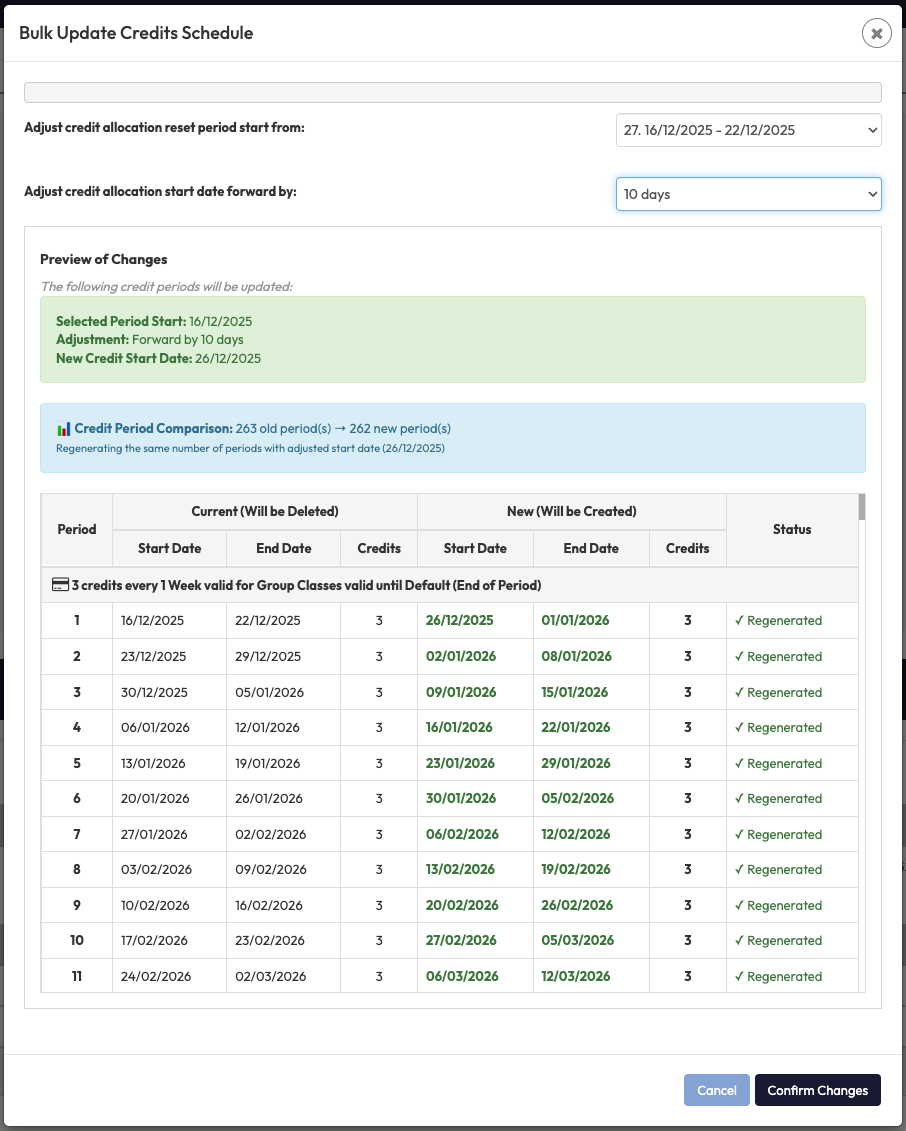
2. Review any warning message explaining how updates affect future periods.
3. Click Confirm Changes to apply changes.
4. Hapana automatically updates all future renewal periods.
Tip: If future credits are already used or the membership has custom expiry rules, you’ll see a validation message instead.
The bulk update tool follows a set of rules to keep membership credit schedules accurate. Here’s a simple breakdown of what you can and can’t update, and what the system will do in each case.
|
Membership Type |
Bulk Update Available? |
What Happens |
|---|---|---|
|
Unlimited credits |
❌ No |
Feature disabled - not applicable |
|
Limited credits with standard expiry (e.g. 3 credits/week for 10 weeks) |
✅ Yes |
End date stays fixed. Credit allocation start dates shift forward. Last period may change in length to accommodate fixed end date. Some periods may be removed. |
|
Limited credits with custom expiry/rollover (e.g. 3 credits/week, but credits valid for 2 weeks) |
❌ No |
Feature disabled |
|
Unending membership with limited credits |
✅ Yes |
All dates shift forward up to system end date (2030) |
Expected Outcome
After completing the steps, all future credit renewal dates shift by the selected number of days. Past credit periods remain unchanged.
FAQ
Q: Why can’t I bulk update this membership?
A: Bulk updates aren’t allowed if the membership has unlimited credits, custom expiry rules, expired memberships, or if future credits have already been used.
Q: Does this change the membership expiry date?
A: No. Bulk updates only modify credit renewal dates. Membership expiry never changes.
Q: Will bookings be affected?
A: If a credit period with an existing future booking moves, that booking is refunded and set to pending. A message will notify you before confirming.
Need help? Reach out to our support team via [email protected].

