


 68
68
Overview
This article shows you how to update the Business Email that displays in your agreements, and communication templates. This new field connects to the <BUSINESSEMAIL> tag so your client-facing communications always show the correct business email.
Use the <BUSINESSEMAIL> content tag for:
- Membership and Package Agreements (See more: Use Shortcodes in Membership and Package Agreements)
- Communication Templates (See more: How to Customize Email Triggers and Message Content Guide)
Open Your Business Profile
-
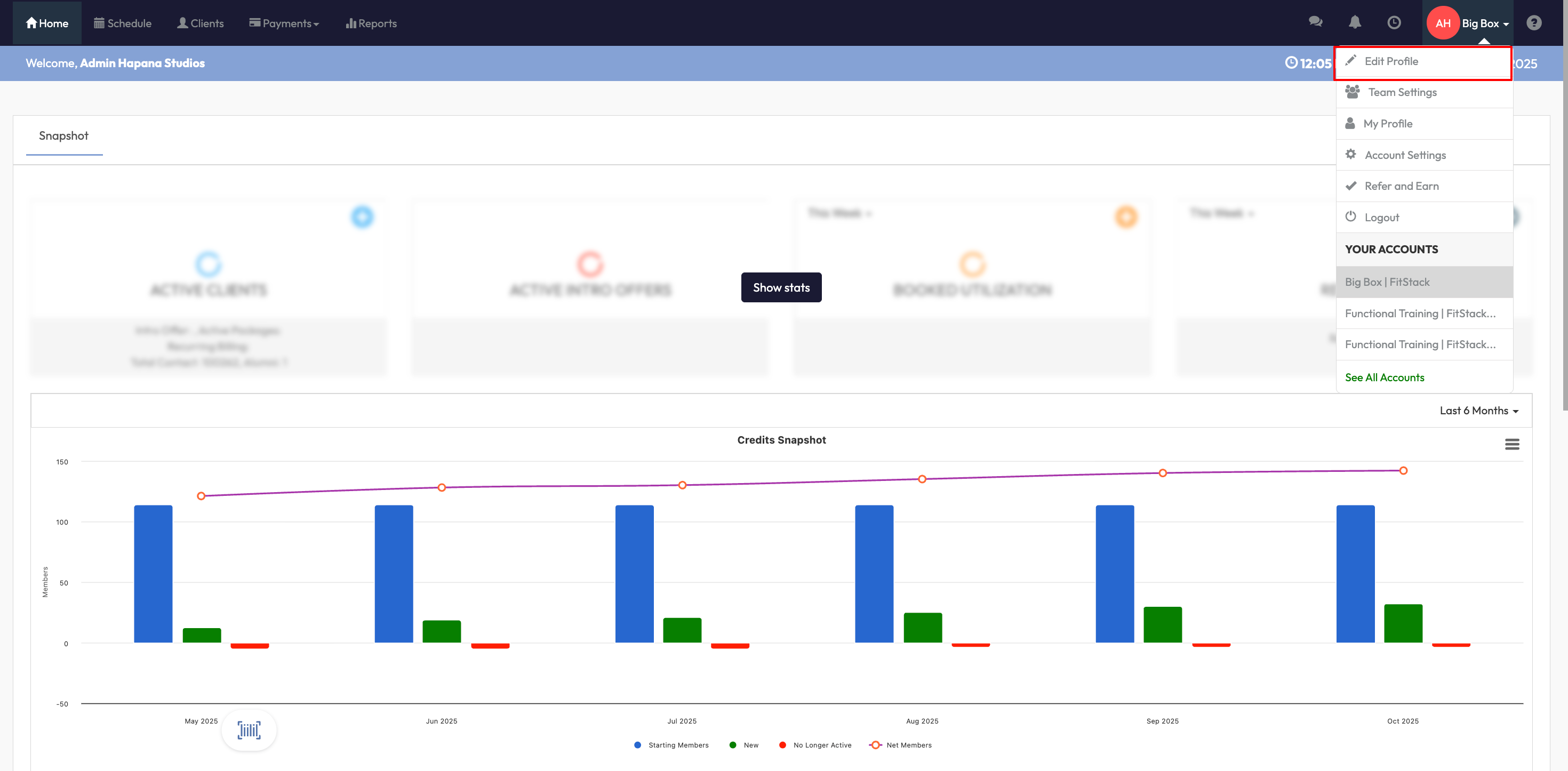
Click your location name at the top right of the screen
-
Select Edit Profile from the dropdown
-
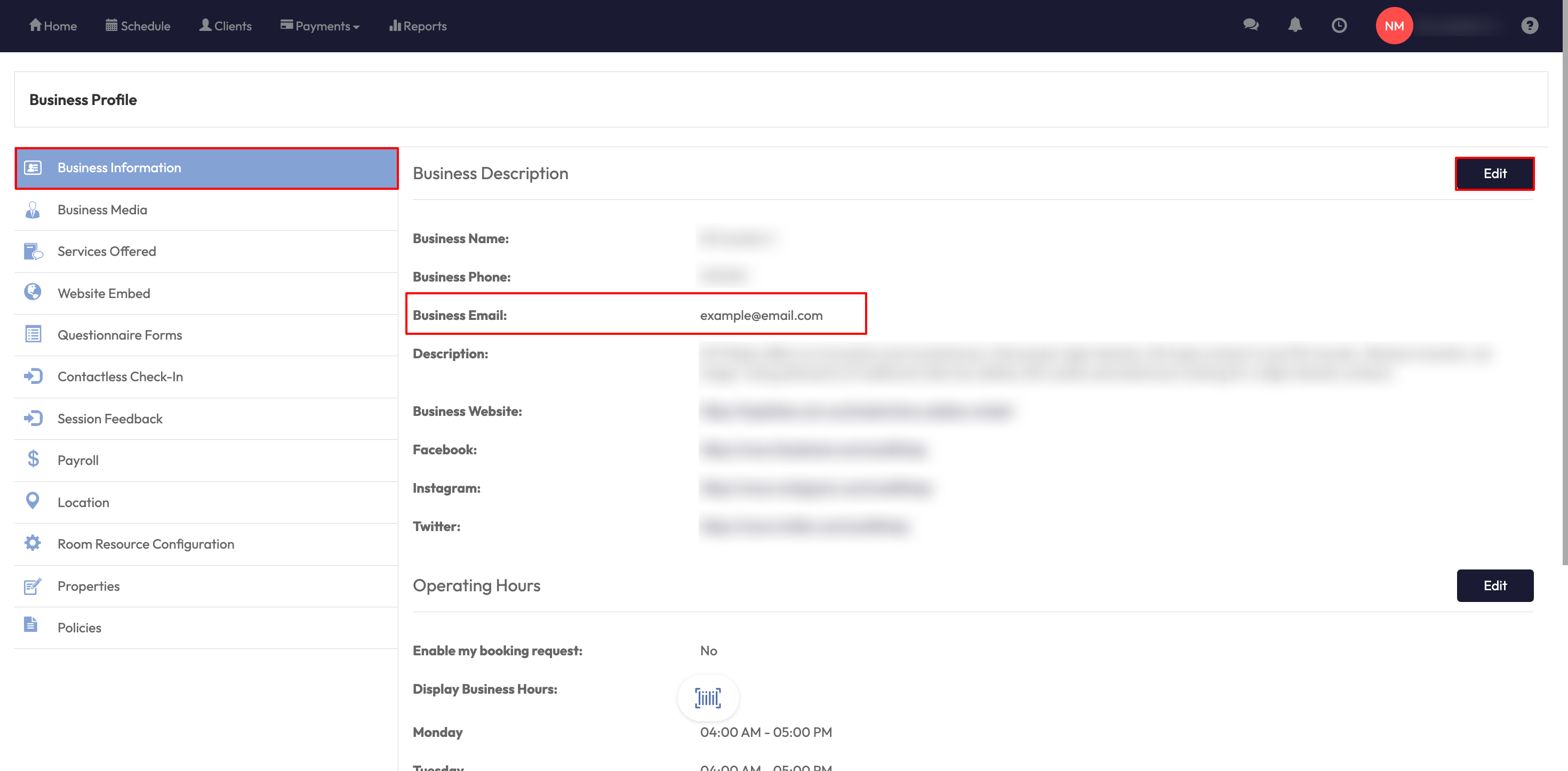
Select Edit within Business Profile > Business Information section
Enter Your Correct Business Email
-
Locate the Business Email field within the Business Information section. Important note: This Business Email field will be populated by default with your Invoice email as set in Payments > Retail Configurations > Retail Settings > Client Invoice Settings.
-
Type your location’s preferred contact email.
-
Select Save to apply changes.
Using the Update in Your Templates
-
Open any Agreement, or Communication Email Template that uses the <BUSINESSEMAIL> dynamic tag.
-
Insert the <BUSINESSEMAIL> dynamic tag
-
No further edits are required, templates update automatically with the email set in the new Business Email field.
Expected Outcome
After updating your Business Email in the Business Email field, all documents using the <BUSINESSEMAIL> tag will display the correct contact email. The <BUSINESSEMAIL> dynamic content tag will automatically pull from this field, ensuring your agreements and communication templates stay accurate and professional.
FAQ
Q: Do I need to update all my templates manually?
A: No. Any template using the <BUSINESSEMAIL> tag will automatically display the updated email.
Q: What was my Business Email set to originally?
A:When your location was created, it was automatically filled with your invoice email. You can now change it to whatever contact email works best.

