


 52
52
Overview
This article walks you through how to control whether members can see all of their buddies’ upcoming sessions or only the sessions they personally booked for them. With this setting, you decide what information is visible in the member app.
Prerequisites
-
You must be an account administrator with access to Account Settings.
-
Book-a-Buddy must already be enabled in your account.
-
Important: This setting is set to Enable by default.
Steps
1. Locate the Buddy Session Sharing toggle
-
Click your location name in top right of screen
-
Select Account Settings in the dropdown
-
Open the Configuration section
-
Go to Business Profile and select Edit
-
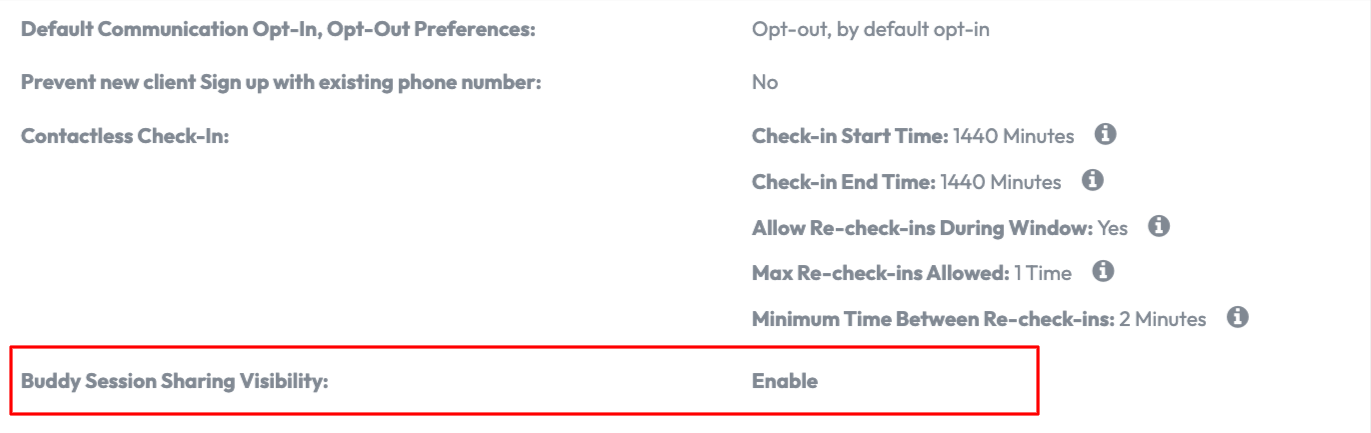
Scroll down to the Buddy Session Sharing Visibility
2. Choose your visibility mode
You can switch between two modes:
-
Enabled (default) – Members can see all buddy sessions, even those buddies booked for themselves.
-
Disabled – Members can only see the sessions they personally booked for their buddies.
Tip: Disabling the toggle does not affect members’ ability to book for their buddies.
3. Save your changes
-
Click Save to apply the update.
-
Your member apps will automatically adjust what they display based on your selection.
Expected Outcome
Once you update the setting:
-
Enabled: Members see their own sessions plus all sessions their buddies are booked into.
-
Disabled: Members see their own sessions and only the buddy sessions they booked themselves.
FAQ
Q: Will members still be able to book sessions for their buddies?
A: Yes. Disabling sharing only affects visibility, members can still book and view sessions they personally booked.
Q: Does this impact buddy relationships?
A: No. Buddy connections remain visible. Only session visibility changes.
If you need help, reach out to our support team at [email protected].

